charlesl62350862
Participant
March 21, 2017
Answered

How to make sharp angles on text drawn with brush tool ?

  • March 21, 2017
  • 3 replies
  • 930 views

Hello,

I have drawn a text with my tactile pen (brush tool) on illustrator. I've been trying to make the angles of each letter look sharp but I can't find how to do it. I've used the angle sharpner in stroke window, still doesn't do anything.
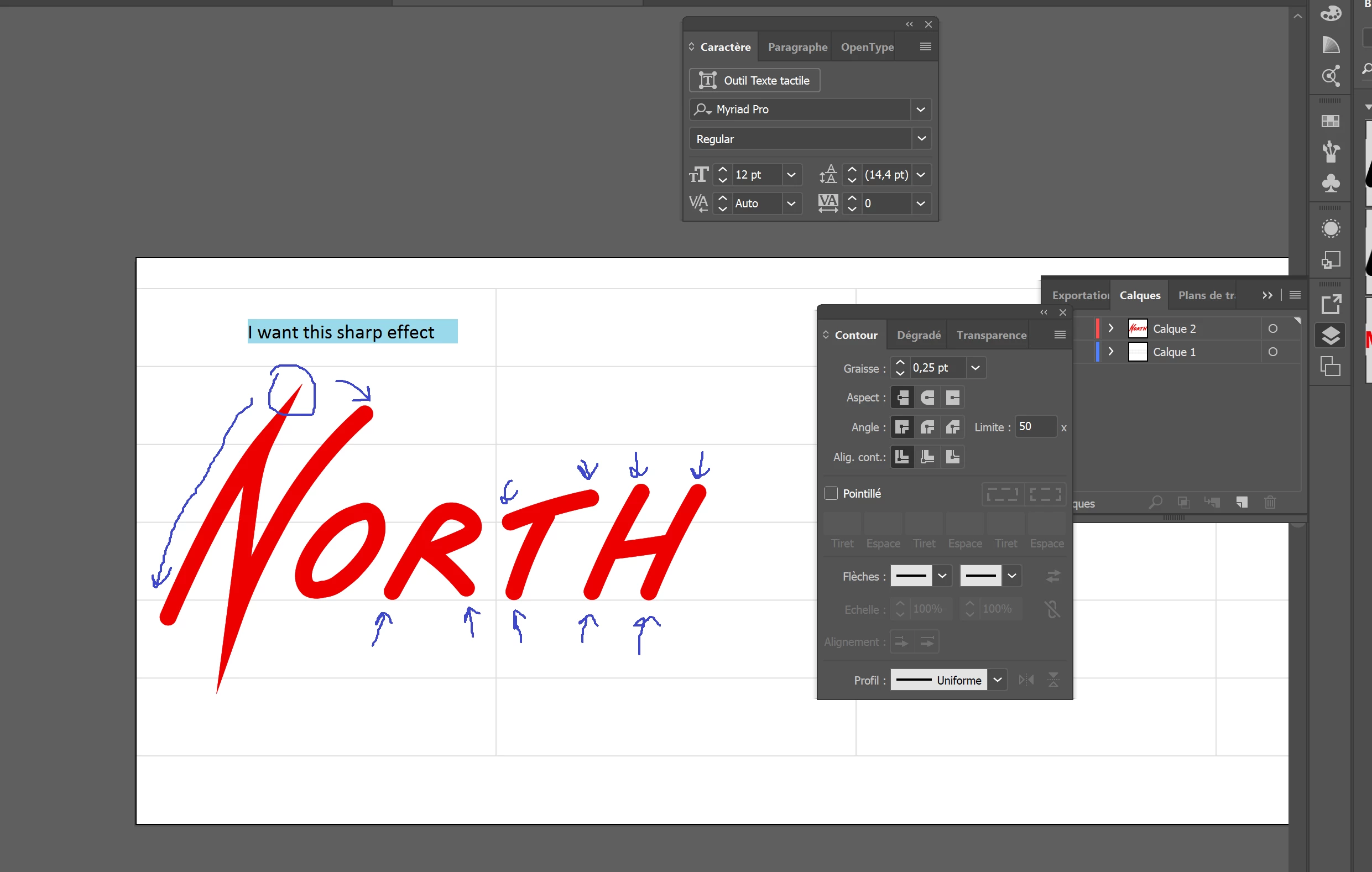
Does someone know ? Thank you

    This topic has been closed for replies.
    Correct answer Simmer1

    Hi Charles,

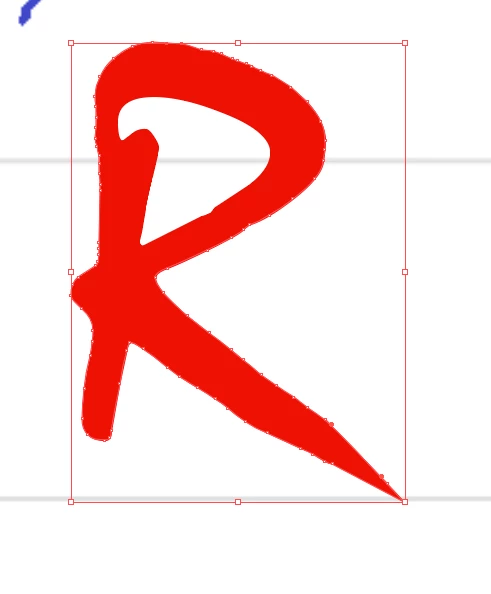
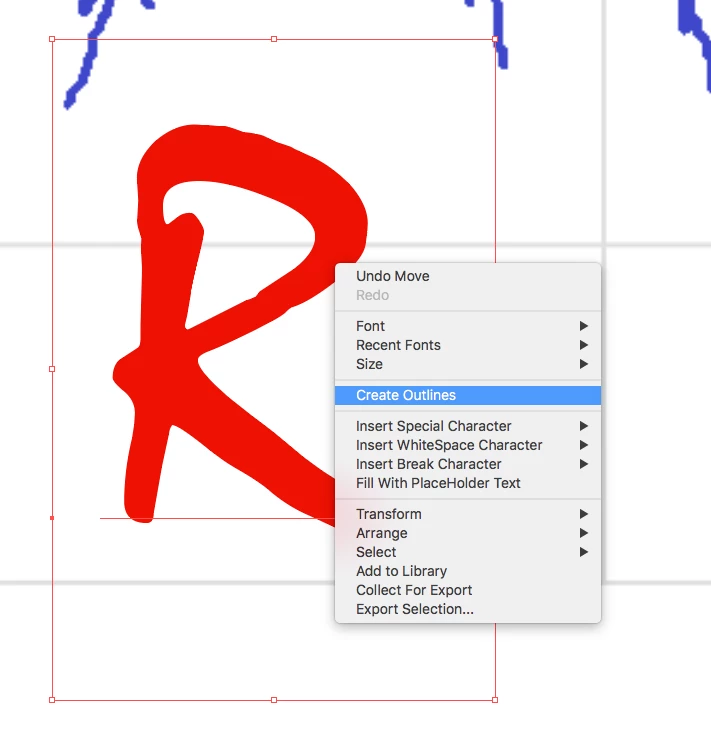
    First you will need to right click on the text and select create outlines using the Selection Tool:

    Then using the direct selection tool select a corner anchor point, pull it to the desired position and rotate the nodes until you get a sharpe angel.

    Thanks,

    Sim

    3 replies

    charlesl62350862
    Participant
    March 23, 2017

    Thanks !

    Simmer1
    Community Expert
    Community Expert
    March 23, 2017

    Hi Charles,

    I am glad we could help!

    Thanks,

    Sim

    Mike_Gondek10189183
    Community Expert
    Community Expert
    March 21, 2017

    I would recommend using the  width tool on each point you need to make.

    1. change the calligraphy brush stroke you added with brush tool and chose basic, then increase the stroke weight
    2. choose the variable width tool
    3. add a point here where you want the stroke taper to start (tricky part - pull to the width of stroke to add a point)
    4. pull the handles inwards here to make a point

    you will need to do this for each point, but won't take too long once you get into the the rhythm

    Simmer1
    Community Expert
    Simmer1Community ExpertCorrect answer
    Community Expert
    March 21, 2017

    Hi Charles,

    First you will need to right click on the text and select create outlines using the Selection Tool:

    Then using the direct selection tool select a corner anchor point, pull it to the desired position and rotate the nodes until you get a sharpe angel.

    Thanks,

    Sim