January 14, 2026
Answered

How to make the line like this

  • January 14, 2026
  • 3 replies
  • 271 views

Hello Everyone!


I want to draw the line like this but I tried with curvature tool and also pen tool it's also not working.

any ideas, tutorials or what is it called?

Correct answer Conrad_C

When a graphic looks similar to a basic shape like that running track does, it’s often faster to start with a basic shape and edit from there. The running track is just a variation on an ellipse. The demo below shows these steps: 

1. Draw a circular ellipse with the stroke color set to the running track color, and no fill. 

2. Select the circle and choose the command Edit > Copy, then choose Edit > Paste in Front (or Paste in Back). 

3. Choose Edit > Expand, and expand the strokes so that they become filled “donut” shapes instead. 

4. Use the Scale tool to scale down the Height dimension. 

5. Use standard path editing techniques to refine the path shapes as needed. I used the Direct Selection tool and arrow-key nudging to move down the top points on the paths so that the top part of the track is thinner, more like the image you attached. 

6. (Not shown) If you want, cut off any parts you don’t want. 
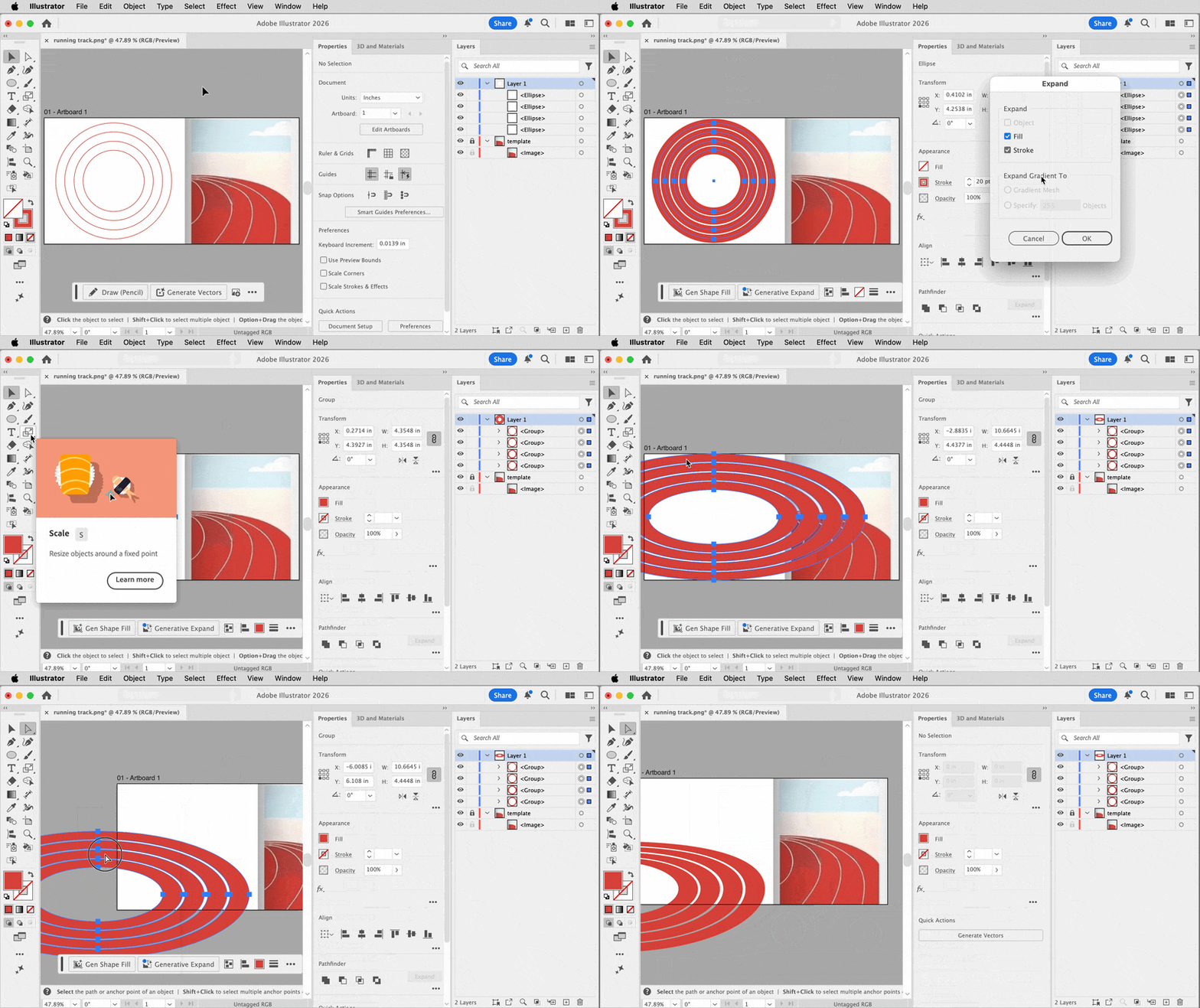
 

Illustrator running track kan_8437 Scale tool.gif


For a slightly different perspective, in step 4 use the 3D and Materials panel instead. Enable the Plane option, and set the X axis to a positive value (with Y and Z set to zero). 

3 replies

Conrad_C
Community Expert
Conrad_CCommunity ExpertCorrect answer
Community Expert
January 14, 2026

When a graphic looks similar to a basic shape like that running track does, it’s often faster to start with a basic shape and edit from there. The running track is just a variation on an ellipse. The demo below shows these steps: 

1. Draw a circular ellipse with the stroke color set to the running track color, and no fill. 

2. Select the circle and choose the command Edit > Copy, then choose Edit > Paste in Front (or Paste in Back). 

3. Choose Edit > Expand, and expand the strokes so that they become filled “donut” shapes instead. 

4. Use the Scale tool to scale down the Height dimension. 

5. Use standard path editing techniques to refine the path shapes as needed. I used the Direct Selection tool and arrow-key nudging to move down the top points on the paths so that the top part of the track is thinner, more like the image you attached. 

6. (Not shown) If you want, cut off any parts you don’t want. 


Illustrator running track kan_8437 Scale tool.gif


For a slightly different perspective, in step 4 use the 3D and Materials panel instead. Enable the Plane option, and set the X axis to a positive value (with Y and Z set to zero). 

kan_8437Author
January 15, 2026

This is really useful! finally I can done this drawing. Thank you so much!

Jacob Bugge
Community Expert
Community Expert
January 14, 2026

kan,


When I click the attachment link, I get this error message:


"Document preview of running track.png
Error displaying attachment content"


Unknown to most, it is quite easy to directly show images in posts, hence the following general suggestion:


Please show images by using the Insert Photos button (looks like moon over mountains) for each at the top of the reply box which makes everything appear right there in your post together with your text, rather than the more conspicuous Drag&drop attachment which requires helpers to open a new tab for each image and wait for its showing, then go back and forth; and if they just click it and wait for its showing and press the X to get back to the text, the image is gone, so if they need another look they have to open it again and wait to see it again.


Edit: Hi Kurt. No show here in the other sense, too.


Conrad_C
Community Expert
Community Expert
January 14, 2026
quote

When I click the attachment link, I get this error message:

"Document preview of running track.png
Error displaying attachment content"

Unknown to most, it is quite easy to directly show images in posts, hence the following general suggestion: Please show images by using the Insert Photos button

By @Jacob Bugge


FYI, Adobe staff in other community forums have posted that the attachment viewing failure is a temporary problem caused by the announced upgrade of the forum software that’s still in progress. 


For now, the workaround is to click the Download icon in the bottom right corner, as long as we accept the potential risks of downloading random files to our own computers. 


That said, I totally agree that it’s a much better experience for us when images are inline instead of attached. 

Jacob Bugge
Community Expert
Community Expert
January 14, 2026

Ah, thank you, Conrad.


With that cat obviously out of the bag, I am afraid the risk is very real already.


Kurt Gold
Community Expert
Community Expert
January 14, 2026

I would call it some practice with the Pen tool or Curvature tool.


Then you will certainly be able to draw the paths with ease.

