gerbiljo
Known Participant
March 15, 2026
Answered

How-To Outlines on image

  • March 15, 2026
  • 2 replies
  • 81 views

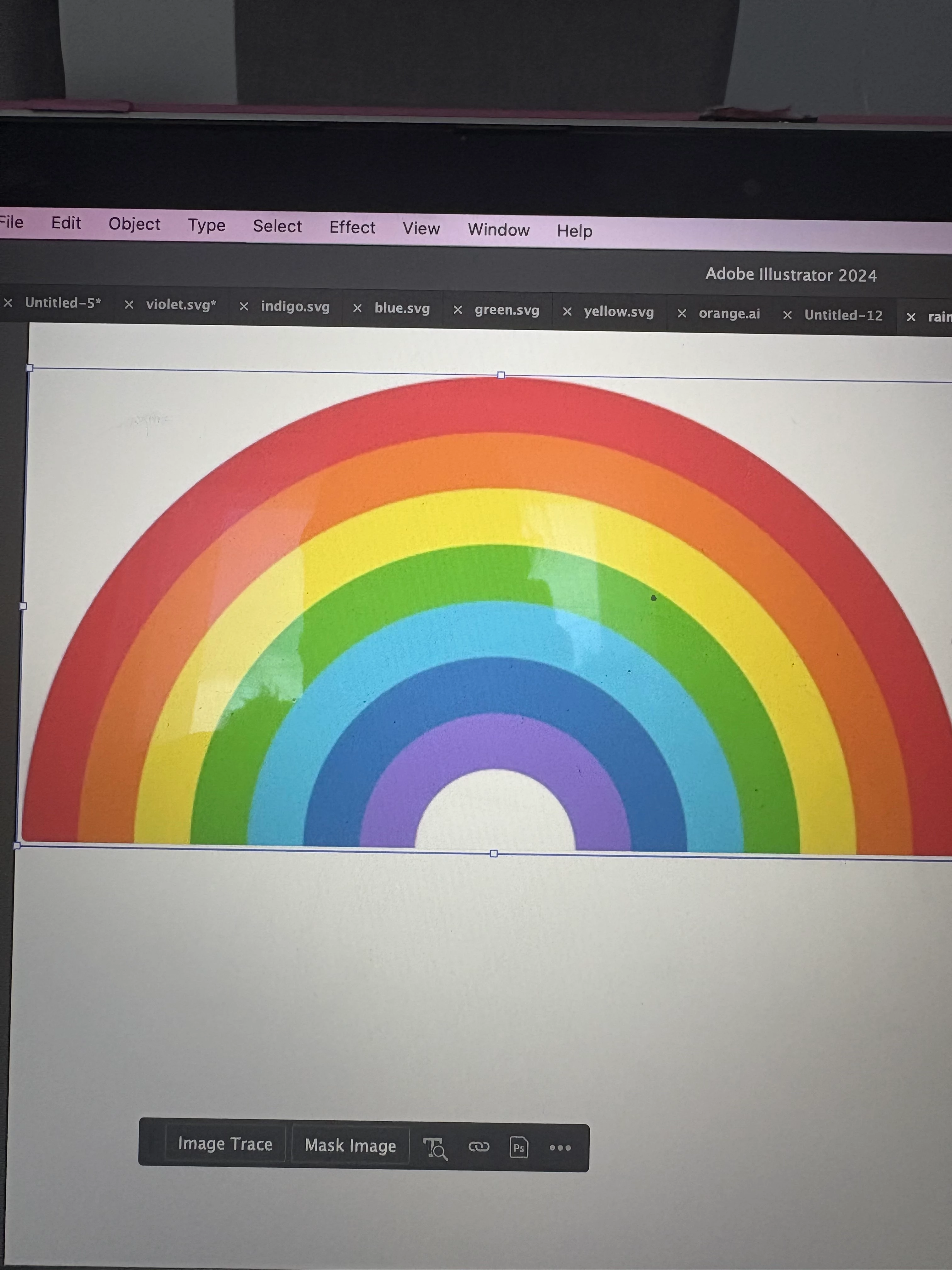
Please can someone help me to get outlines on this image?
We have spent ages trying to do it and managed it once but there were then double lines where the colour changed slightly and I feel there must be an easier way of doing it, but even spending ages to remove the double lines we managed to lose the smooth edge.

I was really hoping there was a way without me manually tracing it. If someone has a really basic video that would be amazing because I need to learn how to do this and it’s so frustrating having such a mental block with program.

At the moment we can’t even get the outlines after starting again
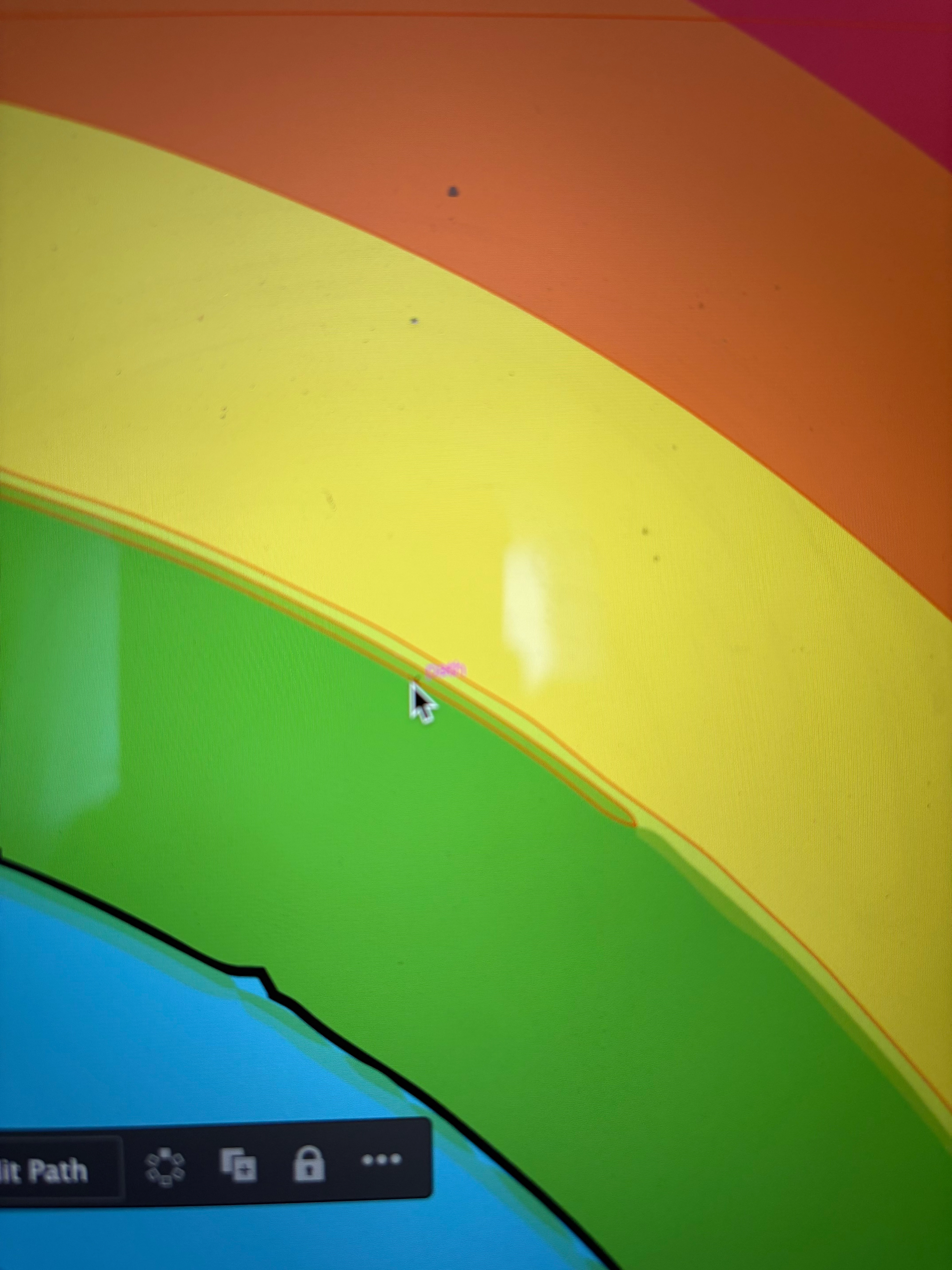
every is greyed out, ty.
    Correct answer Ton Frederiks

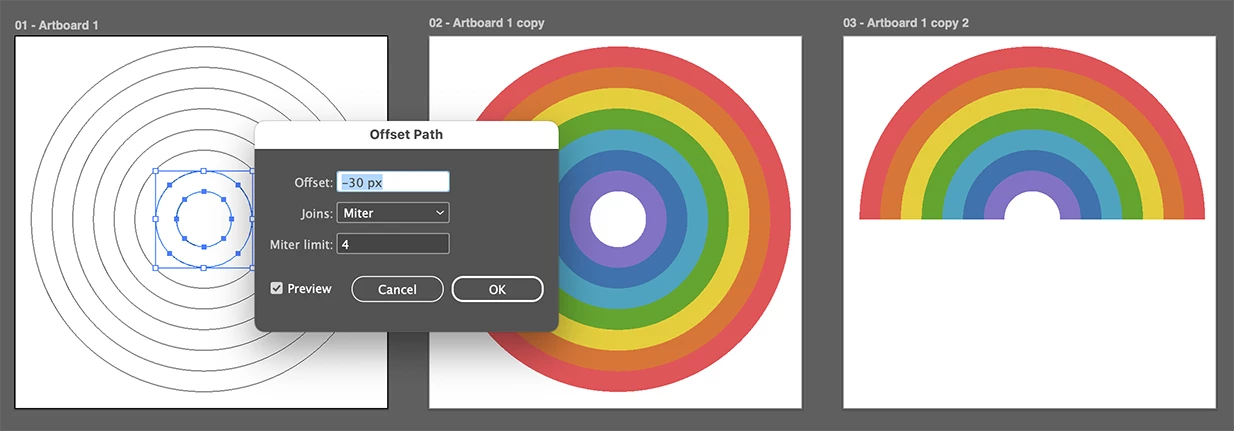
    @gerbiljo The easiest and cleanest way is to create it from scratch.

    I started with a large circle and did Object > Path > Offset Path and repeated it as many times as needed. 

    I colored the ovals, you can use the Eyedropper to pick up the colors from the image and apply them to the circles.

    You can  direct select (A) the lower anchor points and delete them and if you want separate shapes, us PathFinder > Divide.


    2 replies

    Ares Hovhannesyan
    Community Expert
    Community Expert
    March 15, 2026

    That can be done also with appearance panel. Adding strokes width different width and then we can use Expand Appearance. My 2 cents. 

    gerbiljo
    gerbiljoAuthor
    Known Participant
    March 15, 2026

    Ok ty

    Ton Frederiks
    Community Expert
    Ton FrederiksCommunity ExpertCorrect answer
    Community Expert
    March 15, 2026

    @gerbiljo The easiest and cleanest way is to create it from scratch.

    I started with a large circle and did Object > Path > Offset Path and repeated it as many times as needed. 

    I colored the ovals, you can use the Eyedropper to pick up the colors from the image and apply them to the circles.

    You can  direct select (A) the lower anchor points and delete them and if you want separate shapes, us PathFinder > Divide.


    gerbiljo
    gerbiljoAuthor
    Known Participant
    March 15, 2026