How to prevent an object within another object from getting "colored in"?
Hello everyone! I am using Illustrator to make a geologic map for a class. In the picture below, the yellowish object above the 13 S is on the same layer as the tiny off-white object to the left of the 12 S. I want it to be the same color (off-white). However, when I fill the larger layer beneath it, it overlaps the object and blends both colors, due to the transparency (the transparency is required). I've tried locking that layer to keep it from getting filled in, to no avail. I've tried both the eyedropper and the fill function. I also tried drawing a border around the object on the other layer. Nothing seems to work, but I'm guessing there must be some king of function that allows transparent objects on an island to not be affected by the layer surrounding it.
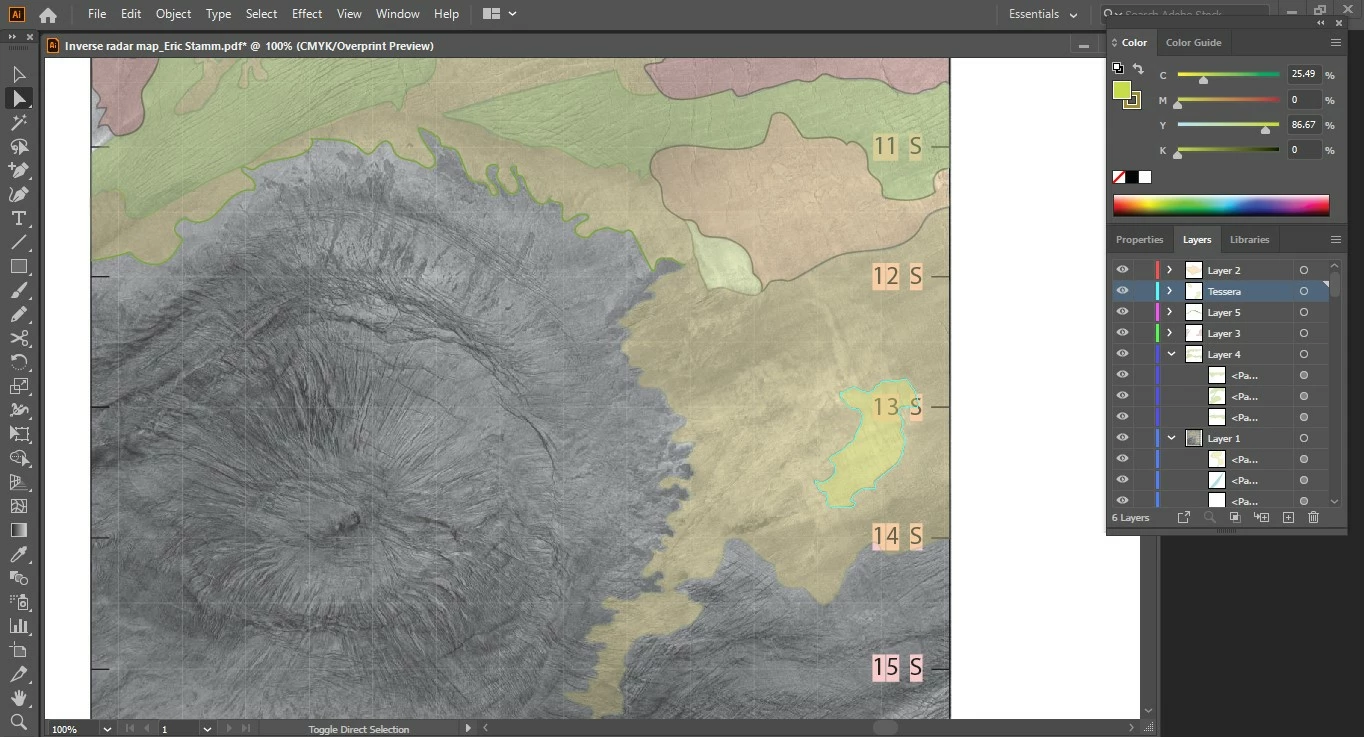
I hope I was clear enough about what I'm trying to do. This is due in a couple of days, so I appreciate any help!
 AdChoices