Known Participant
January 23, 2017
Answered

How to remove thin white line artefacts when applying new art brush to circle

  • January 23, 2017
  • 4 replies
  • 4367 views

Dear all,

I am trying to apply a custom made art brush to a circle, but for some reason there are some artefacts that appear when doing so. My art brush consists of multiple circles that I have individually applied a radial color gradient to, which were then rasterized to incorporate in the brush. When applying the brush to a straight line there is no problem, but when applying to a circle you get these thin white lines around each of the circles that make up the brush. Please see the attached image below for a demonstration of the problem.
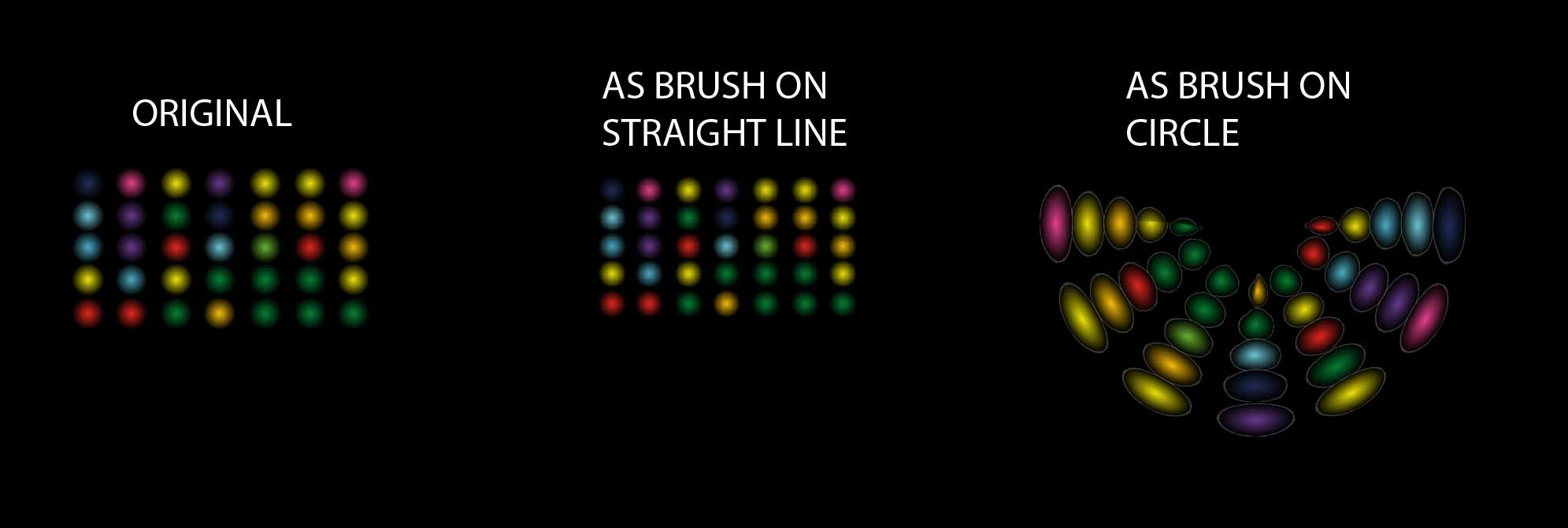
I have tried turning off anti-aliasing or adding a black stroke to the circles before incorporating them into the brush, but to no effect. Any help would be much appreciated!

This topic has been closed for replies.
Correct answer Ton Frederiks

Instead of  rasterizing, why don't you just expand the gradients?

4 replies

Ton Frederiks
Community Expert
Ton FrederiksCommunity ExpertCorrect answer
Community Expert
January 23, 2017

Instead of  rasterizing, why don't you just expand the gradients?

Known Participant
January 23, 2017

I think you might just have struck gold with that tip! Second time in a week . Still so much to learn...

Thanks to everyone for your time and helpful responses! I guess we will never know the actual, underlying cause of the mysterious lines... But at least there's a workaround!

Ton Frederiks
Community Expert
Community Expert
January 23, 2017

Good to hear that worked for you!

Doug A Roberts
Community Expert
Community Expert
January 23, 2017

so you create the circles with whatever colours you choose, then run the script?

maybe this is something to do with colour. are they spot or process? what's the document colour mode and document profile?

Known Participant
January 23, 2017

Yes indeed, the script then takes the colors of the circles as starting point for the color-to-black radial gradient.

Colors are process, RGB mode. Sorry but I'm not sure what you mean by "document profile"?

Doug A Roberts
Community Expert
Community Expert
January 23, 2017

doc profiles are what you see in the drop down list on the new document window (Print, Web etc.). even if you make changes and the profile reads [Custom], you are still just editing an existing profile. So, for instance, if you select a print document profile, then change the colour mode to RGB, you will still have a bunch of swatches in the document that were created as CMYK.

Monika Gause
Community Expert
Community Expert
January 23, 2017

Which version of Illustrator exactly is that? THere has been an issue with transparent pixel brushes in one of the recent versions, but it has been addressed.

On top of that: which color mode and how exactly is black defined?

and: can you go to Preferences > General and turn off the "Smoothing" setting. Does that improve the image?

Known Participant
January 23, 2017

I'm using Illustrator CC (2015). The color mode is RGB and black (000000) is shown as "rich black".

I did not find the "smoothing" setting in my version, could it be in a different menu?

Doug A Roberts
Community Expert
Community Expert
January 23, 2017

i had a go at recreating this in cc2017 and did not get outlines. how did you construct the gradients initially? do they use transparency or do they go from colour to black?

Eternal Warrior
Inspiring
January 23, 2017

The most obvious issue with your brush is that you are rasterizing it and then trying to use it in a vector based programme where you probably aren't keeping the same 1:1 ratio as when you created the original brush > Or more accurately in this instance you are trying to apply it to a circular shape..

Re-create the brush without rasterizing. If need be add the colours to the artwork afterwards.

Eternal Warrior
Inspiring
January 23, 2017

Also I found this link to give a relatively useful guide about the various brushes you can create in illustrator: http://www.bittbox.com/illustrator/how-to-make-a-custom-illustrator-brush