
Known Participant
August 10, 2019
Question

How to scale from bounding box without you seeing the white box?

  • August 10, 2019
  • 2 replies
  • 522 views

Hi,

This is a things that has frustrated me forever when I use Illustrator, so I thought maybe if I ask it as a question someone can tell how how to do this.
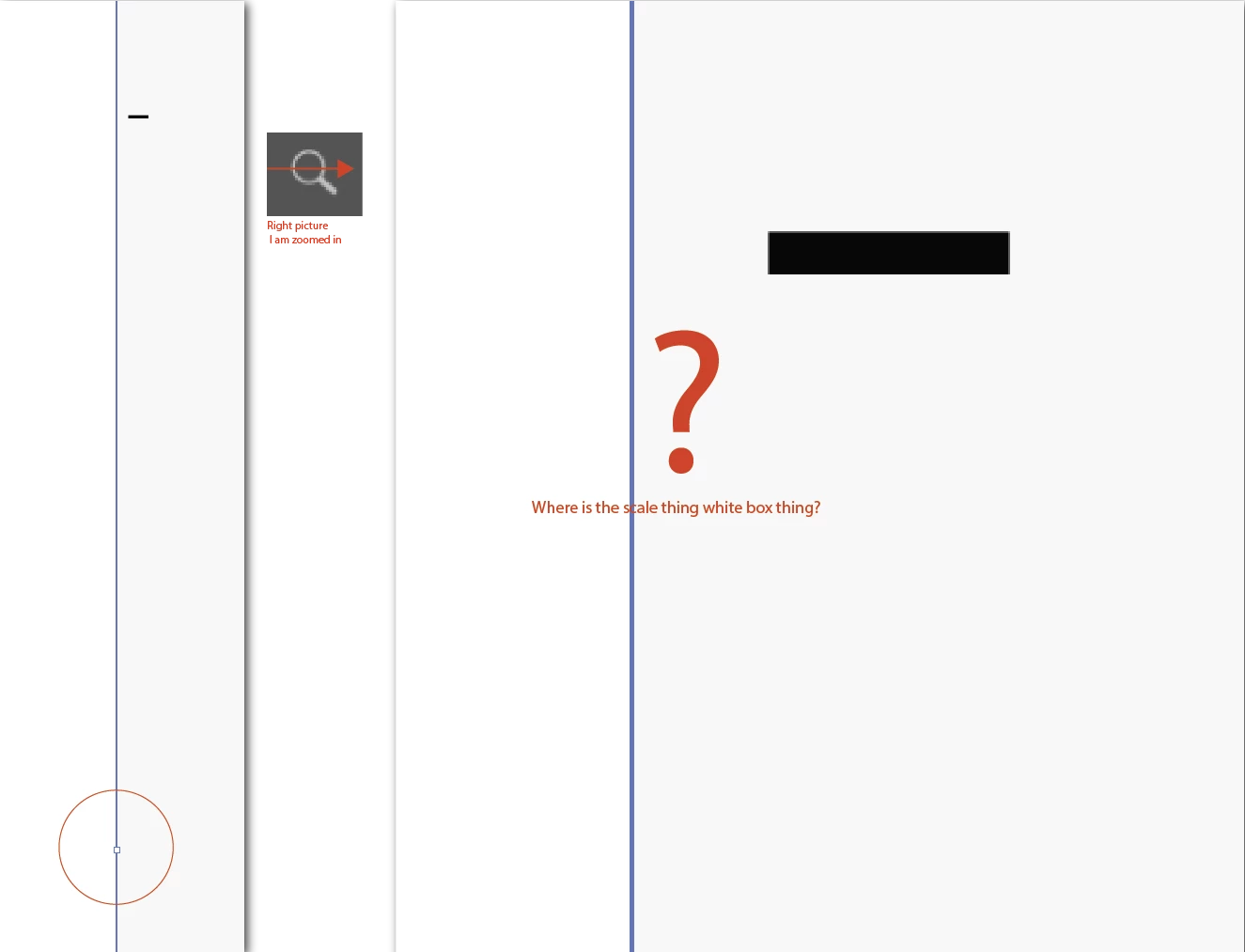
When I am working with big objects, I am wondering how can I acces this white box/or the scale function provided by it. I am not looking for for Smart Guides so I can do this simple thing of scaling the gray rectangle towards the black rectangle, I just want to scale like you would with this white thing situated in the middle of these bounding box. I hope there is a way.

Thanks in advance!

    This topic has been closed for replies.

    2 replies

    Myra Ferguson
    Community Expert
    Community Expert
    August 10, 2019

    When it's selected, you could enter a new width and/or height in the Properties panel Transform section.

    Kurt Gold
    Community Expert
    Community Expert
    August 10, 2019

    To be honest, based on your description and screenshot I have no idea about what you are talking here.

    Can you elaborate a bit?

    Known Participant
    August 10, 2019

    Okay sorry that the picture isn't that clear. So in the picture you see two screenshots. The left screenshot (distinguished with a drop shadow, btw) you see two illustrator paths (rectangles). One grey and big, and one black and small. I have the grey rectangle selected, which gives me a bounding box. In the middle of that bounding box you see a white box, provided by illustrator for me to scale the box. I have that white box annotated with a red circle.

    When I zoom in (which you see on the right screenshot), I don't seem to be able to acces this scaling feature, because the white box is only in the middle of the big grey rectangle. And I was wondering if there is a shortcut or something or maybe some way to do it with the Free Transform Tool, when you are zoomed in.

    Kurt Gold
    Community Expert
    Community Expert
    August 10, 2019

    Thanks for the clarification. Now it is clear about what you are talking.

    As you have already discovered: The transform handles of Illustrator's bounding boxes are located at fixed positions and there is no way to make them variable depending on the zoom level.

    You could instead use the Direct Selection tool to scale by dragging the edges of the paths. You could also use the Navigator palette to go to the handles and then scale with the bounding box handles. There are some other ways (workarounds) as well, but currently you will not get the behaviour you are looking for.