



Inspiring
February 13, 2026
Answered

How-To Scale Strokes and Effects when resizing logo

  • February 13, 2026
  • 3 replies
  • 143 views

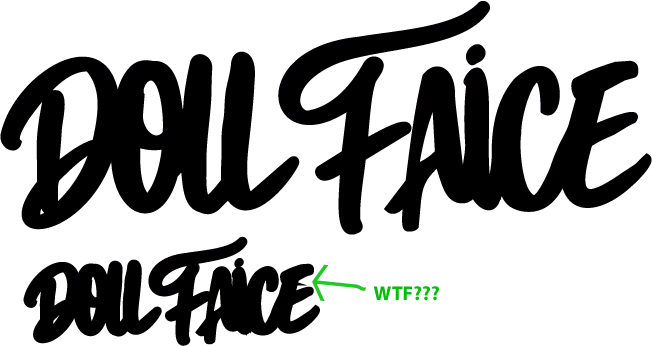
i have created this logo from another logo and joined it together using shapebuilder. when i size it down it creates a horrible issue with the “E”. i have checked layers and outline view and there is nothing to suggest there’s an error. help!
 

Correct answer Ton Frederiks

There is an option in the Transform Panel (and other places as well) to Scale Strokes and Effects.

Is that turned on?

3 replies

thespikevolleyball
Participant
February 14, 2026

If your logo changes when resized, it’s likely due to the image resolution, CSS styling, or responsive settings. To fix this, ensure your logo is high-resolution, preferably in SVG format, and maintains a consistent aspect ratio. Use CSS properties like max-width and height: auto to scale the logo proportionally, and apply media queries for different screen sizes. For text-based logos, use relative units like em or rem for font size, and adjust it on smaller screens. This will help keep the logo consistent and prevent distortion when resized.

Conrad_C
Community Expert
Community Expert
February 14, 2026

This is a rather strange answer because the original poster never mentioned anything about the web or CSS. Is this a real user, or an AI bot?

Conrad_C
Community Expert
Community Expert
February 13, 2026

I notice that the bowls (enclosed empty areas of letterforms) become smaller much faster than the black areas when the whole thing is reduced in size, and in some parts of the reduced logo, empty areas close up completely as in the space between the A, i, and C. That suggests that a stroke might be applied. If a stroke is applied, is it needed? If not, set stroke to None.


If there is a stroke applied, there is a chance that the little part that sticks out of the C is because of extra unintended points forming a tiny corner on the path where scaling caused it to pass its miter Limit angle, an example is shown in the demo below. If that turns out to be the cause, you have three possible solutions:

  • Zoom in and delete the stray points forming the unwanted corner. This is a good solution because it would clean up the path.
  • If you don’t clean up the path, setting stroke to None. That would also help because then there would be no miter limit angle to worry about. 
  • You could also leave the path as is but adjust the stroke miter Limit until the spike goes way. But that would only be a workaround because if the path was scaled again, the spike could reappear.


Bec MacAuthor
Inspiring
February 13, 2026

Thanks for the detailed reply. However, I tried the tip below and that worked. Cheers.

Conrad_C
Community Expert
Community Expert
February 13, 2026

It was just an idea, so it’s good to hear that you got the right answer from Ton!

Ton Frederiks
Community Expert
Ton FrederiksCommunity ExpertCorrect answer
Community Expert
February 13, 2026

There is an option in the Transform Panel (and other places as well) to Scale Strokes and Effects.

Is that turned on?

Bec MacAuthor
Inspiring
February 13, 2026

Lovely, thanks that worked.

Ton Frederiks
Community Expert
Community Expert
February 13, 2026

Good to hear that worked!