Participant
October 20, 2024
Question

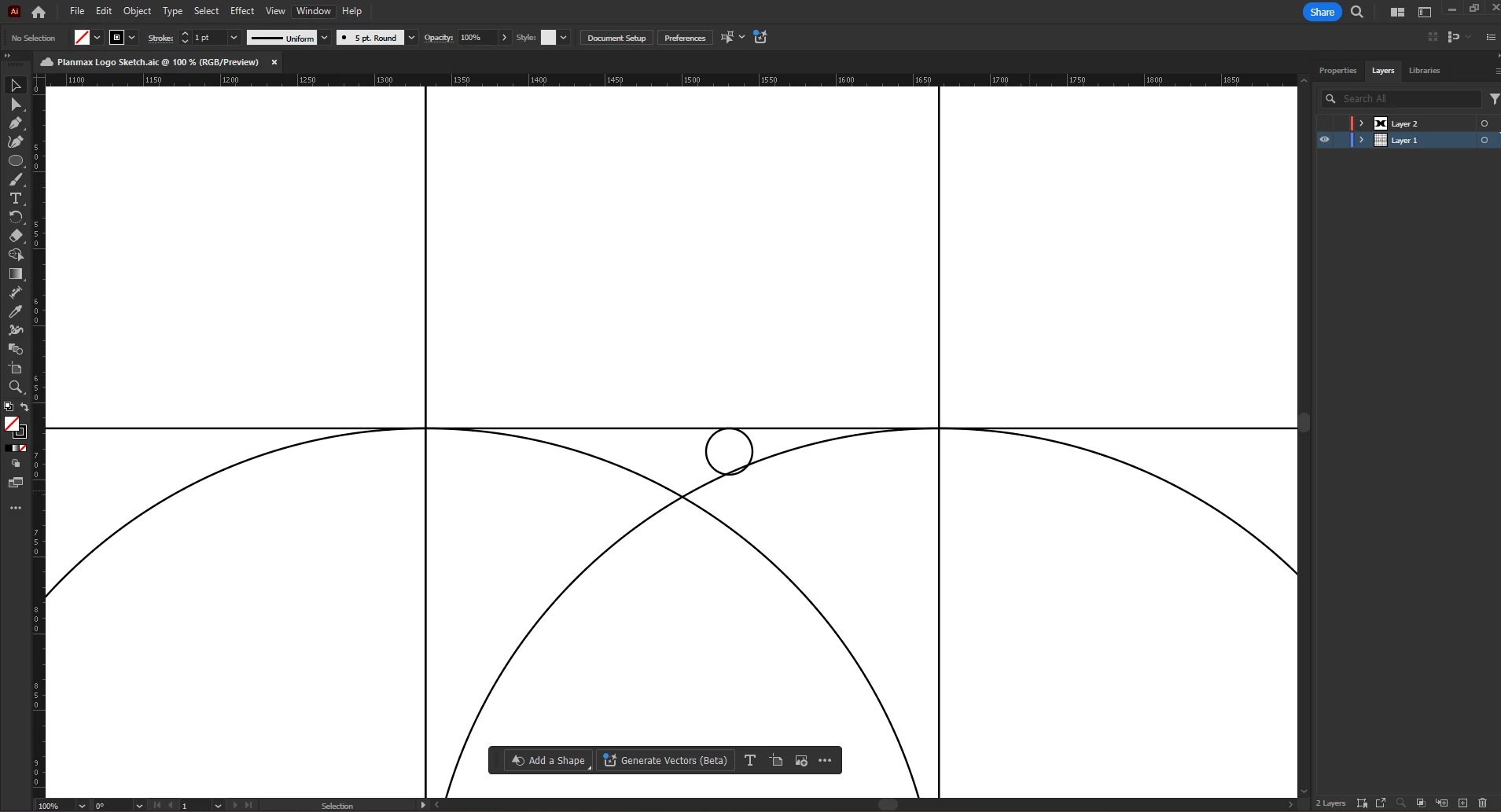
how to snap perfectly with this circle
  • October 20, 2024
  • 2 replies
  • 425 views

when i use to shape builder, the shape still not perfectly snap

This topic has been closed for replies.

2 replies

Jacob Bugge
Community Expert
Community Expert
October 20, 2024

Azure Studio,


To snap the little circle perfectly into place touching the horizontal gridline and the big circle with the help of Smart Guides, you can:


1) Create a square that fits the (part of the) grid at the upper left part of the big circle, with its upper right corner Anchor Point snapped to the top Anchor Point of the big circle (Smart Guides say anchor when it is within snapping distance);

2) Select the big circle and Object>Path>Offset with an Offset equalling half the W(idth)/H(eight) of the little circle (this is the radius);

3) Select the big square and Object>Path>Offset with with the same Offset, only negative;

4) ClickDrag the little cirle by its centre (expand the live shape, or tick the Show Center in the Attributes palette or whatever it takes to have the centre shown) to snap to the intersection of the offset paths made in 2) and 3) (Smart Guides say intersect when the centre is within snapping distance).


Illy (job description Adobe Illustrator) is always eager to help,. and she is excellent at doing things like this for us.


Click to get closer, Click again to get closer still

Monika Gause
Community Expert
Community Expert
October 20, 2024

Illustrator is not good at snapping to curves. You will need several attempts of getting this to snap, with each of them getting closer. Also: snapping happens at the cursor position. 


If you turn on Smart guides, it will help.

There is a plugin that can do snapping better: ColliderScribe (not for free)