


Participating Frequently
June 11, 2022
Question

How to solve thin lines (probably from antiliasing) after PDF export.

Hey guys,


I've faced the following problem now for quite a while and would like to solve this.

To demonstrate a draw some quick shapes and ensured that there are no gaps between them!
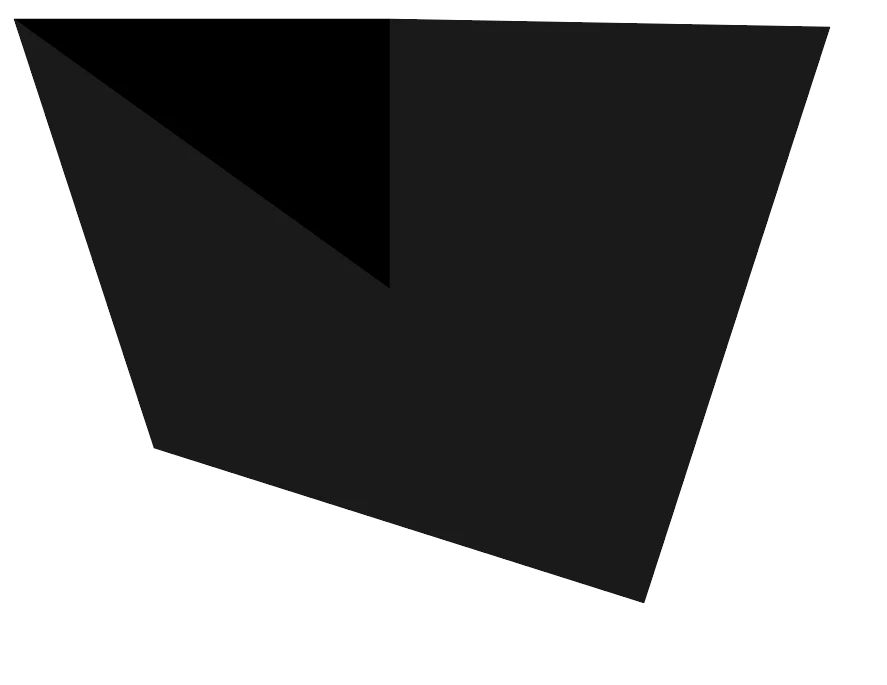
After save as > PDF, howver, I see some small lines between the shapes:
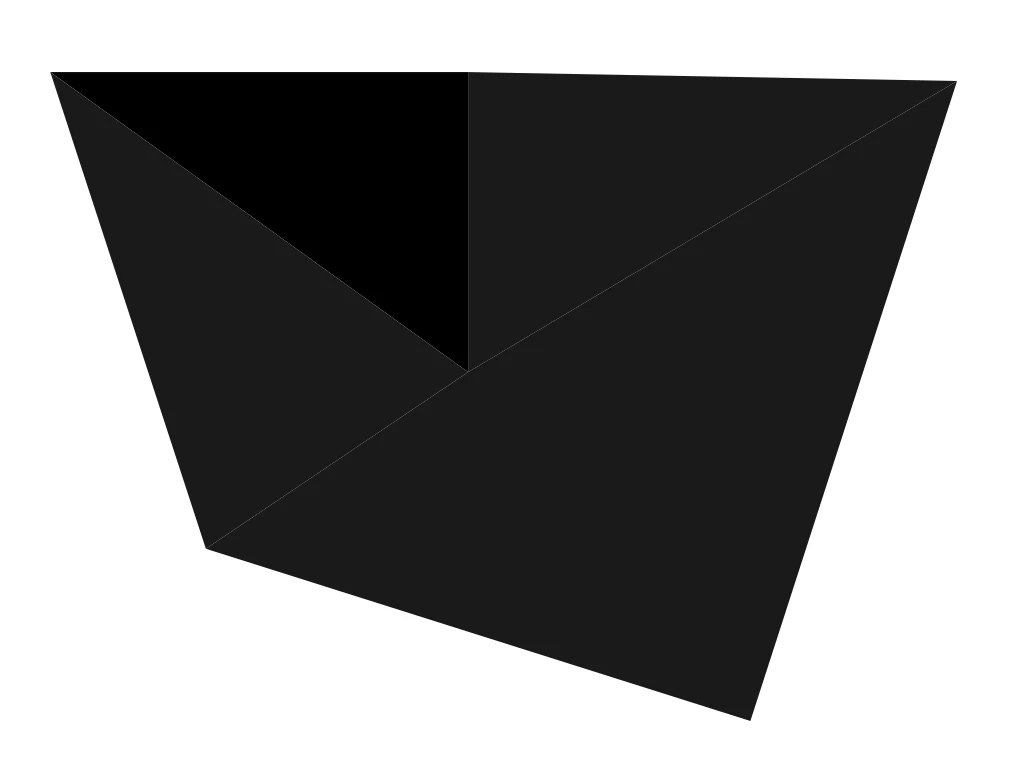
I read that this might come from antiliasing and should not affect printing quality. However, is there another way to solve this without the need to overlapp regions?


Thanks!

This topic is closed to new replies. Start a new post to keep the conversation going.

7 replies

Brad @ Roaring Mouse
Community Expert
Community Expert
June 11, 2022

Yes, this is an anti-aliasing issue.

Turn off "Smooth Line Art" in your Acrobat Page Display Preferences. this prevents Acrobat from anti-aliasing the object for display. Although this solves the display issue in Acrobat, it is a harbinger of what will happen using anti-aliasing further down the chain.

If your vector is going straight to print without rasterizing any part of it, you won't have any issues, as it will be rendered at the full resolution of the printer or RIP (no anti-aliasing occurs at that stage). However, if you wanted to export a 300ppi JPG (or worse, 72)... depending on which anti-aliasing you use will either cause or prevet the gaps. To prevent the gaps you export with Art Optimized Anti-Aliasing. This forces Illustrator to render the entire graphic at a non-aliased high-resolution in the background then downsamples it to the final resolution you want (say 300 or 72). No gaps.

Conversely, if you select Type Optimized, each object is rendered at the desired resolution one at a time, giving each object a semitransparent anti-aliased edge. Even if two objects "butt up" against each other like yours, this fringe cause the visible gap. The lower the resolution, the worse it shows.

You can see this effect in Photoshop. Open your PDF and render it at 300ppi, once with and once without anti-aliasing turned on, you will see the problem.

Translate
Ton Frederiks
Community Expert
Community Expert
June 11, 2022

Can you share an example .ai file?

Dropbox, WeTransfer, Google, CC filesharing...

Translate
Monika Gause
Community Expert
Community Expert
June 11, 2022

This is probably not from transparency flattening, but from expanding an image trace or a live paint. And in that case it could be avoided. The pathfinder "Merge" should solve it pretty efficiently.

Translate
Micha5E6DAuthor
Participating Frequently
June 11, 2022

mhh merging makes only sense if shapes have same colors right? 

Translate
Monika Gause
Community Expert
Community Expert
June 11, 2022

There is one line in your image. It's between areas of the same color. So it would be desirable to unite them, right?


I don't know about all the other lines, because you didn't show them.

Translate