Promethea
Participant
April 26, 2017
Answered

How to texturize text while keeping background transparent.

  • April 26, 2017
  • 2 replies
  • 3944 views

Hi!

I'm quite new to Illustrator, so I apologise in advance if I use the wrong terms or if I'm not clear enough.

I'm trying to add a texture to some letters. I've seen tutorials of how to do this by using a clipping mask, I believe, making letter shaped holes in the foreground layer (that acts as background), letting you see through to the actual background where the texture image is.

But in this case, this text is going to be printed on fabric, so I cannot have a solid background. I imagine I have to somehow turn the shape of the letters into a selection, and use it as a cookie cutter to cut from an image and paste onto a transparent background, but I'm failing to figure out how to do that. Would anyone be so kind to explain me how to do it?

In case this makes it easier to do through some other way, the texture I'm trying to add is a rainbow. Not as a gradient, but as definite bands of each colour.

Thanks in andvance.
    This topic has been closed for replies.
    Correct answer barbara_a7746676

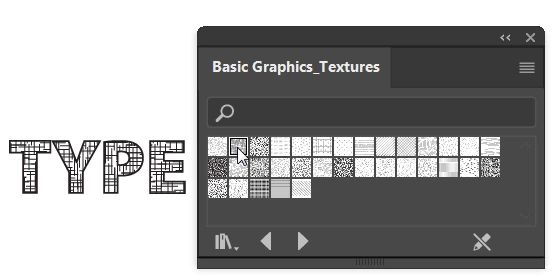
    If one of the textures that comes with Illustrator would work for you (Swatches panel menu > Open swatch library > Patterns), or any vector texture  that you might find on the web, then you wouldn't need to bother with a clipping mask. The text in the example below has a black stroke and a texture fill.

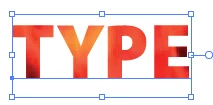
    If you need to use a raster image texture inside the type, File > Place the image. Put your type on top of the image.

    Select both the type and the image and Object > Clipping Path > Make.

    Would either of these suggestions work for you?

    2 replies

    barbara_a7746676
    Community Expert
    barbara_a7746676Community ExpertCorrect answer
    Community Expert
    April 27, 2017

    If one of the textures that comes with Illustrator would work for you (Swatches panel menu > Open swatch library > Patterns), or any vector texture  that you might find on the web, then you wouldn't need to bother with a clipping mask. The text in the example below has a black stroke and a texture fill.

    If you need to use a raster image texture inside the type, File > Place the image. Put your type on top of the image.

    Select both the type and the image and Object > Clipping Path > Make.

    Would either of these suggestions work for you?

    Promethea
    PrometheaAuthor
    Participant
    April 27, 2017

    I wish I could mark all answers as correct, because they all work. Barbara's seems like the simplest way to do it, so I'm selecting her answer. Thank you all.

    Mike_Gondek10189183
    Community Expert
    Community Expert
    April 26, 2017

    Select a texture, and some black type.

    Click Make Mask and change the checkmarks as shown.

    I am using Shift Command D to show transparency, a key command to toggle that on and off.

    Mike_Gondek10189183
    Community Expert
    Community Expert
    April 26, 2017

    Not there are 2 thumbnail s in this palette with a golden line around the one thumbnail in focus.

    If you wish to edit the mask in the future  then click on the right thumbnail and the golden line will move to that. This is the part that usually hangs up everyone when they use this so just remunerates there are 2 thumbnails and you need to be in the correct one to either edit artwork or the mask.