Participant
June 10, 2020
Answered

How to unbind paths when the paths are not grouped or combined with a compound path

  • June 10, 2020
  • 2 replies
  • 678 views

There are red boxes around the edges of my shape that do not allow me to separate the shape into separate parts. I do not have the shape combined through a compound path or have it group but still,  I can't separate it. Not quite sure how to build separate parts without completely scrapping the shape. 
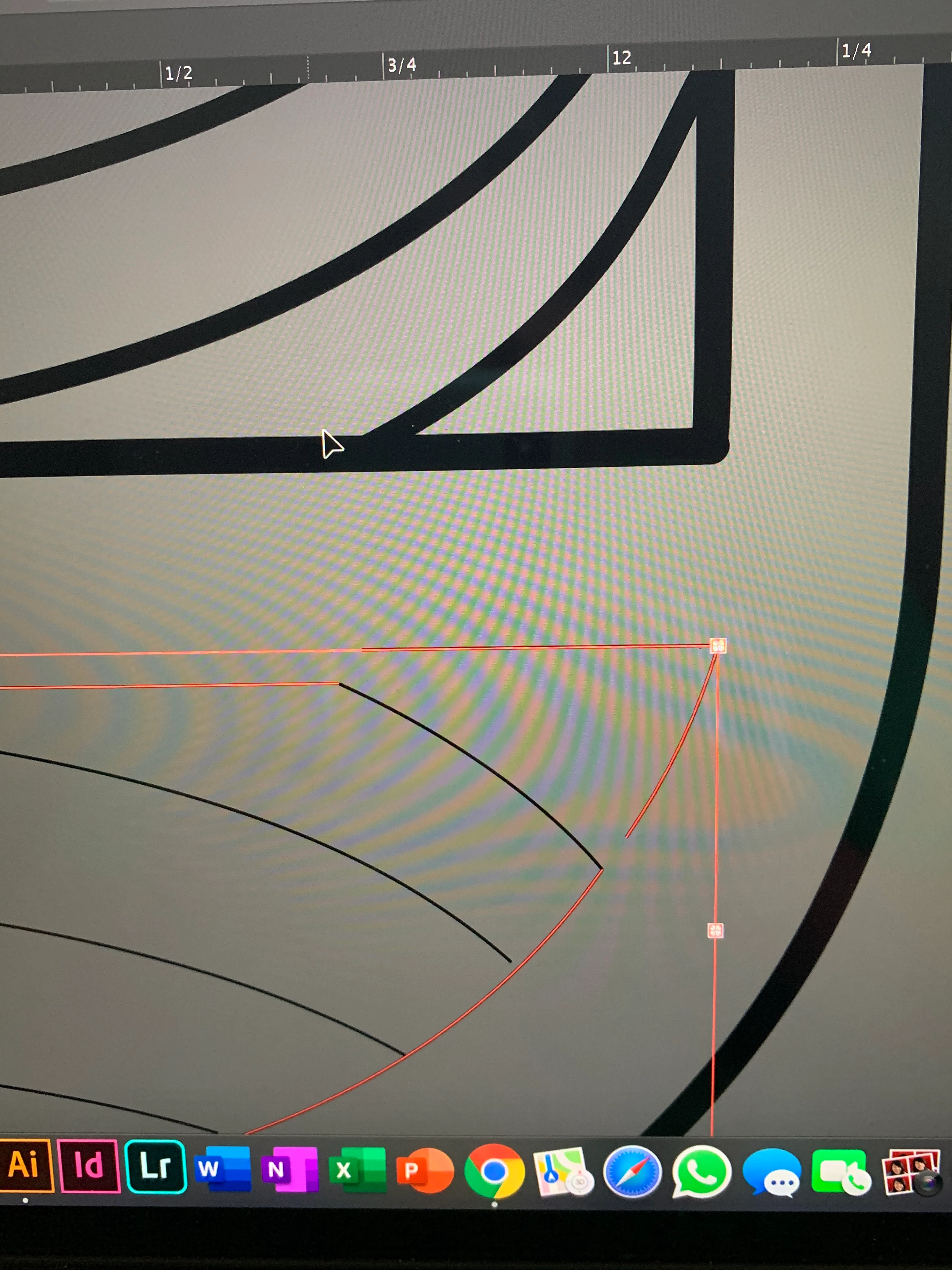
 

{Renamed by MOD}

This topic has been closed for replies.
Correct answer Monika Gause

It's a Live paint object. You will have to Release it in order to get the single paths. You might lose some fills when doing that.


Objct > Live paint > Release

If all you want to do is copy single paths out of it (or cut them), then you can select them with the group selection tool, copy (or cut) and paste them whereever you want.

2 replies

Ashutosh_Mishra
Inspiring
June 29, 2020

Hi there,


Thanks for reaching out. I hope your issue is resolved by now. We'd appreciate if you can mark the most appropriate response correct. If you used any other method, we'd request sharing the solution with us. It'll help other users with similar concern.

If you still have issues, let us know. We'll be happy to help.

Looking forward to your response.


Regards,

Ashutosh

Monika Gause
Community Expert
Community Expert
June 10, 2020

Please take screenshots of the layers panel and the appearance panel with objects selected.


Please take real screenshots. Don't use your phone.

Participant
June 10, 2020

Here is a screenshot of the appearance panel of the object. Additionally, the object is placed within one layer. 

Monika Gause
Community Expert
Monika GauseCommunity ExpertCorrect answer
Community Expert
June 11, 2020

It's a Live paint object. You will have to Release it in order to get the single paths. You might lose some fills when doing that.


Objct > Live paint > Release

If all you want to do is copy single paths out of it (or cut them), then you can select them with the group selection tool, copy (or cut) and paste them whereever you want.