


smashkirk
Inspiring
September 1, 2025
Answered

How to use Extrude on live type in Appearance Panel

  • September 1, 2025
  • 3 replies
  • 517 views

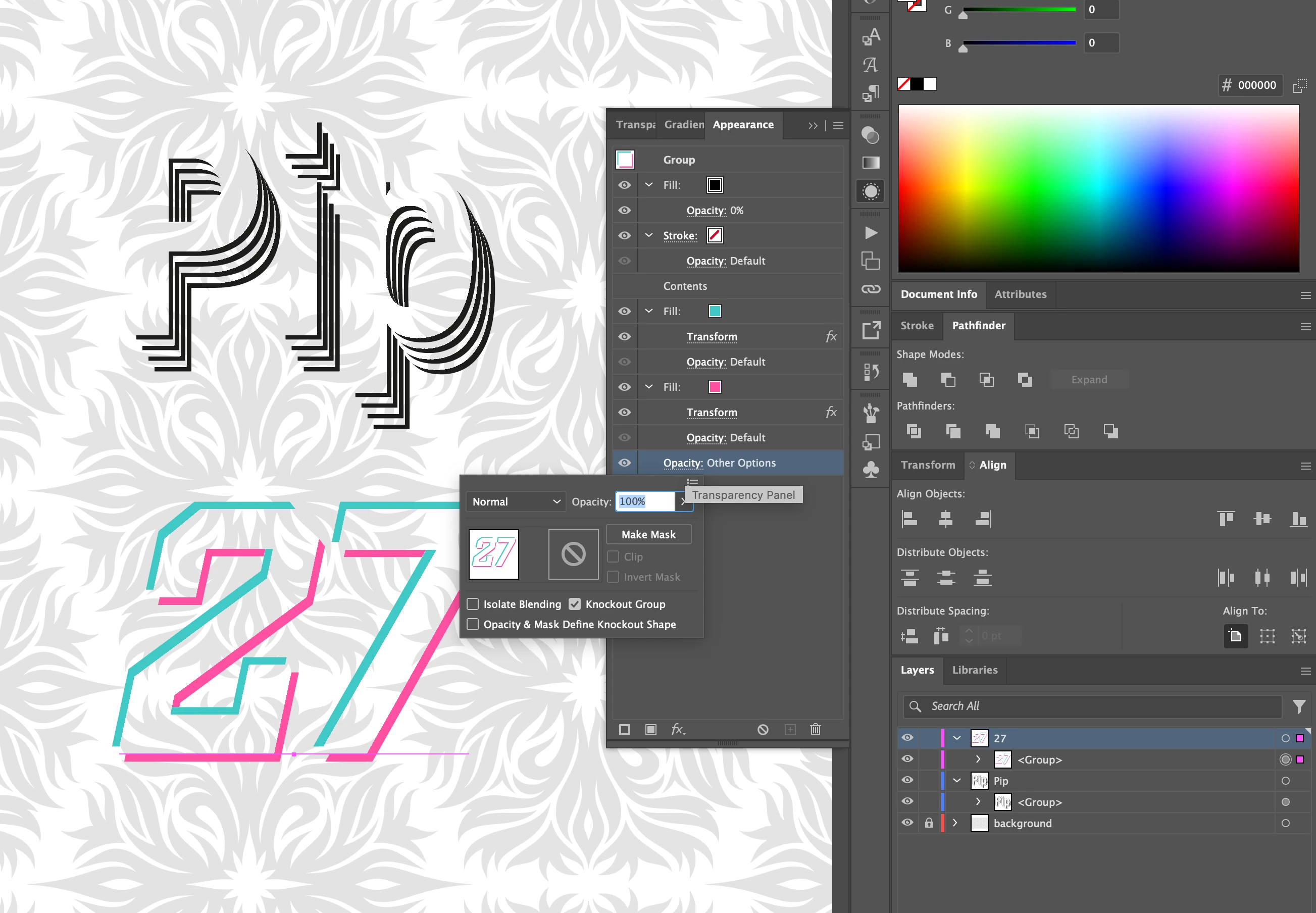
Is it possible to use the Pathfinder Extrude effect to some live type? I'm trying to acheive a blank area inside the type (see image). Where you see black in the letters, I would like that to be the dark gray background, while still being able to change the text. I've tried applying the Extrude in the appearance panel but it doesn't seem to do anything. Thanks.
Correct answer smashkirk

I got it to work with info from another thread. I did not use Object Outline or Outline Stroke. I put the two fills with position transform below the Contents, then on top of the Contents I have a fill with Opacity 0%. BUT, the trick is to set the bottom Opacity to check off Knockout Gorup.

3 replies

smashkirk
smashkirkAuthorCorrect answer
Inspiring
September 12, 2025

I got it to work with info from another thread. I did not use Object Outline or Outline Stroke. I put the two fills with position transform below the Contents, then on top of the Contents I have a fill with Opacity 0%. BUT, the trick is to set the bottom Opacity to check off Knockout Gorup.

smashkirk
smashkirkAuthor
Inspiring
September 12, 2025

So there was no Pathfinder needed. Although, maybe there is another method using the Pathfinder?

Monika Gause
Community Expert
Community Expert
September 12, 2025

@smashkirk  schrieb:

So there was no Pathfinder needed. Although, maybe there is another method using the Pathfinder?


I have demonstrated the method with the pathfinder in the video I linked above.

Monika Gause
Community Expert
Community Expert
September 1, 2025

You first need to turn the text into a compound shape using the Pathfinder panel.

There need to be two fills on the object,

Then apply the transform effect to shift the fills AND make a copy

Then apply Pathfinder subtract to both of the fills.

Like this: https://youtu.be/0J8bcvlPh40


Further explanation (but different example)

https://youtu.be/qeU84BPCu7c

smashkirk
smashkirkAuthor
Inspiring
September 11, 2025

This is close, but for some reason it's not working. I have 2 fills, and I'm adding the Path > Outline Object to each fill. Then I'm grouping them. And then on the group adding a Subtract, and it's almost working. It seems to only subtract one number not both. This tells me maybe the Outline Object is not working? 

Monika Gause
Community Expert
Community Expert
September 12, 2025

THere is no group in my example. Please share your AI file.

You need to change the file extension to PDF first. Then you can share it.

Ton Frederiks
Community Expert
Community Expert
September 1, 2025

You mean Exclude?

Does a Fill > None work instead?

smashkirk
smashkirkAuthor
Inspiring
September 11, 2025

Yes, I meant Exclude. But no, fill none doesn't work.