
March 30, 2023
Question

How to use type path like a text box

  • March 30, 2023
  • 6 replies
  • 2009 views

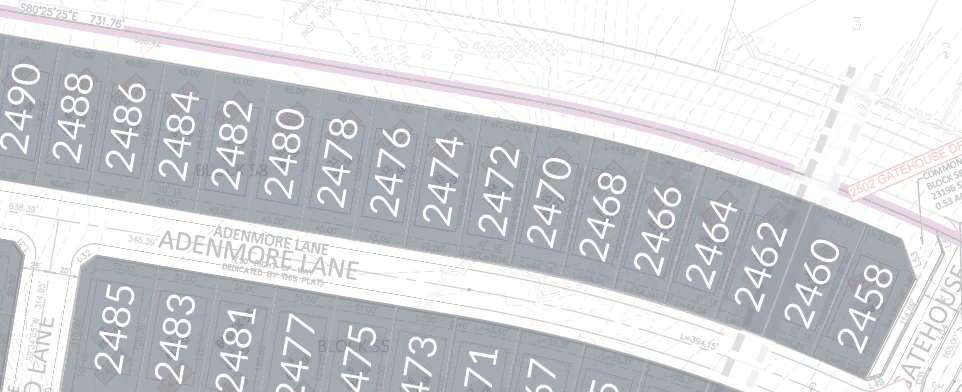
Im trying to curve text around something BUT i want it to behave like a text box. I don't want to type vertically or along the path, if that makes any sense.


Like, if I started typing, it wouldn't go along the path, the first letter would stay on the path and I'd type away from the path, then when I hit enter, the first letter I type will be on the path and so on.


This may not even be a thing but I thought I'd ask if anyone knew how to do this.
This topic has been closed for replies.

6 replies

thejanebradbury
Community Expert
Community Expert
April 4, 2023

It's not perfect but this is Area Type - add text within shapes. It needs some finessing with spacing, but it basically does the job. To get the numbers to follow the arc you make an enclosed shape that you can then click that path to add the Area Type. 


Met1
Legend
April 4, 2023

Thanks thejane but the text doesn't change angle as it goes around the curve (i.e. stays perpendicular to it) as the OPs picture shows...

thejanebradbury
Community Expert
Community Expert
April 4, 2023

I know. But I'd have the text in a duplicate shape and then rotate that shape to the desired position. As I said, it doesn't work straight out of the box, but I thought it might be an option. 

Met1
Legend
April 3, 2023

just use the vertical type on a path tool...

eh, ignore this, I didn't see Kurt's answer...

Kurt Gold
Community Expert
Community Expert
April 3, 2023

Not quite, Met.


The basic functionality of the Vertical Type on a Path tool does not allow the requested behaviour. One has to juggle it a bit.


Met1
Legend
April 4, 2023

Ah ha, interesting.

So in your file, it's just the text that is formatted in a specific way?

I can take that text and apply it to any standard stroked item (and it works) but if I paste it into a standard text box it's just a continuous single line of text. All I can see is a space separating each four numbers, so how are you setting this up?

Kurt Gold
Community Expert
Community Expert
April 3, 2023

Or like this:


Vertical Numbers on Path (Illustrator sample file)


Kurt Gold
Community Expert
Community Expert
March 30, 2023

Well, then one way I'd recommend is to create a scatter brush consisting of a dummy type object, draw the desired path, apply the scatter brush with appropriate settings (spacing, rotation relative to path), expand its appearance, possibly make threaded text and fill in your numbers.


Keep in mind that more often than not you may have to add a certain number of anchor points to the path of the scatter brush in order to get smooth results. There are different ways to do that (Object menu > Path > Add anchor points or as an effect with the Roughen effect for example).


Kurt Gold
Community Expert
Community Expert
March 30, 2023

In other documents it's at least always the same number of digits?


Or does it vary (123, 1234, 12345, 123456 etc.)?


March 30, 2023

Always the same number of digits. This one is 4. The next one I think is 3.

Kurt Gold
Community Expert
Community Expert
March 30, 2023

In former Illustrator versions that was possible with type on a path and Tate-Chu-Yoko. Unfortunately, that way does not work anymore in recent Illustrator versions.


Are you always using numbers with four digits?


March 30, 2023

In this document, yes.