
elektrik309
Participating Frequently
January 4, 2017
Answered

How to wrap a bar chart around a circle?

  • January 4, 2017
  • 2 replies
  • 10990 views

Hi all,

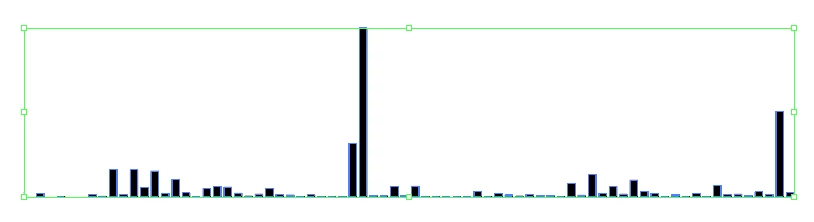
In the process of creating an infographic, I'd like to create a bar chart that gets properly circularized. I've created it with the chart tool, removed everything but the bars and grouped it:
Then I created it as a new art brush, and applied it to a circle:
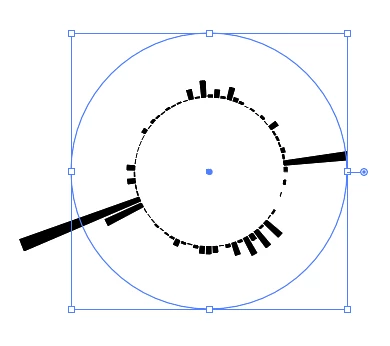
But the bars are warped and it's not on the path of the circle. I end up expanding the circle to size it, rather than having it on that precise path. And when I adjust the stroke size of the circle, the inner diameter and bar height really change, further distorting the shape.

How can I take the original chart and just arrange it around the circle without changing the shapes of the bars?

Many thanks in advance!

This topic has been closed for replies.
Correct answer Jacob Bugge

Matt,

Sorry, I spotted a serious error in 3) in the description in post #2:

Here is an amended version (the other steps are unchanged):

1) Copy the first bar so it appears at the right distance after the last bar (the same distance as between all the bars) so you have that as a double, then Ctrl/Cmd+G to Group the bars;

2) Ctrl/Cmd+C+F to create a copy of the bar group, then Object>Transform>Reflect with Axis Horizontal, then deselect and ShiftClickDrag by one of the top corners to snap to the corresponding bottom corner of the original bar group, then remove the Fill from the copy so it becomes invisible;

3) Ungroup the original and the copy, then Group each pair of bars to form a double bar (symmetrical over/under the bar base, visible/invisible);

Now comes the one step Blend fake:

4) Object>Blend>Options>Specified steps, set the value to 1 and set Orientation to Align to Path;

5) Select all the objects and Object>Blend>Make (now you have intermediate shapes between the objects, but not for long);

6) Create/Select the circle and cut it where you wish the first/last bar (which will be on top of each other;

7) Select the Blend from 5) and the circle from 6) and Object>Blend>Replace Spine;

8) Object>Blend>Release;

9) Click on the first/last bar and press Delete.

This should leave you with the undistorted bars in place round and outside the circle.

2 replies

Jacob Bugge
Community Expert
Community Expert
January 4, 2017

elektrik,

I believe you can do it without too much work, just using the inherent tools and ways, starting (over) from the ungrouped bars, Smart Guides being your friends:

1) Copy the first bar so it appears at the right distance after the last bar (the same distance as between all the bars) so you have that as a double, then Ctrl/Cmd+G to Group the bars;

2) Ctrl/Cmd+C+F to create a copy of the bar group, then Object>Transform>Reflect with Axis Horizontal, then deselect and ShiftClickDrag by one of the top corners to snap to the corresponding bottom corner of the original bar group, then remove the Fill from the copy so it becomes invisible;

3) Group the original and the copy;

Now comes the one step Blend fake:

4) Object>Blend>Options>Specified steps, set the value to 1 and set Orientation to Align to Path;

5) Select all the objects and Object>Blend>Make (now you have intermediate shapes between the objects, but not for long);

6) Create/Select the circle and cut it where you wish the first/last bar (which will be on top of each other;

7) Select the Blend from 5) and the circle from 6) and Object>Blend>Replace Spine;

8) Object>Blend>Release;

9) Click on the first/last bar and press Delete.

This should leave you with the undistorted bars in place round and outside the circle.

elektrik309
Participating Frequently
January 5, 2017

Hi Jacob,

Thanks so much for the detailed and thoughtful response -- I appreciate it. I haven't been able to get there and I'm hoping you may know what I'm missing.

After step 6, I'm left with the blended chart and my cut circle (I cut it at the 3 o'clock position):

But then when I apply step 7 and Replace Spine, I end up with this:

What am I missing? I'm not sure what that chart has become (it un-reflected the invisible copy?) but it's definitely not the goal . Any thoughts would be much appreciated.

Thanks again,

Matt

Jacob Bugge
Community Expert
Jacob BuggeCommunity ExpertCorrect answer
Community Expert
January 5, 2017

Matt,

Sorry, I spotted a serious error in 3) in the description in post #2:

Here is an amended version (the other steps are unchanged):

1) Copy the first bar so it appears at the right distance after the last bar (the same distance as between all the bars) so you have that as a double, then Ctrl/Cmd+G to Group the bars;

2) Ctrl/Cmd+C+F to create a copy of the bar group, then Object>Transform>Reflect with Axis Horizontal, then deselect and ShiftClickDrag by one of the top corners to snap to the corresponding bottom corner of the original bar group, then remove the Fill from the copy so it becomes invisible;

3) Ungroup the original and the copy, then Group each pair of bars to form a double bar (symmetrical over/under the bar base, visible/invisible);

Now comes the one step Blend fake:

4) Object>Blend>Options>Specified steps, set the value to 1 and set Orientation to Align to Path;

5) Select all the objects and Object>Blend>Make (now you have intermediate shapes between the objects, but not for long);

6) Create/Select the circle and cut it where you wish the first/last bar (which will be on top of each other;

7) Select the Blend from 5) and the circle from 6) and Object>Blend>Replace Spine;

8) Object>Blend>Release;

9) Click on the first/last bar and press Delete.

This should leave you with the undistorted bars in place round and outside the circle.

Monika Gause
Community Expert
Community Expert
January 4, 2017

You would need to create it that way.

Maybe try something like: https://d3js.org/