Dilly_Dally
Inspiring
January 8, 2026
Answered

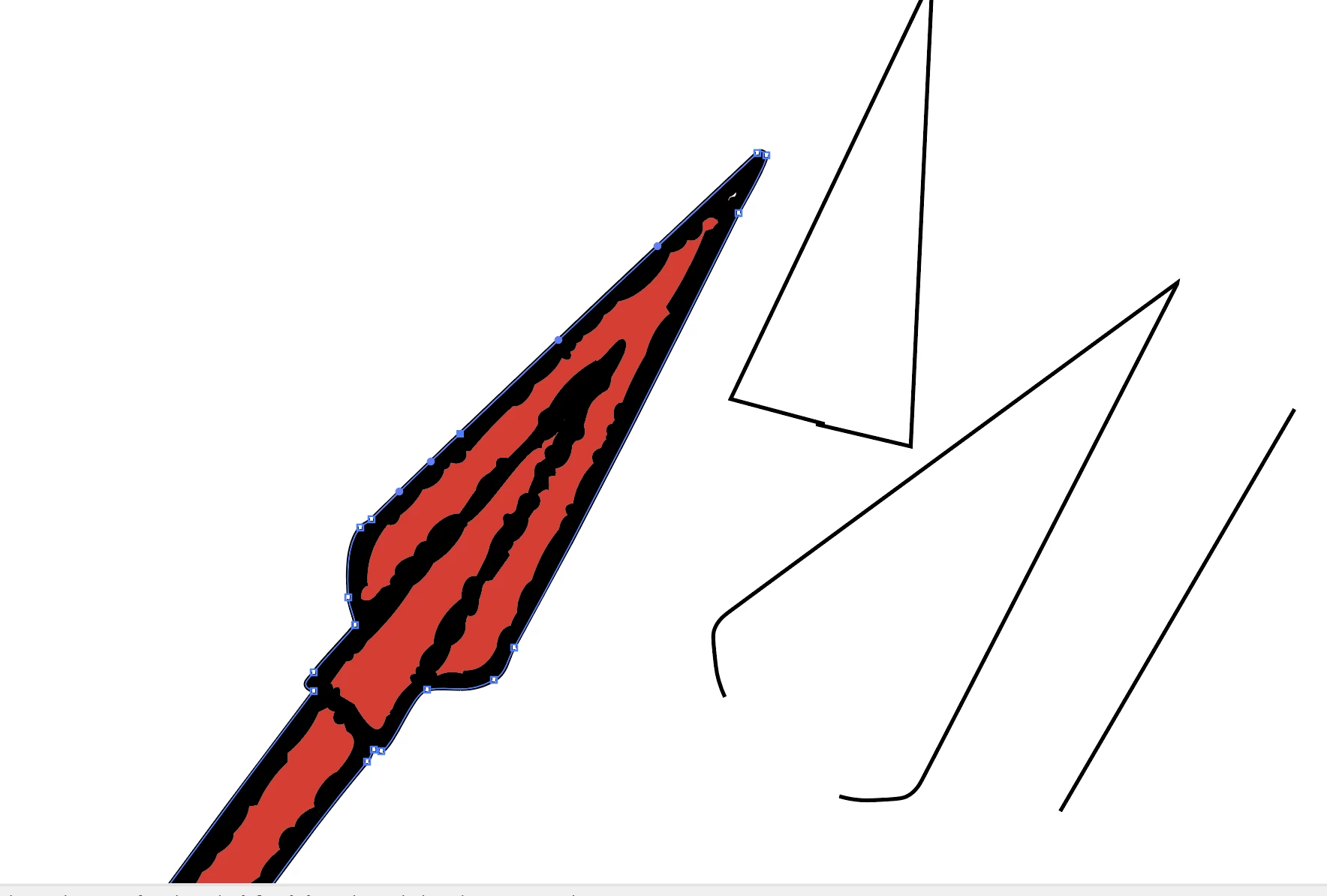
How would you trace this spear head.

  • January 8, 2026
  • 2 replies
  • 131 views

I know this probably sounds a little stupid, but how would someone with more experience choose to trace this spear head?  I tried the pen tool, to trace one side and then duplicated/reflected  it but it doesn't line up.  Then I tried the polygon tool, but trying to resize the triangle base changes everyting.

Dilly_Dally_0-1767888625380.png


Correct answer Jacob Bugge

Dilly Dally,


For preservation of the shape with a regular stroke, you can trace the middle of the strokes using a narrow(er) stroke in a contrasting colour and no fill and with Round Join (to give the roundings at the corners, I always set Round Cap to go with it even when unnecessary as here), with View>Smart Guides being your friends for snapping, and easier with rotation as shown by Doug:


1) For the outer spearhead shape (behind the inner shape which hides the middle of the rounding), with the Pen Tool ClickDrag from the lower right corner and a Handle length about one third of the way, then ClickDrag from the lower left corner and without letting go hold the Alt/Option key and Drag back into the Anchor Point (to make a corner, Smart Guides say origin when you are within snapping distance), then Click the tip Anchor Point, then Click the first Anchor Point to close the path (Smart Guides say anchor);

2) For the shaft, simply create a rectangle with the right width and place it, extending up behind the inner spearhead shape (which hides the top);

3) For the inner spearhead shape in front of the others, with the Pen Tool simply Click the tip and the two lower corners;

4) Adjust as needed with the Direct Selection Tool, moving Anchors and/or Handles;

5) Set the desired Stroke Weight;

6) Fill all the paths, and set the colours as desired.

 

2 replies

Jacob Bugge
Community Expert
Jacob BuggeCommunity ExpertCorrect answer
Community Expert
January 8, 2026

Dilly Dally,


For preservation of the shape with a regular stroke, you can trace the middle of the strokes using a narrow(er) stroke in a contrasting colour and no fill and with Round Join (to give the roundings at the corners, I always set Round Cap to go with it even when unnecessary as here), with View>Smart Guides being your friends for snapping, and easier with rotation as shown by Doug:


1) For the outer spearhead shape (behind the inner shape which hides the middle of the rounding), with the Pen Tool ClickDrag from the lower right corner and a Handle length about one third of the way, then ClickDrag from the lower left corner and without letting go hold the Alt/Option key and Drag back into the Anchor Point (to make a corner, Smart Guides say origin when you are within snapping distance), then Click the tip Anchor Point, then Click the first Anchor Point to close the path (Smart Guides say anchor);

2) For the shaft, simply create a rectangle with the right width and place it, extending up behind the inner spearhead shape (which hides the top);

3) For the inner spearhead shape in front of the others, with the Pen Tool simply Click the tip and the two lower corners;

4) Adjust as needed with the Direct Selection Tool, moving Anchors and/or Handles;

5) Set the desired Stroke Weight;

6) Fill all the paths, and set the colours as desired.

 

Jacob Bugge
Community Expert
Community Expert
January 8, 2026

Dilly Dally,


I have just extended the introduction and steps 1) & 2) for a more complete description.


Doug A Roberts
Community Expert
Community Expert
January 8, 2026

In an idealised way, or exactly as it is in the image?

I ask because the image isn't symmetrical:

DougARoberts_0-1767891272967.png


Dilly_Dally
Inspiring
January 8, 2026

Good point!  I hadn't even noticed that.  I am reproducing an image which can't be changed (it is the emblem of a group), because we need a higher resolution image for reproduction.  So it does need to be as close to the original as possible.