lenowz
Participant
July 25, 2018
Question

I can't edit or create

  • July 25, 2018
  • 2 replies
  • 406 views

hi

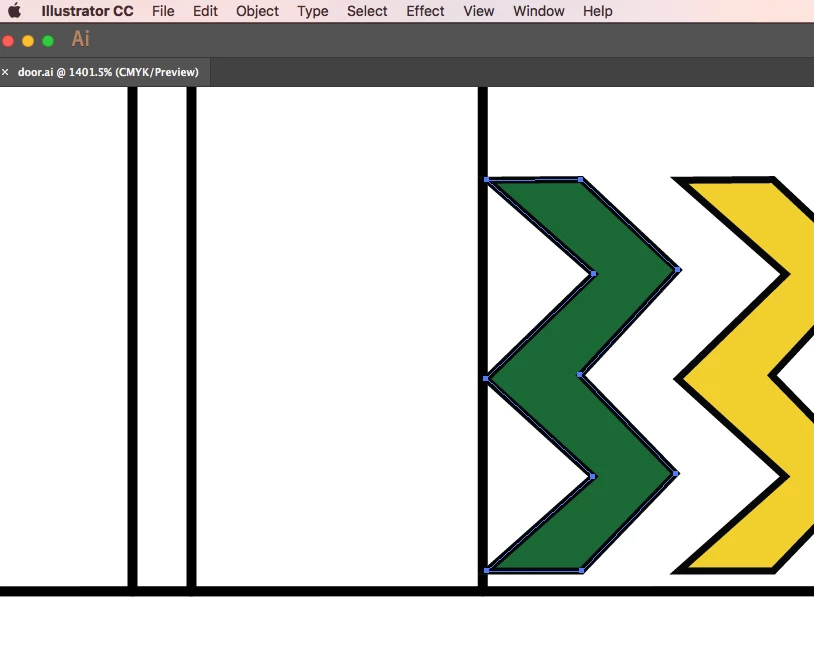
suddenly my illustrator files can't be edited and I can't find the tool bar that usually comes on the left, all I can see a blue highlight line around the shape when I select it. and I can't even change the shape when it is selected
[Here is the list of all Adobe forums... https://forums.adobe.com/welcome]

[Moved... you don't ask Illustrator questions in an Acrobat forum... Mod]

    This topic has been closed for replies.

    2 replies

    lenowz
    lenowzAuthor
    Participant
    July 25, 2018

    I did what you said and when I open it says it is running in safe mood, could it be the problem ? will try to disable this mood and see if it will work

    Bill Silbert
    Community Expert
    Community Expert
    July 25, 2018

    Did it ask you if you wanted to run in safe mode? If it just went there by itself then something is not right. Try rebooting the computer and then launching lllustrator again.

    Bill Silbert
    Community Expert
    Community Expert
    July 25, 2018

    Try trashing your Illustrator preferences.

    To do so:

    With Illustrator closed launch a Finder Window in column view and click on your home folder. With the Option Key pressed choose Library from the Finder Go Menu. Within the Library folder find the folder called Preferences and within it find the following two files and delete them: “Adobe Illustrator <Version #> Settings” (earlier versions of Illustrator might just say “Adobe Illustrator”) and “com.adobe.Illustrator.plist”. When Illustrator is next launched it will create new preference files and the program will be restored to its defaults.

    The advantage of manually deleting preference files in this manner is that after you’ve reset up the program (make sure that no document window is open) to your liking, you can create copies of your personalized “mint” preference files (make sure that you quit the program before copying them—that finalizes your customization) and use them in the future to replace any corrupt versions you may need to delete.

    Bill Silbert
    Community Expert
    Community Expert
    July 25, 2018

    Just another couple of thoughts, though. You can also try going under the Workspaces pull-down on the top right of your screen and using "Reset (whatever workspace you're using)." Also, the blue highlight line you refer to shows that the object has had all of its points selected. To move any individual points for editing you will need to deselect and use the Direct Selection Tool (White Arrow) to select individual points—after you get your toolbar back by either the method from my first post or from resetting your workspace.