Participating Frequently
December 24, 2016
Answered

i cant edit the colors of my pattern
  • December 24, 2016
  • 7 replies
  • 5715 views

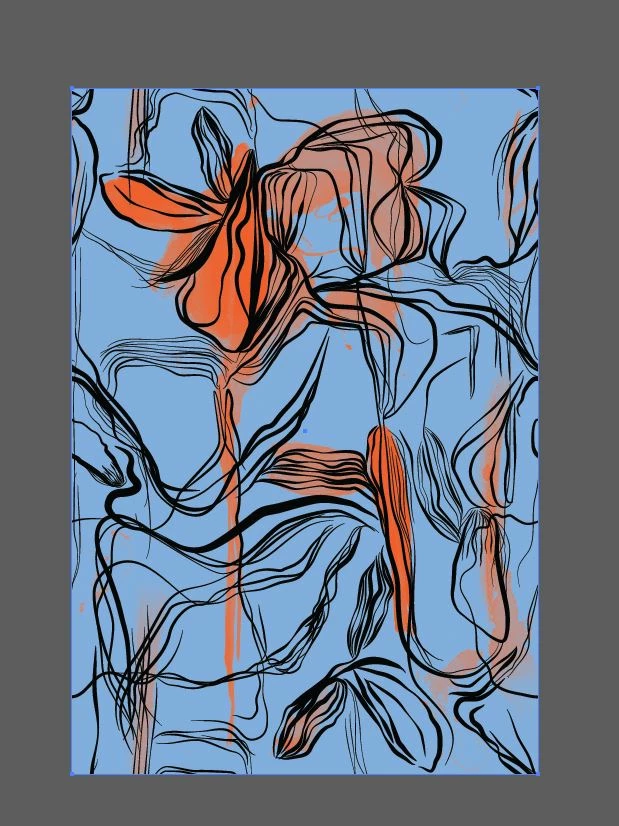
hello, i used 3 colors in this pattern i did with illustrator cs6 , black, blue , orange, and the only color i can edit is the blue one. did i do something wrong? i dont understand

This topic has been closed for replies.
Correct answer Ton Frederiks

can you set it to this color #f8fba2 ?


Not in Illustrator.

You will have to copy the group, go to Photoshop and paste the pixels.

Select the #f8fba2 color as your Foreground color.

Lock the transparency of the layer and fill it with the foreground color.

Copy the layer and paste it back in Illustrator above the layer you copied and move it into place.

7 replies

Participating Frequently
December 25, 2016

corinal

download from link  Dropbox - new.ai

@creacpix

Participating Frequently
December 25, 2016

the main problem with the color editing it that  it is a pattern. so you can change the other color as it is already said. now come to pattern work.

firstly hide all your layer expect the @pattern layer in @illustrator. now click on pattern layer and unmask the layer. then choose object>ungroup.

now choose edit> edit colors>adjusr color balance.

here fill the CMKY format of color you want to adjust.  after this your pattern color is changed.  

Participating Frequently
December 24, 2016

this is the sample. follow the given steps to edit:

1. first open your layer panel in Illustrator and hide all layer expect the two blue one. now you can easily edit the color by clicking on the artboard.

2. unhide all hide layer. now to change the color of black lace. then uncheck this yellow highlighted box. now hide the painted type layer and blue layer only. now select the black lace. choose object> expand. as you click on expand, you will be able to change the color.

hope your problem is resolved. waiting for your response.

geoffb81943439
Participating Frequently
December 24, 2016

The black group and blue path are the easy things to edit. I may be mistaken, but I'm pretty sure the OP is asking about the orange brush strokes, which are images.

corinal​: Jacob's suggestion to recolour this in Photoshop was a good one. I was able to edit the orange brush strokes very quickly and easily using colour range and a Hue/Saturation adjustment layer.

Participating Frequently
December 24, 2016

if you have no problem. can you upload the main image. so that i can open it in illustrator to resolve it.

corinalAuthor
Participating Frequently
December 24, 2016

i am not able to upload ai files on here

Ray Yorkshire
Participating Frequently
December 24, 2016

Most people here use Dropbox  for Ai files - a free account  is ok and always useful to have -

and link the file here

Participating Frequently
December 24, 2016

no need to go to photoshop. open the image in illustrator.select the artwork.  now choose Object > expand Appearance...

your artwork will convert into a simple particular object. now by selecting particular object you can change the color.

please comment if your problem is resolved or not.

check the image below

corinalAuthor
Participating Frequently
December 24, 2016

no, unfortunately only the blue is editable still

Participating Frequently
December 24, 2016

no need to go to photoshop. open the image in illustrator.select the artwork.  now choose Object > expand Appearance...

your artwork will convert into a simple particular object. now by selecting particular object you can change the color.

please comment if your problem is resolved or not.

check the image below

Ton Frederiks
Community Expert
Community Expert
December 24, 2016

Did you try: Edit > Edit Colors > Recolor Artwork...

corinalAuthor
Participating Frequently
December 24, 2016

sure, but only the blue is editable.

Ton Frederiks
Community Expert
Community Expert
December 24, 2016

Can you check in your Links panel if the rest is maybe an image?