Participant
January 29, 2026
Question

I made a logo and it looks just fine - it’s exporting fine until I make it a transparency. Then when I export as a png it exports grayed over with a white background? Has anyone experience this or know what it could be? Thank you

  • January 29, 2026
  • 4 replies
  • 86 views

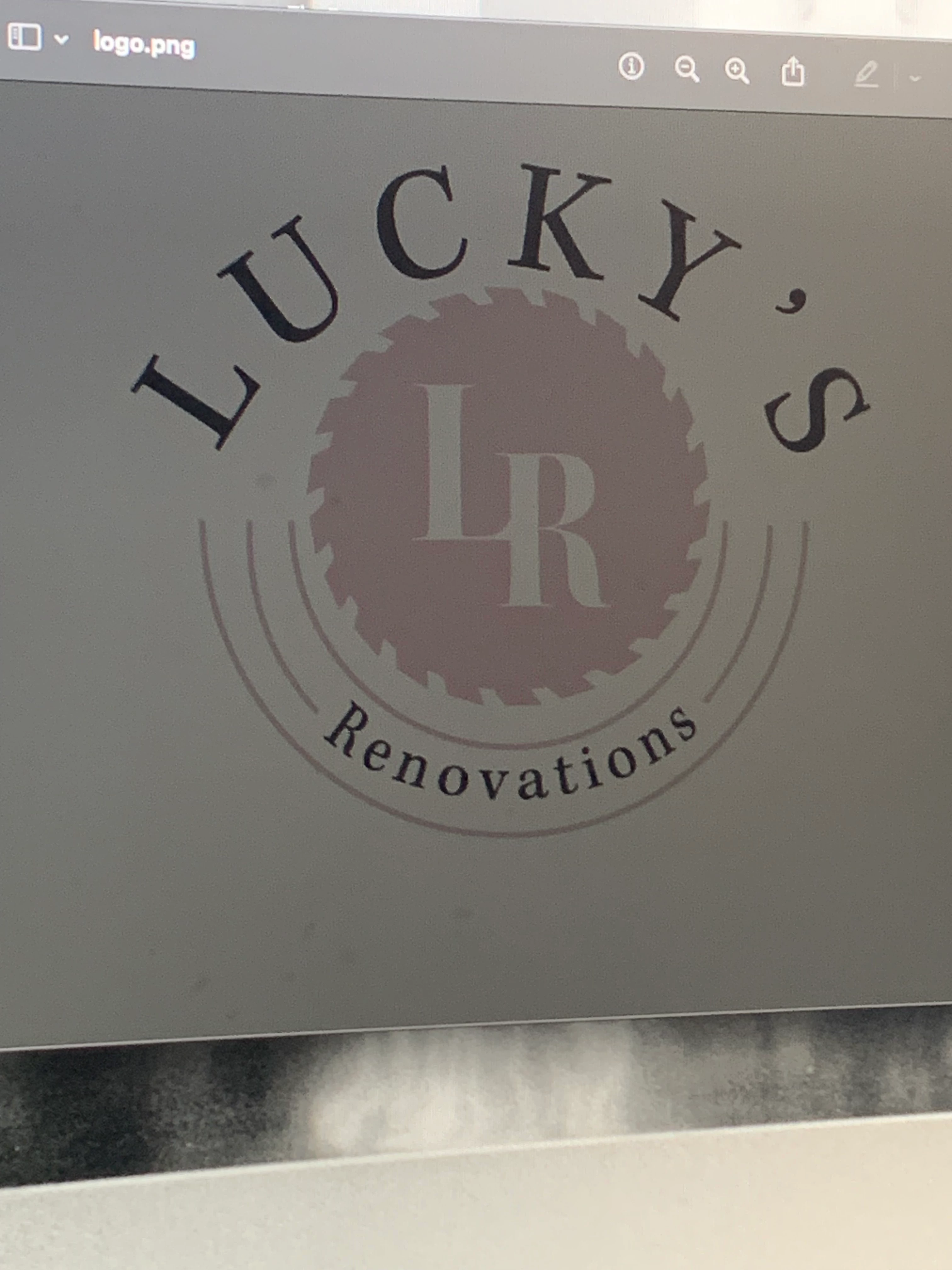
Made a logo in illustrator and it looks totally fine - I want the first version to be transparent for web and print. I’ve only tried exporting as png for web ( export as & export for web) both saved files give me the first picture attached which is a white background pink(?) graphics and black text that is all grayed out. (I haven’t even tried vectoring for print yet) but when I airdropped that file to myself on my phone in my gallery it’s looks fine until I open it then it looks like the dark version attached. However when I upload it to this thread from that same file on my phone (third image attached) it’s totally fine? I believe it’s my error idk if I just made it wrong or if I’m not tidying up loose end before exporting but any help is appreciated thanks!

 

    4 replies

    Ares Hovhannesyan
    Community Expert
    Community Expert
    January 29, 2026

    Try to export it with Save for Web option.

    Monika Gause
    Community Expert
    Community Expert
    January 29, 2026

    What kind of transparency is this supposed to be? Reduced opacity?


    Participant
    January 29, 2026

    Note: if you click on the last image it’ll pop up the same way it’s exporting for me 

    Jacob Bugge
    Community Expert
    Community Expert
    January 29, 2026

    Lucky,


    This sounds really strange. Just to make sure: you are ticking Transparency when exporting (it seems so according to the last image)?


    In order to get an optimun representation of the artwork, there are some considerations that may be worth including, including the relevant among  the following, which may sound unforgivably outdated and boring, sorry.


    If you wish to have PNGs (PNG24 (also (little) known as PNG32, it holds 24 bit colour and 8 bit Alpha channel (transparency)), of course) look crisp and clean, at least when it is (also) to be used at moderate screen resolutions, it is important to have the images in the exact desired final pixel x pixel size, or at sizes that are powers of 2 times as large, in other words 2x, 4x, 8x, and so on: the larger values can improve the appearance on high resolution screens and still ensure best possible appearance at low resolution screens, owing to controlled downsampling that gives exactly the same colour in each pixel at 1x as when created at 1x; or work at 72PPI or powers of 2 times as large (144PPI, 266PPI, 576PPI, and so on).


    Forget about print related image resolution such as 300PPI which may actually lead to wrong sizes and hence blurriness, and to colour issues by uncontrolled downsampling.


    It is easiest and safest to work at the desired size when creating the artwork.


    It is important to remember that a raster image represents the whole appearance, including strokes, so to make sure you get it right you can click Use Preview Bounds in the General Preferences (and untick it afterwards).


    A very common unsuitable way is to Export to PNG (remember to use PNG24 and use Transparency for artwork to be in front of different backgrounds) with a medium or high resolution, such as 300PPI.


    And a common misunderstanding: (almost) 11 out of 10 times, a statement like "I created the document at 300 PPI" means that the value is chosen in Effect>Document Raster Effects Settings; however that only means that the (current) resolution of any raster effects applied to the vector artwork, such as (any kind of) Blur, is set to that value (and only unless/until the value is changed to something else); when zooming in, this resolution can be seen in contrast to and on the background of the vector artwork. So this setting has nothing whatsoever to do with the actual resolution of a raster image created from the (vector) artwork (but it ought to (at least) match it).


    For clean and crisp artwork avoid JPEG; to get the colours right, you may wish/need to finalize by opening the PNG in PS (Photoshop) and attach the (missing) colour profile (such as sRGB) there.


    It is also important to have the artwork and also the Artboard(s) placed fully within integer/whole pixel X and Y values in the Workspace, which means that the X and Y values at the corners must be integer; this can be ensured by using one of the corner Reference Points in the Transform palette, and then checking that all the values X, Y, W, and H, are integer (the centre Reference Point can only be used if both W and H are even numbers).


    If you have issues with the Artboard(s), make sure the rulers are Global Rulers (RightClick), if not change from Artboard to Global Rulers; and to align your artboards, click the Rearrange All Artboards button in the Artboards panel. First posted by Ton here,
    https://community.adobe.com/t5/illustrator-discussions/why-is-illustrator-not-exporting-artboard-size/m-p/13350220#M343886


    Otherwise the resulting image will become a bit wider/taller and the extension(s) will be empty and therefore be (partially) transparent/white.


    Therefore, a safe way is to create the artwork at the final pixel x pixel size and use a corresponding Artboard, then use the Legacity Save for Web (where you can look in the Image Size window for size confirmation and possibly multiply by 2, 4, 8, whatever), or use Export at 72PPI (or 144/288/576/whatever PPI), or use Export for Screens (in either way). In either case, use the relevant optimization (available with both ways); it is also convenient to have 72PPI (or 144/288/576/whatever PPI) in the Effect>Document Raster Effect Settings.


    If you have pure vector artwork, you can relax a bit and have the artwork/Artboard at any size (the Artboard must have the same proportions as the final image), then use the Legacity Save for Web and set either Width or Height in the Image Size and Apply (make sure the other value is also correct).


    The Legacy Save for Web may be an old carthorse, but it knows its way home, even if the driver is drunk and sleeping it off in the hay in the back.


    Or you can switch to SVG, if applicable.


    https://helpx.adobe.com/search-results.html?q=svg&scope=%5B%22helpx%22%5D&subscope=%5B%5D&limit=10&start_index=0&sort_orderby=relevancy&sort_order=desc&post_facet_filters=%7B%22applicable_products%22%3A%5B%5D%7D


    Edit: I will try to follow this thread, but that is made more difficult because there is no longer a Notification feed (Bell) showing new additions since the forum software switch.


    Participant
    January 29, 2026

    I am 100% I’ve tried it maybe 30 times. I realized I was editing it as a vector - rasterized it export a png- same thing still. I’m not sure if maybe I need to unite all the different parts first? But when I do that the bottom outermost ellipse closes uo and covers the whole bottom half. Idk if that could be it though

    Jacob Bugge
    Community Expert
    Community Expert
    January 29, 2026

    @Jacob Bugge @Jacob Bugge Lucky,


    Why rasterize?


    Exporting the vector artwork as a PNG with transparency is the right straightforward way.


    And whatever happens whenever you are about to make irreversible changes to your artwork, save a backup so you still have the original.


    Have you considered the boring part which is meant to optimize the quality including accuracy and crispness?


    Edit: It is past midnight (over) here, time to attend to other duties, in the dark hours before the sun rises.