
Inspiring
July 25, 2022
Answered

If I save a file in Photoshop, then open it in Illustrator, Illustrator adds a second background

  • July 25, 2022
  • 3 replies
  • 1073 views

I've been having this problem a lot lately. I included two sccreenshots to show what I mean. I worked on the line art in Photoshop, when sent  it to Illustrator in order to overlay a line grid for enlarging it onto canvas.

But what I got in Illustrator, un-requested, was the hoped-for image, but with another white background added to it, the wrong size and shape, overlapping the image. It takes other forms as well-like, in Illustrator, I start a new file and get two of the same size backgrounds, adjacent to each other. I have regularly trashed the prefs when this happens, but it persists. How can I get rid of it?

This topic has been closed for replies.
Correct answer Anshul_Saini

Hi @birckcmi,


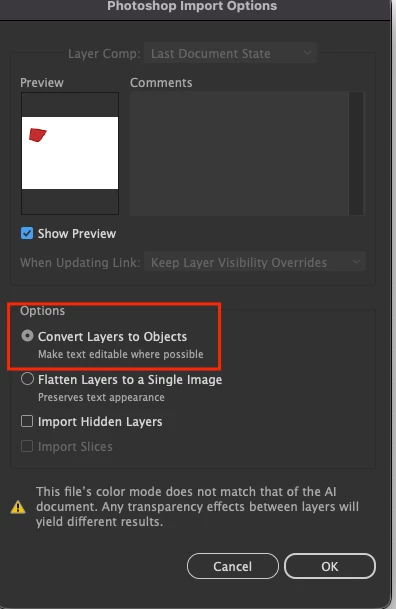
Sorry to hear about the trouble. The easiest way would be to hide or delete the background layer in Photoshop before placing/ opening the PSD in Illustrator. If you open/ place (ensure the link option is unchecked & "show import options" is checked) and select "convert layers to objects."


I hope it helps!


Regards,

Anshul Saini

3 replies

Anshul_Saini
Community Manager
Anshul_SainiCommunity ManagerCorrect answer
Community Manager
July 25, 2022

Hi @birckcmi,


Sorry to hear about the trouble. The easiest way would be to hide or delete the background layer in Photoshop before placing/ opening the PSD in Illustrator. If you open/ place (ensure the link option is unchecked & "show import options" is checked) and select "convert layers to objects."


I hope it helps!


Regards,

Anshul Saini

Dave Creamer of IDEAS
Community Expert
Community Expert
July 25, 2022

Your AI screen capture looks like an artboard. What are the dimensions and orientation of the artboard? 

How did you send the PSD file to AI? Are you placing the PSD file?


David Creamer: Community Expert (ACI and ACE 1995-2023)
birckcmiAuthor
Inspiring
July 31, 2022

Yes, the area with line art is the artboard. That particular artboard was either 8 1/2 X 11 or tabloid size, vertical(portrait) orienation, saved in Photoshop, then simply opened in Illustrator, rather than placed. I had never oriented it any way other than vertically. One other factor that may change the solution a bit is that sometimes, when I want to open  a new file of a certain size in Illustrator, what comes up is not a single page that size on a black background, but two of them, adjacent. I ask for one, I get two. I wouldn't know how to request two new files simultaneously under normal circumstances, so I have no ideaa whay or how it's happening. 

Ton Frederiks
Community Expert
Community Expert
July 31, 2022

Maybe you checked the "Convert Layers to Objects" option in the Photoshop Import Options when opening the Photoshop file.

And to get two (or more) Artboards, you can set that number when you create a new Illustrator document.

birckcmiAuthor
Inspiring
July 25, 2022

Sorry, I forgot the screenshots. Here they are:

Met1
Legend
July 25, 2022

In the AI png you have the item with a selection box around it, seems to be exactly the same bounds as your PS png... Are you saying that left handed blank space is "attached" to your image, it moves with your image?

birckcmiAuthor
Inspiring
July 31, 2022

Yes, I can 't get rid of it. It follows the artboard. If, in Illustrator,I try to reduce it's size, the whole combination reduces. It can also happen with selection boxes, meaning that instead of a visible white area where I don't want it,  there will be an invisible selection that becomes visible if I place anything outside of the Art Board area, e.g., for storage of completed drawn elements. If I try to pick up and move one of those elements, the selection box appears, surrounding the whole art area, and starts distorting the AI drawing. That may be hard to envision. I don't have a screenshot of it.