Participating Frequently
December 20, 2024
Question

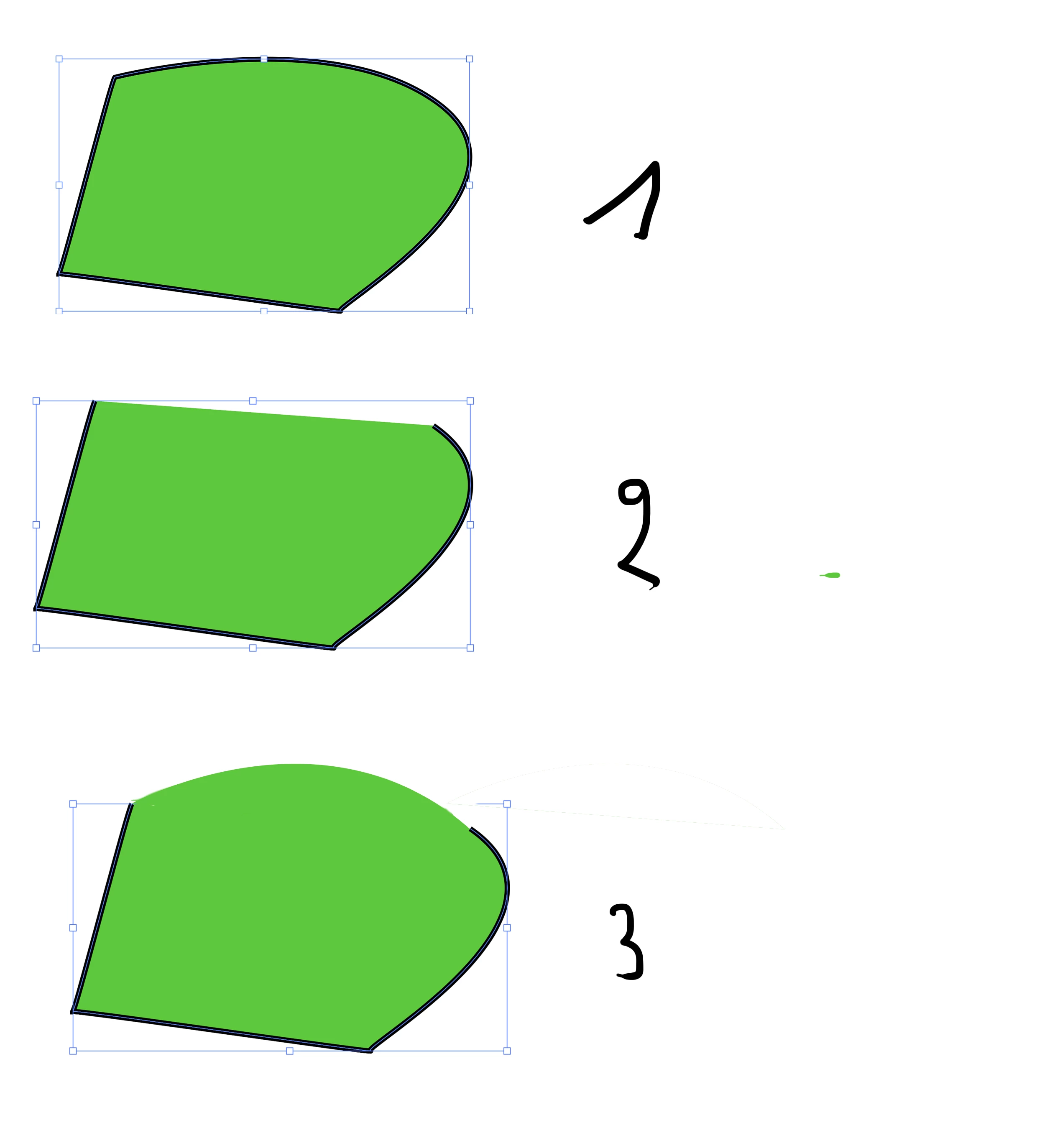
illustartor, comment garder l'arrondi de la forme quand on supprime le tracé

  • December 20, 2024
  • 2 replies
  • 895 views

illustartor, comment garder l'arrondi de la forme quand on supprime le tracé

De 1 passer à 3

This topic has been closed for replies.

2 replies

Jacob Bugge
Community Expert
Community Expert
December 22, 2024

Dominique,


When you create a path with stroke and fill, the stroke inherently follows the (spine of the) path, and the fill inherently fills it.


You have actually deleted the upper part of the path, and therefore both the stroke and the fill end where the path ends.


"may be one time it will be a solution"


The only possible solution is to keep the original path which is needed to give shape to the upper part, and then choose one of a few different ways of obtaining (the appearance of) a stroke that only has the desired length and position along the path (spine).


One is to split the path as already mentioned by Ton, this requires two separate paths, which can be Grouped.


Another one, which gives the same appearance (including the rounded ends of the stroke part) with just one path, is to keep the original path and then apply Dashed Line in a cunning way through the Stroke palette; there are a few such cunning ways, the relevant one(s) depending on the direction you have drawn the path in.


Jacob Bugge
Community Expert
Community Expert
December 22, 2024

Here are two accurate ways to use Dashed Line (ligne pointillée), based on the assumption that the path is drawn clockwise from the top left corner and closed, and that you wish to start the stroke at the second Anchor Point (at the red arrow). They both start with the path as in 1), and the first one is simpler. You can see a simpler approximate way at the bottom of this post.


1) Draw the path (you have done that, the Anchor Point where you wish the stroke to start shown by the red arrow), then note its length in the Document Info palette;

2A) Based on the path as it is:

2A1) Deselect the path (you can click an empty spot), then click the top path segment with the Direct Selection Tool (white/hollow arrow), then hold Ctrl/Cmd and press C then F to create a temporary auxiliary path, then note its length in the Document Info palette;

2A2) Delete or hide the path from 2A1, then select the original path, then in the Stroke palette click Dashed Line and set the first Dash to 0, then set the first Gap to the length value from 2A1, then set the second Dash to the length value from 1); the first Gap will appear as no stroke and the remaining part of the path will appear as the stroke part;

2B) Based on reversal of the path direction:

2B1) Copy the whole path, then click the top path segment of the copy path with the Direct Selection Tool (white/hollow arrow) and delete it to create a temporary auxiliary path of the remaining  path segments, then note its length in the Document Info palette;

2B2) Delete or hide the path from 2N1, then select the original path, then Click the top left Anchor Point (the corner) with the Scissors Tool to open the path, then Click the top left Anchor Point (again) with the Pen Tool to reverse the path direction, then deselect (you can click an empty spot), then ClickDrag over the top left Anchor Point with the Direct Selection Tool, hold Ctrl/Cmd  and press J (tick Corner) to close the path again, then in the Stroke palette click Dashed Line and set the first Dash to the length value from 2B1; the first Dash will appear as the stroke part and the remaining part of the path will appear as no stroke.


Click to get closer, Click again to get closer still


If you just wish to use a simpler approximate way, you can:


1) Draw the path (you have done that, the Anchor Point where you wish the stroke to start shown by the red arrow), then note its length in the Document Info palette;

2C1) In the Stroke palette click Dashed Line and set the first Dash to 0, then set the first Gap to a first approximate value, then set the second Dash to the length value from 1);

2C2) Adjust the value of the first Gap (increasing or decreasing it) to a new approximate value and repeat until you are satisfied with the apparent length of the stroke part, (more or less) appearing like 2A2/2B2).


Obviously, the simplest solution is to just use the two separate paths, which can be Grouped.


Participating Frequently
December 23, 2024
Yes, thank you very much, it is already a much cleaner method. In fact these are drawings that I have to do for a digital embroidery machine. Apparently inskape would have in its system a tool that transforms the drawings for this embroidery machine. (but it does not work all the time) You should know that the lines cannot be superimposed neither between them nor above a shape. That is to say that what would be needed is to be able to delete the lines while keeping the shapes as they were with the original line and not by shrinking between the two anchor points.
Ton Frederiks
Community Expert
Community Expert
December 20, 2024

Make a copy for the fill and one on top with a stroked path and no fill.

Participating Frequently
December 20, 2024
Yes, thanks, but it's a bit of a trick... I'd like to know if there isn't a more direct way.
Ton Frederiks
Community Expert
Community Expert
December 20, 2024

No. As you can see open paths are filled in a straight line, connecting the two end points.