Inspiring
February 9, 2024
Answered

Illustrator 28.2 (64bit) GPU/CPU Preview change the colors.

  • February 9, 2024
  • 1 reply
  • 575 views

I have the same problem on windows 10 with Illustrator 28.2 (64bit) GPU/CPU Preview change the colors.

Other colors i see when use preview GPU (Nivida) then with CPU.

This is a big bug. Please help.


This topic has been closed for replies.
Correct answer Anubhav M

Hello @DutchAlex,


Sorry to hear about your experience. Would you mind performing a clean reinstallation of the GPU drivers (Intel / NVIDIA / AMD) and setting the Graphics Preference to High-Performance for Illustrator (https://www.amd.com/en/support/kb/faq/gpu-110) and checking if it helps?

Also, try 
to check and re-calibrate your display by following these steps in order and share your observations:


  1. Use the Windows key + I keyboard shortcut to open the Settings app.
  2. Click DisplayMake sure you're using the recommended screen resolution for your display.
  3. Click the Advanced display settings link.
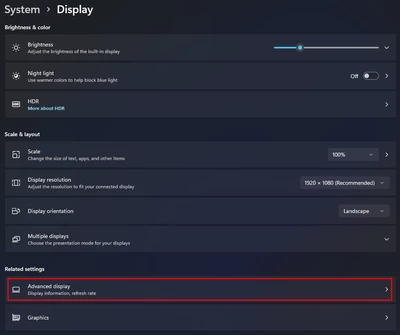
     

    Now click on the link for Display Adaptor properties
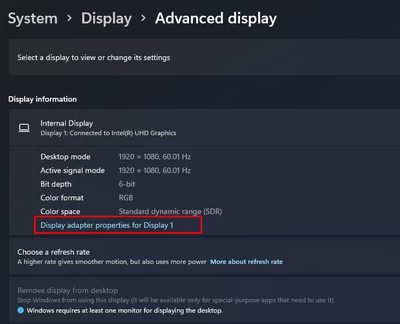
  4. Click on the option for Color management
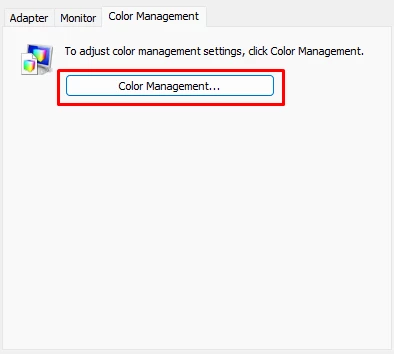
  5.  Go to the Advanced tab and ensure all profiles are set to the System Default (sRGB). Then, click on Calibrate Display.
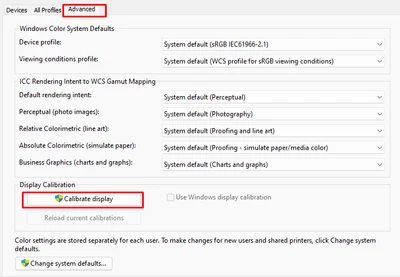
  6. The wizard will now walk you through the steps to access the on-screen display menu on your monitor to set specific color settings. Click Next to continue. 
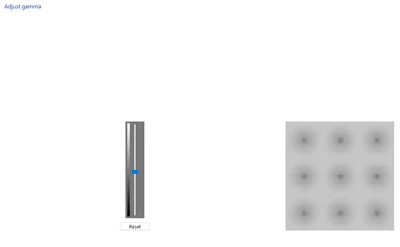
    - Adjust the gamma settings by moving the slider up or down until the small dots are barely visible.
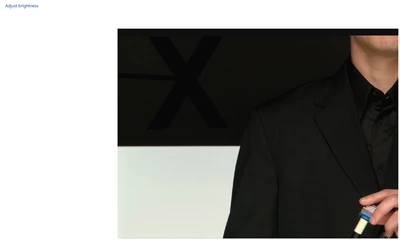
Find the brightness controls on your monitor and adjust the brightness higher or lower until you can distinguish the shirt from the suit with the X barely visible.
Find the contrast controls on your monitor and set it as high as possible without losing the ability to see the wrinkles and buttons on the shirt.

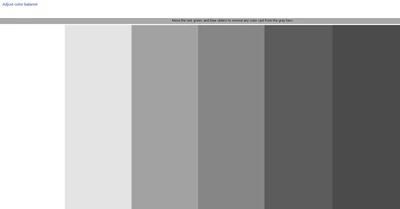
- Move the Red, Green and Blue sliders to remove any color cast from the Gray bars.
Note: You can optionally start the ClearType tuner at the end of this calibration to make the text on-screen more legible.


After the calibration is complete, kindly restart the computer and then check if the colors are consistent with Windows on your Adobe apps.


Looking forward to your response.


Thanks,

Anubhav

1 reply

Anubhav M
Community Manager
Anubhav MCommunity ManagerCorrect answer
Community Manager
February 9, 2024

Hello @DutchAlex,


Sorry to hear about your experience. Would you mind performing a clean reinstallation of the GPU drivers (Intel / NVIDIA / AMD) and setting the Graphics Preference to High-Performance for Illustrator (https://www.amd.com/en/support/kb/faq/gpu-110) and checking if it helps?

Also, try 
to check and re-calibrate your display by following these steps in order and share your observations:


  1. Use the Windows key + I keyboard shortcut to open the Settings app.
  2. Click DisplayMake sure you're using the recommended screen resolution for your display.
  3. Click the Advanced display settings link.


    Now click on the link for Display Adaptor properties
  4. Click on the option for Color management
  5.  Go to the Advanced tab and ensure all profiles are set to the System Default (sRGB). Then, click on Calibrate Display.
  6. The wizard will now walk you through the steps to access the on-screen display menu on your monitor to set specific color settings. Click Next to continue. 
    - Adjust the gamma settings by moving the slider up or down until the small dots are barely visible.

Find the brightness controls on your monitor and adjust the brightness higher or lower until you can distinguish the shirt from the suit with the X barely visible.

Find the contrast controls on your monitor and set it as high as possible without losing the ability to see the wrinkles and buttons on the shirt.

- Move the Red, Green and Blue sliders to remove any color cast from the Gray bars.

Note: You can optionally start the ClearType tuner at the end of this calibration to make the text on-screen more legible.


After the calibration is complete, kindly restart the computer and then check if the colors are consistent with Windows on your Adobe apps.


Looking forward to your response.


Thanks,

Anubhav

DutchAlexAuthor
Inspiring
February 12, 2024

I did a reinstall of all nvidia drivers and after that en reinstall (just over) CC. Now it is gone i think.

I did earlier a reinstall that does not help but now i did the reinstall with DDU https://www.guru3d.com/download/display-driver-uninstaller-download/  and is maybe why it now is working.

So....topic closed. If the problem is back i will send a new message.

TIP to all CC's use DDu to do a cleanreinstall of Nvidei but also intel and AMD drivers.