Participant
June 3, 2020
Answered

Illustrator adds paths to brush strokes - Help!

  • June 3, 2020
  • 1 reply
  • 1125 views

Hello everybody,


I encountered a weird little problem while working with the brush-tool (B).
As far as I´ve read this problem is quite known when using the calligraphy-brush tool, which, to be honest, does not help me too much.


What happens?
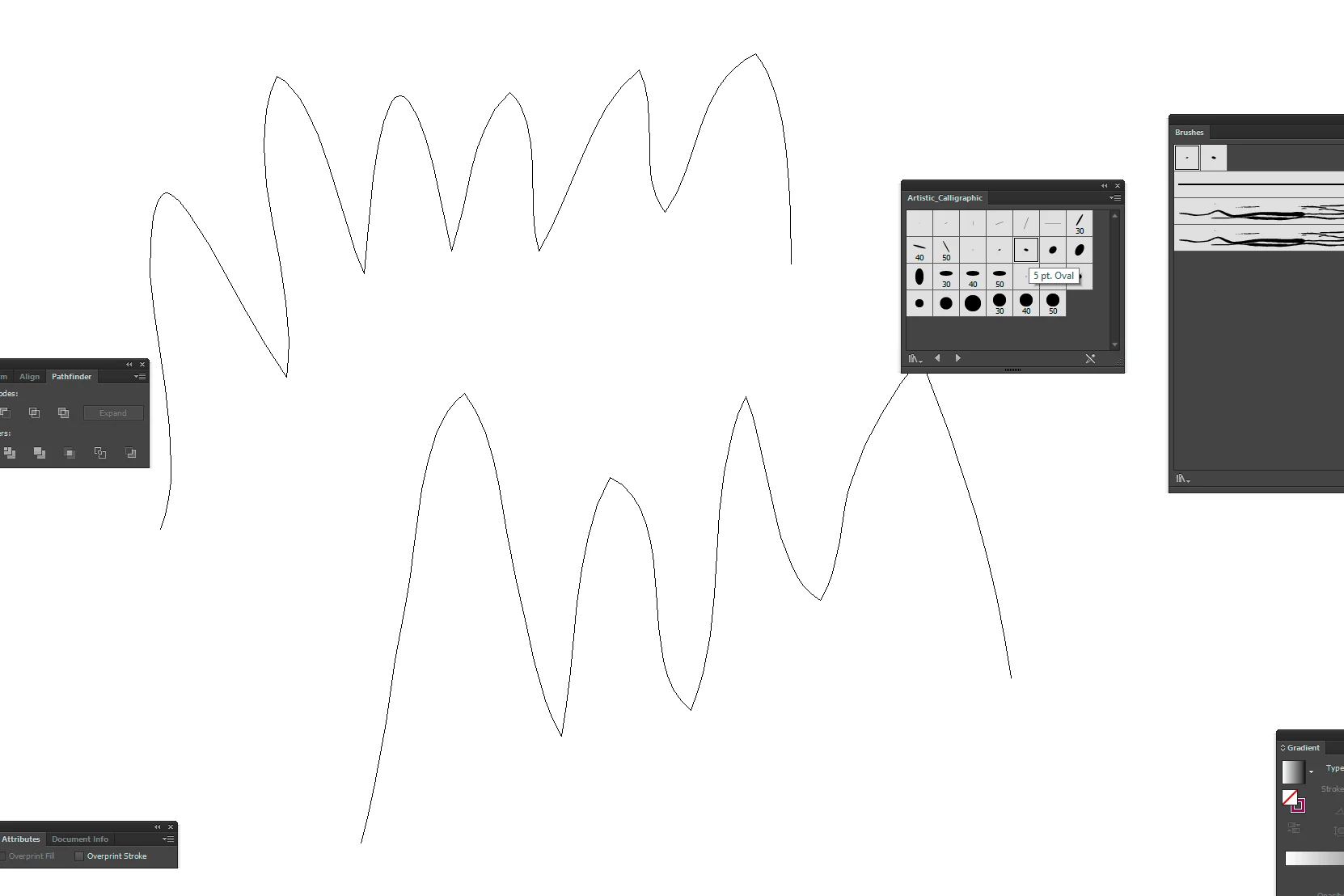
If I paint / draw a curve with my tablet (Wacom), Illustrator fills the curve, but not with a "controllable path" that I could remove. It is just there, but in outline view it does not show: 
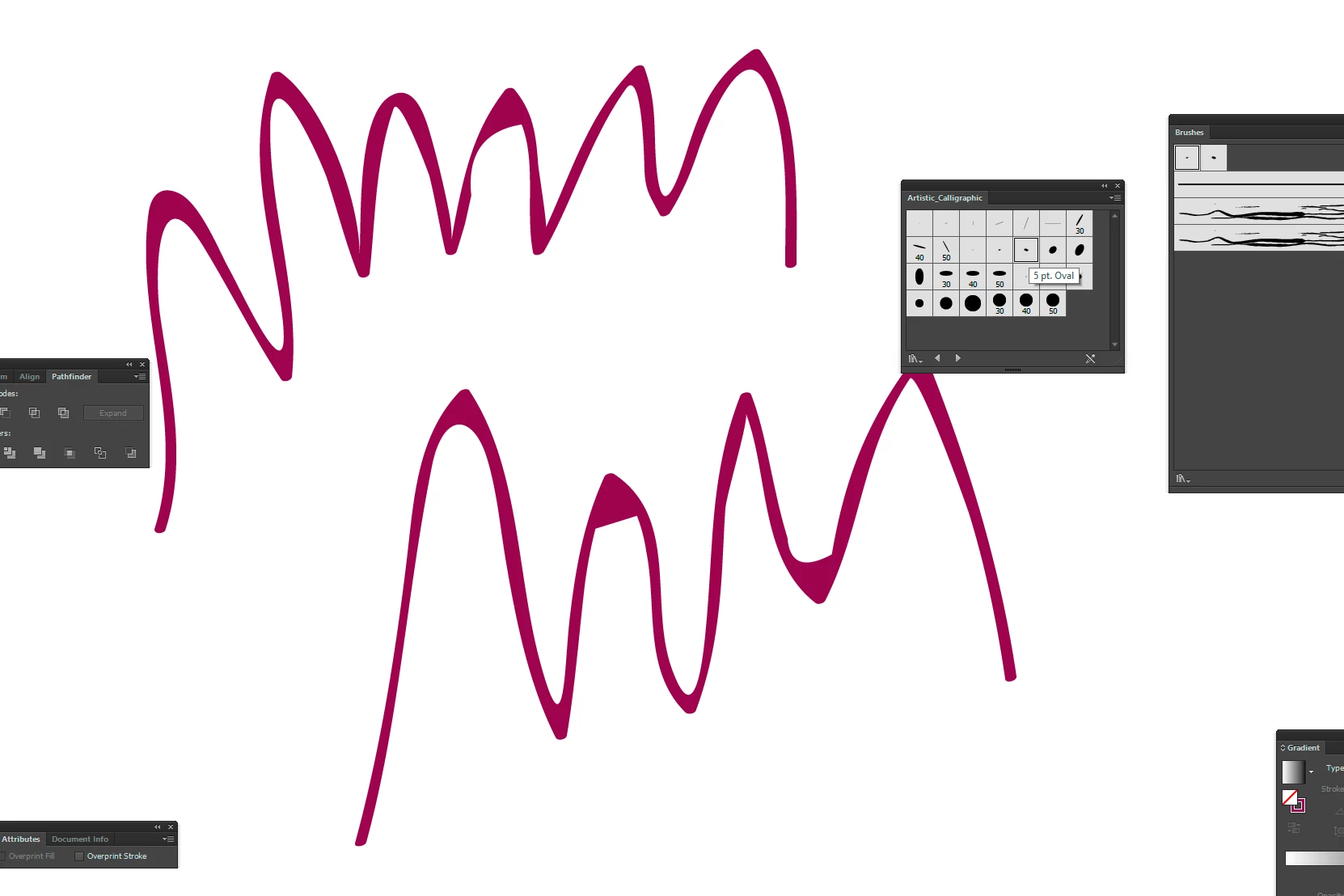
I can't get behind why he does that fillings in the corners. 

Can somebody help? 
If you need further Info, let me know.

Thanks a lot in advance!

Jan

This topic has been closed for replies.
Correct answer Ton Frederiks

There have been many discussions about this problem (which are hard to find) with workarounds like:

Object > Path > Add Anchor Points (repeat till the problem is gone) or
Effect > Distort & Transform > Roughen: Size 0% and a large Detail number.

1 reply

Doug A Roberts
Community Expert
Community Expert
June 3, 2020

As you say, it is a very old bug. That doesn't help you very much, but there is nothing us here can do about it.

The information on this can be found here:


https://illustrator.uservoice.com/forums/333657-illustrator-feature-requests/suggestions/34128700-calligraphic-brush-blob-brush-appearance-anomalie


As you can see, it was marked 'completed' sometime last year with version 23.0.6. As far as I can tell, this is not the case -- perhaps they fixed some instances of it, or fixed it under certain parameters, but it can still be reproduced.

You can try adjusting the stroke size, or the size in the brush options, if your design allows.

JKus90Author
Participant
June 3, 2020

That`s kind of the answer that I feared to get.
Would a workaround be to create an own calligraphic brush - if that's even possible?
Thanks for the answer, maybe someone has an idea how to solve this weird problem. 😄

Ton Frederiks
Community Expert
Ton FrederiksCommunity ExpertCorrect answer
Community Expert
June 3, 2020

There have been many discussions about this problem (which are hard to find) with workarounds like:

Object > Path > Add Anchor Points (repeat till the problem is gone) or
Effect > Distort & Transform > Roughen: Size 0% and a large Detail number.