Participant
June 10, 2024
Answered

Illustrator Angles not Accurate

  • June 10, 2024
  • 3 replies
  • 1295 views

Can Someone help!

Illustrator 2024,  angles are not consistent. 

If I draw a box, 50mm wide by 25mm high then lock the box so it won't move around. 

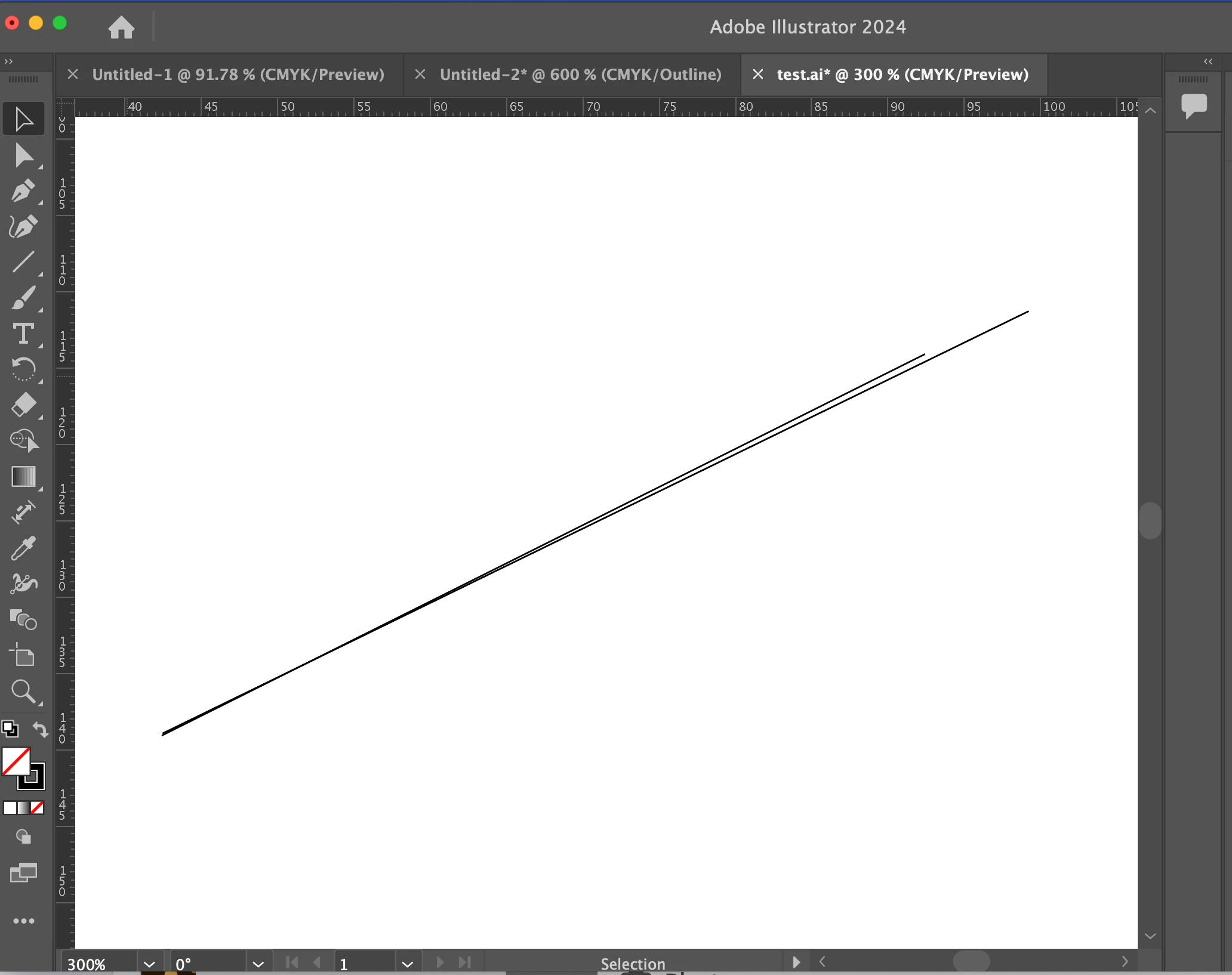
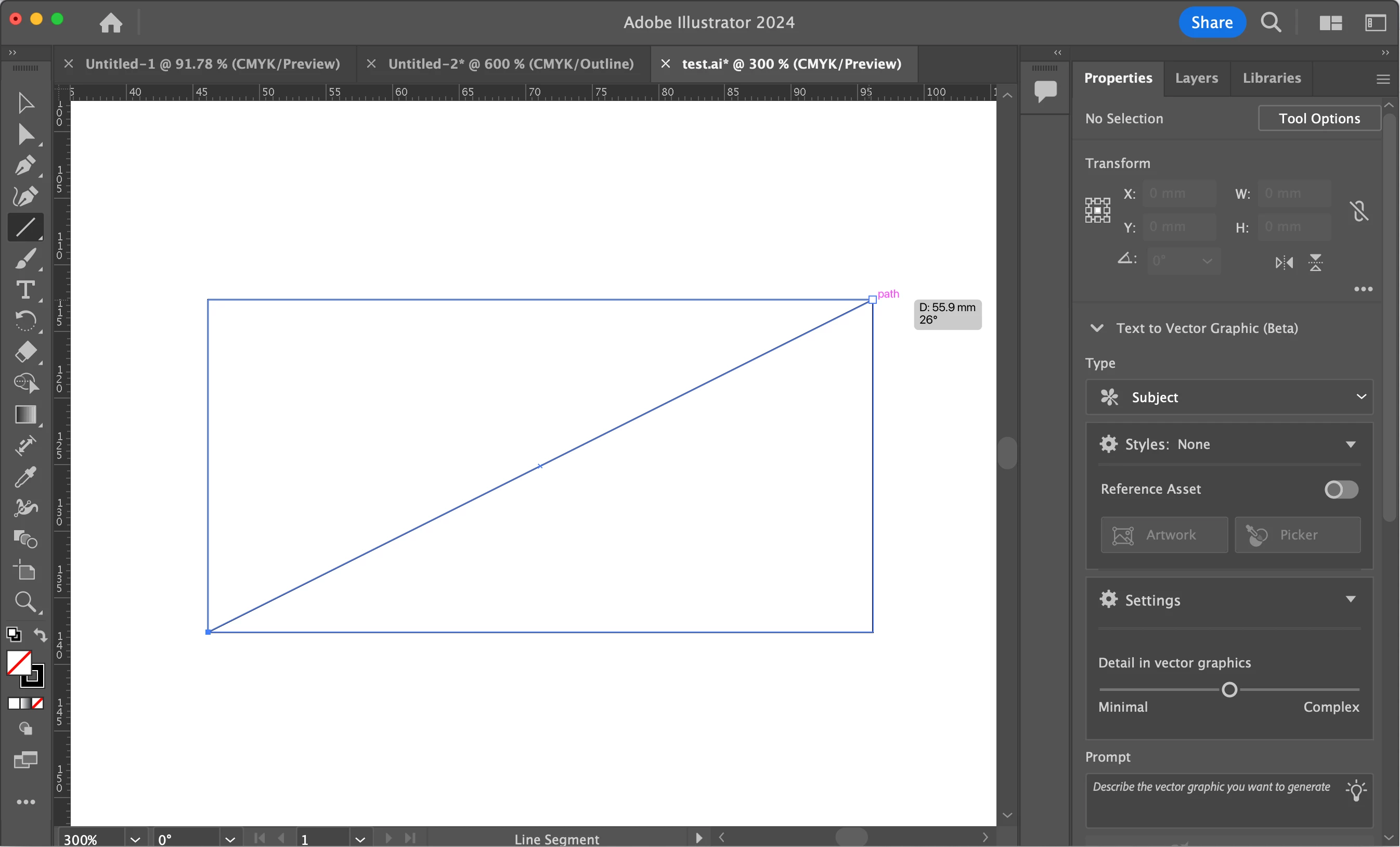
If then draw a line diagonally from the box's bottom left corner to top right corner, Illustrator's tool tip tells me the angle is 26 degrees. But here's the thing - if I discard the diagonal line and instead draw out a  horizonal line, roughly 70mm in length and rotate it to 26 degrees (using Object - Transform - Rotate ), and move the line into the box, it won't bisect the bottom left and top right corner of the box, as the previous line did. But both lines are 26 degrees, or so Illustrator has told me. If I compare the two diagonal lines, the one I discarded and the new one I made, and place them one on top of the other, I can see that they are not quite the same angle. So what is going on? Just to add to the mystery, I have found the same issue in Adobe Illustrator CS6, however, in CS6, if I draw out the exact same box and draw out the exact same diagonal line, the illustrator tool tip tells me the angle is 27 degrees, not 26! I'm beginnig to wonder whether i'm going mad. 
This topic has been closed for replies.
Correct answer Ton Frederiks

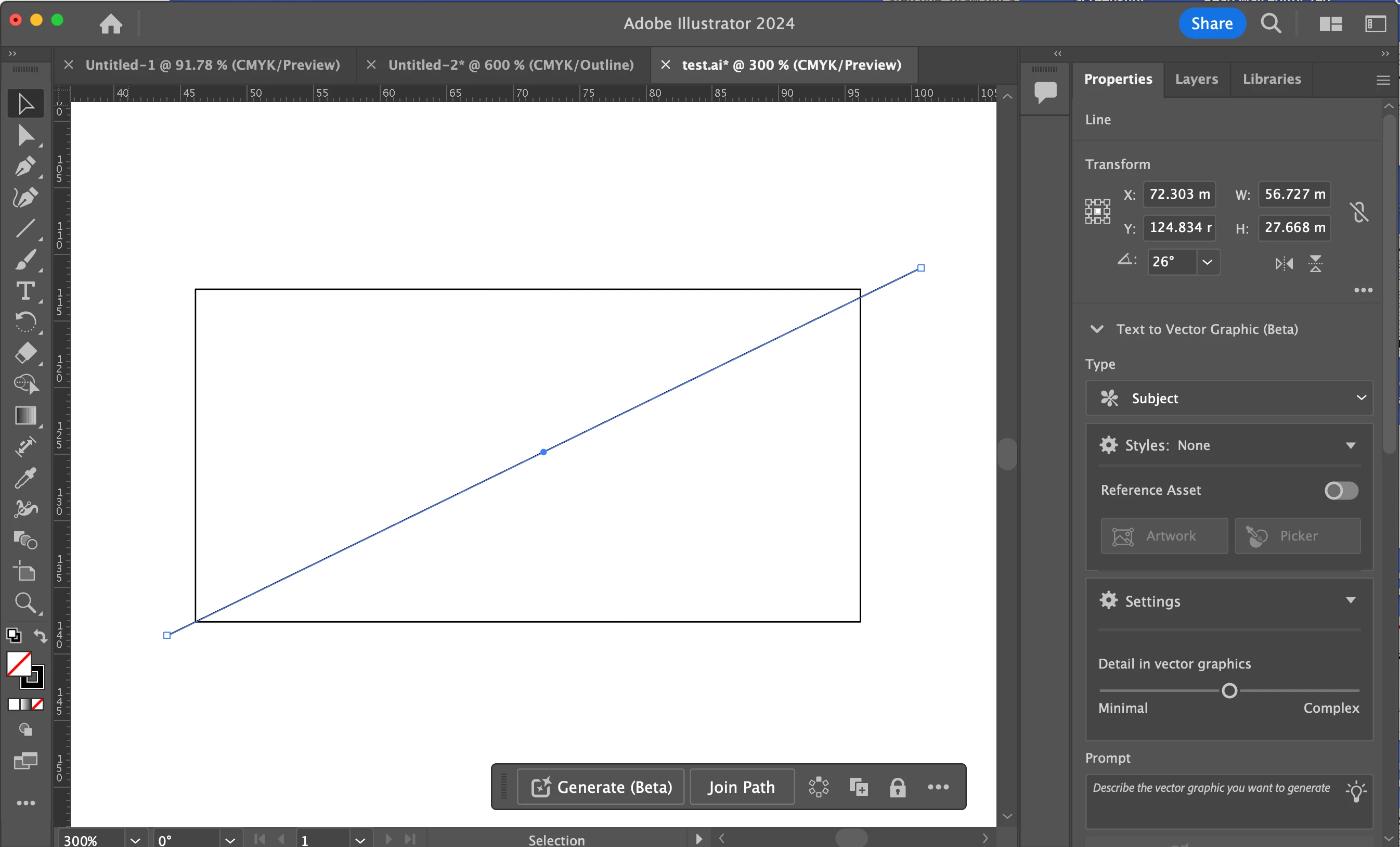
If I do as in your first screen, the Transform panel shows 26,565° although smart guides indicate 26°.

3 replies

Jacob Bugge
Community Expert
Community Expert
June 10, 2024

Thomas,


"Just to add to the mystery, I have found the same issue in Adobe Illustrator CS6, however, in CS6, if I draw out the exact same box and draw out the exact same diagonal line, the illustrator tool tip tells me the angle is 27 degrees, not 26! "


Using approximate numbers that are rounded for (simplied) information purposes lead to inaccuracy. In this case, the whole number 27 is closer when rounding, whereas 26 is what you get when rounding down (removing the decimal part).


In many cases there is no need to use/copy numbers.


If you wish to accurately reproduce an angle as in the case described, you can simply ClickDrag from corner to corner with the Line Segment Tool and snap to them with Smart Guides saying anchor at both ends, and then you can continue in different ways depending on need and preference.


If you need a line at the same angle and a different length, you can just Click somewhere on the Artboard which will show the (rounded) length and angle, and then you can change the length as desired and just Click again to have the desired new line.


If there is no need to change the length, you can just move the line (or a copy of it by holding Alt/Option) by ClickDragging.


In any case you can use one such line as a guiding line if you wish to rotate something to that angle, using Smart Guides for snapping, still without using (copying of) approximate numbers.


Participant
June 19, 2024

Hello, thank you. Just one other thing, Illustrator 2024 won't let me ClickDrag a line from corner to corner of a rectangle as CS6 did, the line tool crosshairs just change to the pointer. Same when I try to draw a circle out from the centre of an existing circle. What's going on?

Monika Gause
Community Expert
Community Expert
June 19, 2024

Is the other shape still selected?

Ton Frederiks
Community Expert
Ton FrederiksCommunity ExpertCorrect answer
Community Expert
June 10, 2024

If I do as in your first screen, the Transform panel shows 26,565° although smart guides indicate 26°.

Participant
June 10, 2024

Thank you, you're right. I should be looking at the Transform panel, not the smart guide annotation. It seems so simple once someone tells you, but I just couldn't work it out and it was driving me nuts! Thanks again. 

Ton Frederiks
Community Expert
Community Expert
June 10, 2024

Good to hear that helped. Yes, the angles of the smart guides are rounded.

Monika Gause
Community Expert
Community Expert
June 10, 2024

The smart guides annotations are not very precise.

Participant
June 10, 2024

Thank you for your reply Monika. Very helpful. 

Tom

Monika Gause
Community Expert
Community Expert
June 10, 2024

You can turn off those size infos in Preferences > Smart Guides. Everything else from the smart guides will still be there.