Inspiring
Oct 20, 2016 3:42 PM UTC
Answered

Illustrator artboard height & width options not showing in control panel/options bar

Hi, I am trying to modify the dimensions of an artboard per an exercise, but the instructor's options across the top have height and width boxes enabling one to make the adjustments.
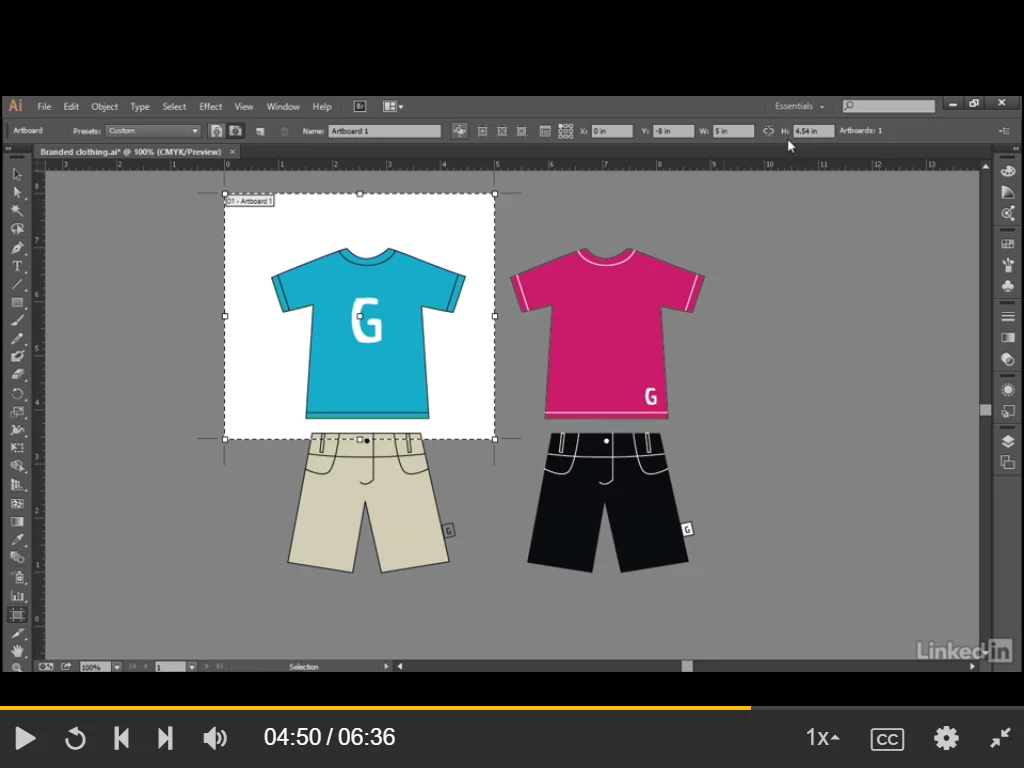
Height & width are available in menu at top.

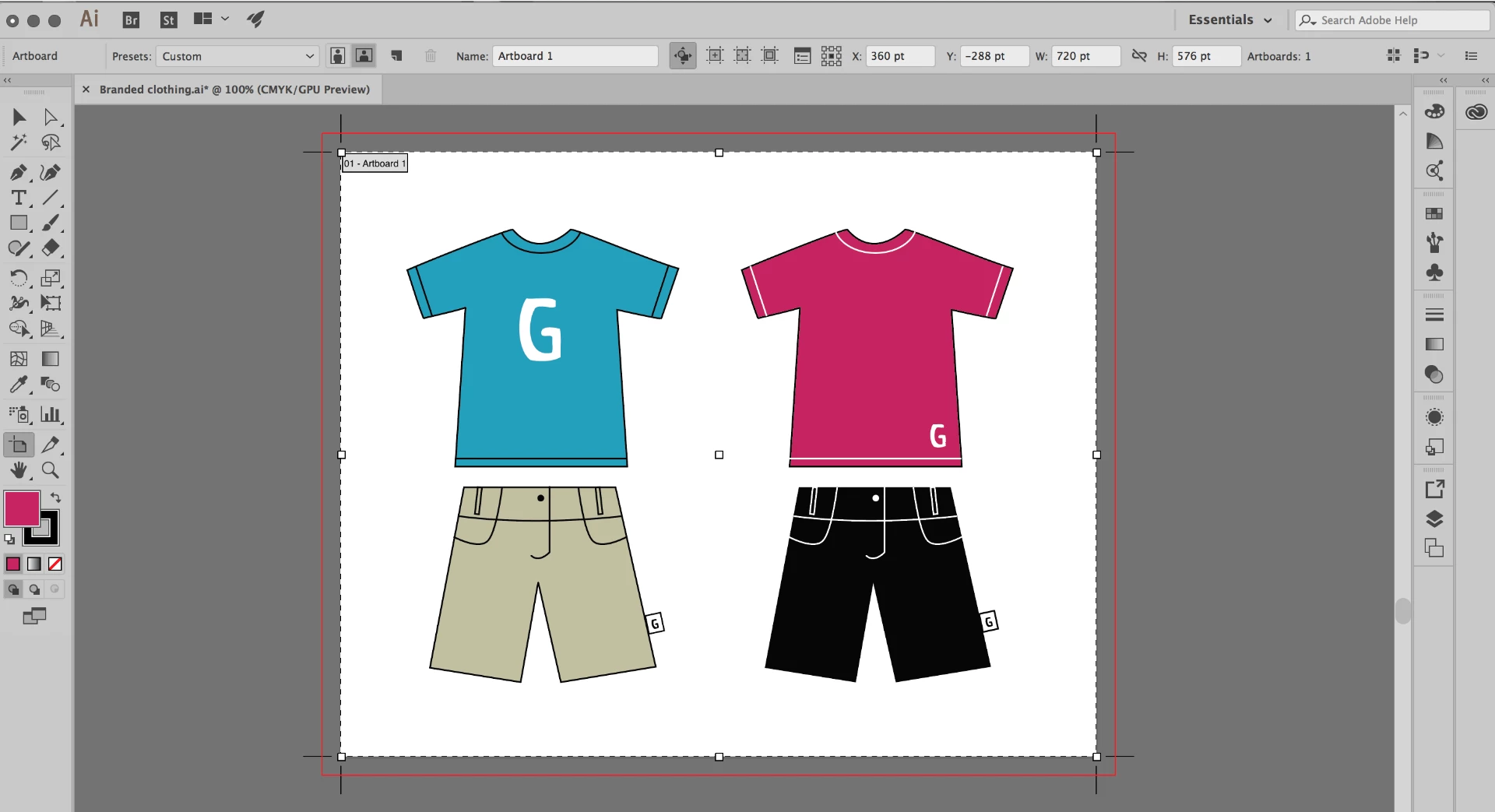
I only have the x and y dimensions available. If I go into Edit Artboards and change the dimensions, I end up with a strange result. Here is before adjusting size:
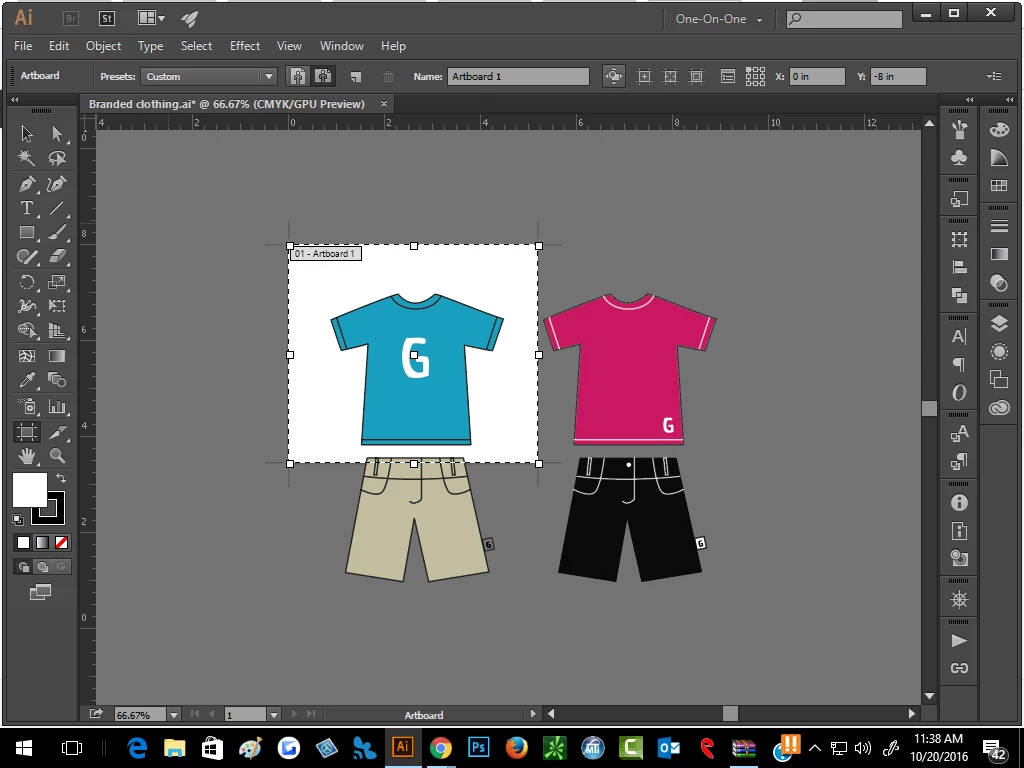
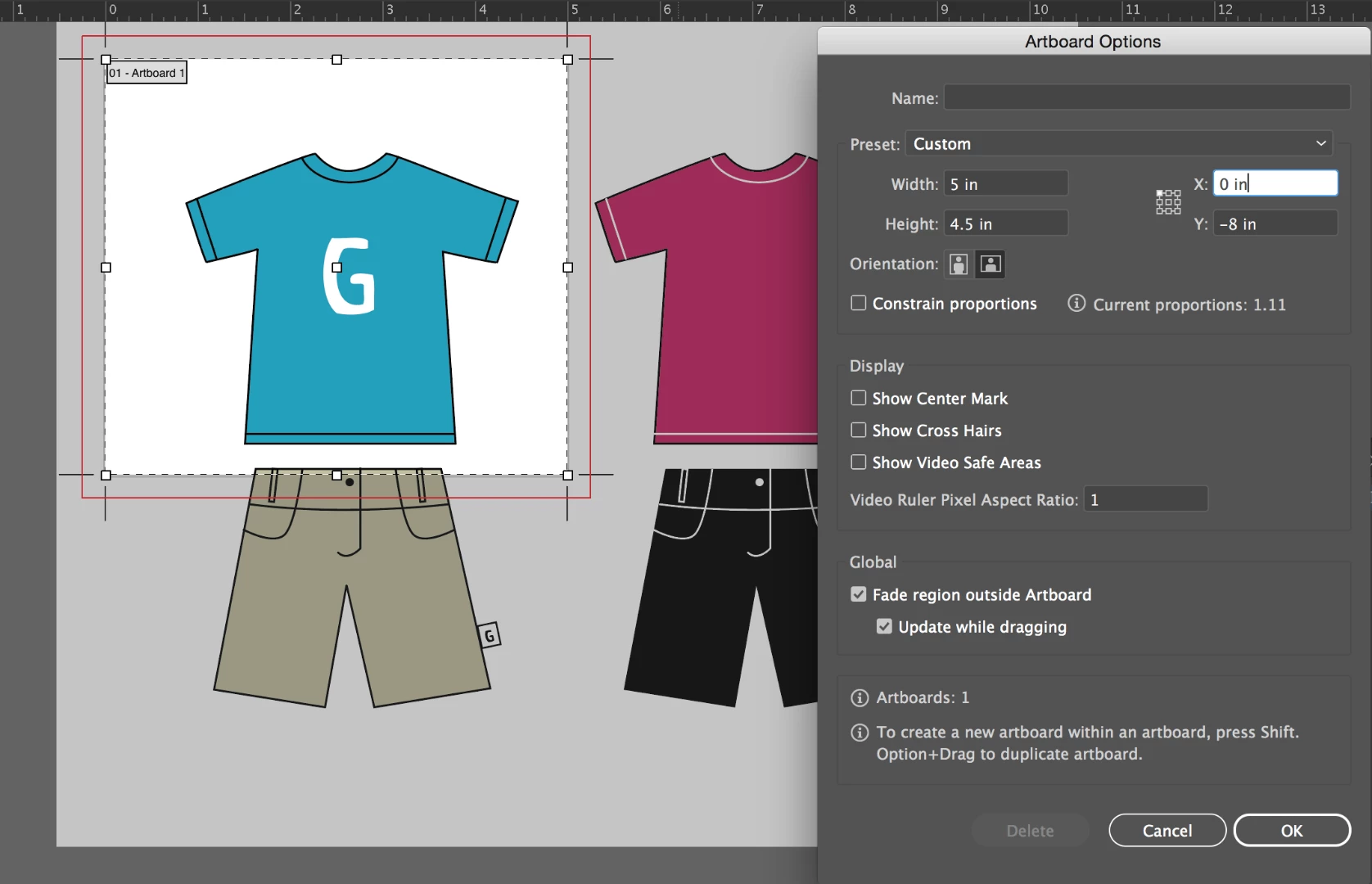
In Edit Artboard:
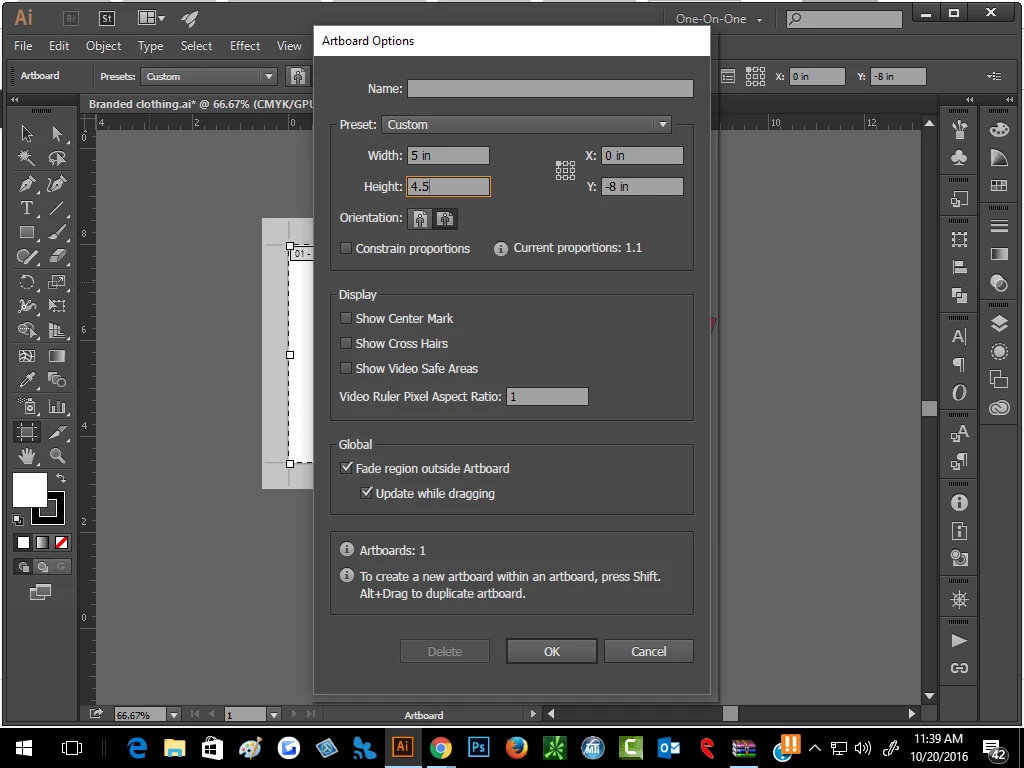
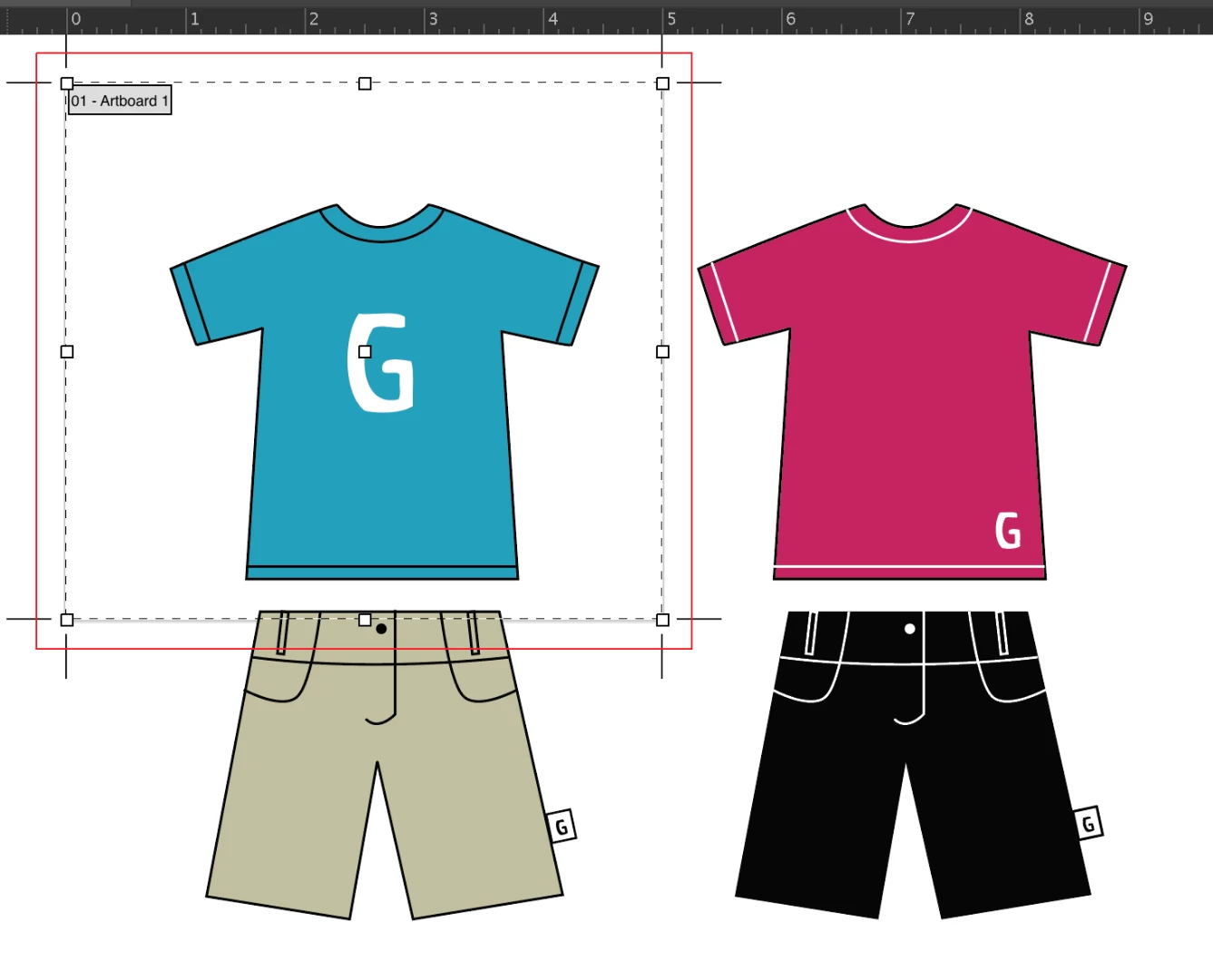
After clicking "OK":
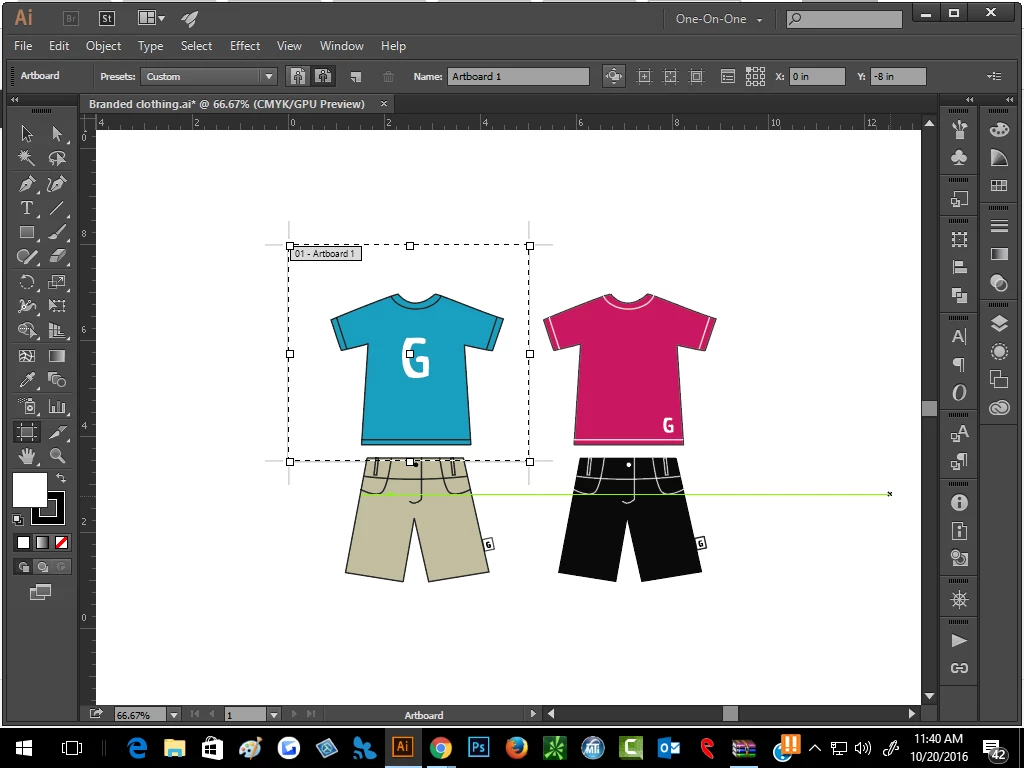
I get a white selection around the shirt, but it seems within a larger whiteboard.

How do I get the height/width options in the menu bar at the top, or another work-around to accomplish getting the blue shirt on its own artboard?

Thanks in advance.

    jane-e
    jane-eCorrect answer
    Community Expert
    Dec 2, 2016 2:49 PM UTC

    If you have a large enough monitor, make the window a little wider and you will see the controls.


    Just for fun, I experimented with your file (which I was given when I was a TA at MAX). You found a bug, and I was able to reproduce it in 2017 and 2015. I also found a workaround.

    1. If you use the Control panel W and H, there is no bug.

    2. If you have one Artboard and scale it as you did, everything turns white as you and I both saw.

    Here is my dialog box before okay:

    I click okay and get what you got:

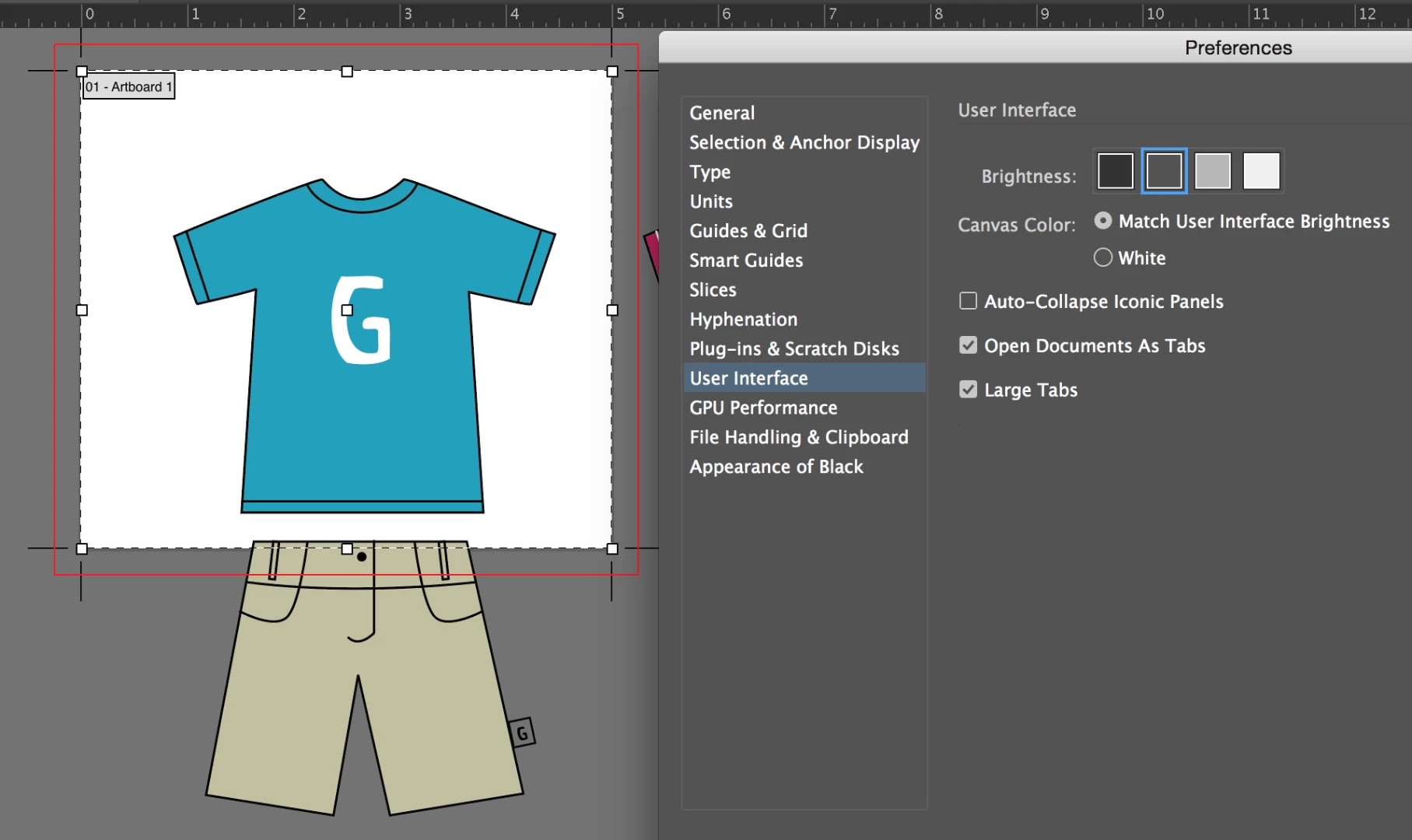
    3. The fix that I found is go to Prefs > User Interface > Select something else > reselect the one you prefer > Okay

    There may be other fixes, but this worked.

    It seems to be changing the Canvas color to White as in the olden days and needs to be kicked back.

    4. Report it as a bug:

    http://www.adobe.com/products/wishform.html

    22 replies

    Participating Frequently
    Oct 6, 2017 12:45 PM UTC

    I am facing the same problem too. please let me know if you have found the solution. I have tried all the suggestions but the problem still remains.

    Thanks

    Translate
    Ton Frederiks
    Community Expert
    Community Expert
    Oct 6, 2017 1:37 PM UTC

    You did not try all the suggestions above, or maybe you did but forgot to turn off the Snap to Pixel option in the Control Panel.

    It's still visible in your screendump.

    Translate
    Participating Frequently
    Oct 6, 2017 4:08 PM UTC

    HI !

    I have turned it off the snap to pixel option. It still does not show the

    width and height option.

    Translate
    strong_bad
    Participant
    Dec 1, 2016 11:29 PM UTC

    This happened to me -- like Om and Ton suspected, it was due to the resolution. I guess some new option on the artboard bar pushed the height and width away. I'm on a Macbook, so I begrudgingly have moved to a 1440x900 resolution in System Preferences > Displays > Scaled. But I hope they make the menus editable so I can go back to my normal 1280x800.

    Translate
    Monika Gause
    Community Expert
    Community Expert
    Dec 2, 2016 12:12 AM UTC

    They have put the additional "Pixel align" control in the control panel.

    You can configure the control panel. It has a menu to the far rigth  where you can uncheck options, so the other options have more room.

    Translate
    strong_bad
    Participant
    Dec 2, 2016 12:21 AM UTC

    Sort of -- "Artboard" is one of the options in that far-right control panel menu, so it's not granular enough to change anything on the artboard bar itself. The only thing that works is de-selecting the "Object Type" option, which is admittedly something I won't miss, but I wish the individual menus were a bit more customizable...

    Translate
    Ton Frederiks
    Community Expert
    Community Expert
    Oct 20, 2016 8:14 PM UTC

    Like Om remarked, your screen might be too small to show these options.

    And to get rid of the white space around the artboard selection, switch to a Selection Tool or any tool than the Artboard Tool after clicking OK.

    Translate
    Om Nath Jha
    Legend
    Oct 20, 2016 7:40 PM UTC

    Hi sheana,

    Please select a different workspace and check. It might also be possible that the resolution of your screen is not letting all the options to show up. If that does not help, you can reset that preferences. In order to do that, Press and hold Alt+Control+Shift (Windows) or Option+Command+Shift (Mac OS) as you start Illustrator.

    Regards,

    Om

    Translate
    Participating Frequently
    Mar 18, 2020 3:34 AM UTC

    It is unforgivable that Adobe has hidden the most essential information needed to work in a document.

    I've been using Illustrator since version 1, and for some reason, I can never find these values. I've been wasting precious time trying to find the document measurements, and nothing on the web is helpful or accurate or useful in locating the document dimensions.  There is plenty of room in the first dialogue box. Why does the user need to drill several windows deep to find this information? I cannot find them. This is infuriatingly bad UI design.

    Translate
    Participating Frequently
    Mar 18, 2020 3:36 AM UTC

    For some reason, they're hidden by default, even after requesting them by clicking on "Edit Artboards". 
    You need to get out of "Essentials" mode to find essential information. This mode should be permanently removed.

    Translate