
Participant
February 26, 2018
Answered

Illustrator CC 22.0.1 Type Anti-Aliasing Issue

  • February 26, 2018
  • 4 replies
  • 8257 views

Hi everyone,

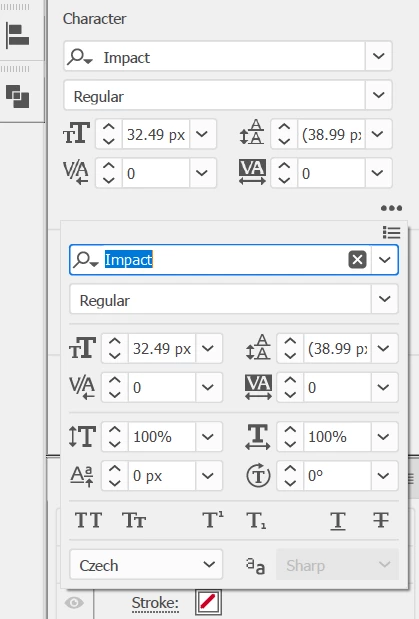
I'm having an issue with the latest version of Illustrator and the type window anti-aliasing.

A few things are happening:

  1. The dropdown menu in the type window for anti-aliasing options is disabled seemingly at random.
  2. The anti-aliasing dropdown menu in the type window allows me to designate a render setting to one type selection however, this setting also seemingly applies to all type on the document (i.e. I cannot apply "Sharp" to one text block and "Strong" to another).

Is anyone else having this issue or have a fix for this? Thank you!
This topic has been closed for replies.
Correct answer Monika Gause

https://forums.adobe.com/people/Aleks+Golotvinov  schrieb

Very similar problem here.

Anti-aliasing is completely disabled in the character menu.

Using Windows 10 64-bit, latest version of Illustrator CC (2018)

What is selected? The text object with the selection tool? Or the text with the text tool? It will only work when the text object is selected.

4 replies

Caterpillar Media
Participating Frequently
September 5, 2020

How is this marked solved? What's the solution?  I'm on CC 2020 and it's still not working.  I can see you have to use the selection tool to select the text before the anti-aliasing options are enabled, however adjusting them has no effect.

Ton Frederiks
Community Expert
Community Expert
September 5, 2020

You need to turn on Pixel Preview to see the result of the anti-aliasing.

DougKatz17096006
Inspiring
September 5, 2020

Ton, I have anti-aliasing set to Sharp and have never changed it (as most of my work is for print). When you design typrography for the web, do you change that setting? If so, to what do you set it, and does it perceptibly improve the PNG or JPG display on screen? Thanks in advance.

Participating Frequently
May 31, 2018

Very similar problem here.

Anti-aliasing is completely disabled in the character menu.

Using Windows 10 64-bit, latest version of Illustrator CC (2018)

Monika Gause
Community Expert
Monika GauseCommunity ExpertCorrect answer
Community Expert
June 1, 2018

https://forums.adobe.com/people/Aleks+Golotvinov  schrieb

Very similar problem here.

Anti-aliasing is completely disabled in the character menu.

Using Windows 10 64-bit, latest version of Illustrator CC (2018)

What is selected? The text object with the selection tool? Or the text with the text tool? It will only work when the text object is selected.

Ton Frederiks
Community Expert
Community Expert
February 26, 2018

It works in the previous CC2017 version, but is broken in CC2018

Please report it here:

Adobe Illustrator Feedback

michelew83603738
Community Expert
Community Expert
February 26, 2018

These are settings for Photoshop, not Illustrator.

Participant
February 26, 2018

No, this is an illustrator issue.

michelew83603738
Community Expert
Community Expert
February 26, 2018

Sorry about that.

What are you doing? How are you selecting? If you have one large text block and highlight it, it can not have more than one setting applied. You can only select with a selection tool (direct or the selection tool) and apply one of the drop downs. Same if you just type, you can't highlight the text that you want it applied to. If it isn't working this way for you, then you might want to try resetting your preferences.