CoastRider92651
Participating Frequently
March 1, 2018
Answered

Illustrator CC Selection Tool

  • March 1, 2018
  • 2 replies
  • 1395 views

Anybody else notice that the Selection Tool in the newest versions of Illustrator CC does not work like it used to? Frustrating as hell when you've deadlines to meet and you're frustrated trying to grab a point handle to adjust a line. Makes me feel like an intern again. Fix it.

This topic has been closed for replies.
Correct answer Bill Silbert

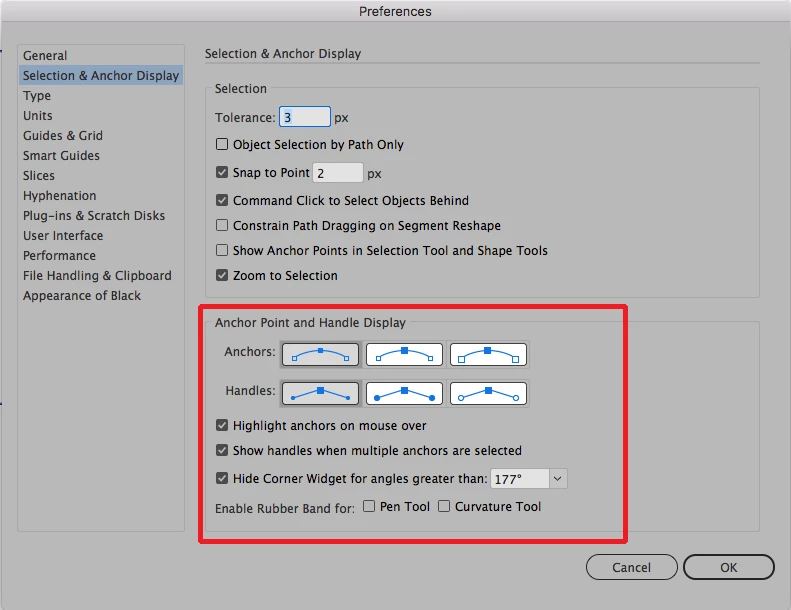
Have you tried all of the different display settings for anchor points as shown in the screen shot below? I have seen no difference in moving points with the direct selection tool.
If changing these settings doesn't work then I would suggest trashing your preferences to bring the program back to its defaults.

To do so:

For Macintosh Users: With Illustrator closed launch a Finder Window in column view and click on your home folder. With the Option Key pressed choose Library from the Finder Go Menu. Within the Library folder find the folder called Preferences and within it find the following two files and delete them: “Adobe Illustrator <Version #> Settings” (earlier versions of Illustrator might just say “Adobe Illustrator”) and “com.adobe.Illustrator.plist”. When Illustrator is next launched it will create new preference files and the program will be restored to its defaults.

For Windows Users: You can try the quick way of resetting on a PC which is to hold down Ctrl + Alt + Shift when launching Illustrator and respond affirmatively when asked if you want to reset. There have been some recent reports that the window asking if you want to reset is not popping up but that the prefs are being reset anyway. If this works great but if it doesn’t you may have to manually delete them.

To do so:

On Windows 7 and above the preference files are hidden. To find them go to the Control Panel and open Folder Options and then click the View tab. Then select “Show hidden files and folders” or “Show hidden files, folders or drive options” in Advanced Settings. Then delete (or rename) the folder at the end of this path: C:\Users\[User Name]\AppData\Roaming\Adobe\Adobe Illustrator [version number]\ Settings\<Language>. Make sure that Illustrator is closed when you do this. When you relaunch the program it will create  new preference files and the program will be at its default settings.

The advantage of manually deleting preference files is that after you’ve reset up the program (make sure that no document window is open) to your liking, you can create copies of your personalized “mint” preference files (make sure that you quit the program before copying them—that finalizes your customization) and use them in the future to replace any corrupt versions you may need to delete.

2 replies

John Mensinger
Community Expert
Community Expert
March 1, 2018

jacks59596921  wrote

Anybody else notice that the Selection Tool in the newest versions of Illustrator CC does not work like it used to?

No.

Can you elaborate on exactly what happens and how it differs from what you expect?

CoastRider92651
Participating Frequently
March 1, 2018

Wouldn't do much good to elaborate if you haven't experienced the problem yourself. Was asking if anyone else had experienced the same.

Bill Silbert
Community Expert
Bill SilbertCommunity ExpertCorrect answer
Community Expert
March 1, 2018

Have you tried all of the different display settings for anchor points as shown in the screen shot below? I have seen no difference in moving points with the direct selection tool.

If changing these settings doesn't work then I would suggest trashing your preferences to bring the program back to its defaults.

To do so:

For Macintosh Users: With Illustrator closed launch a Finder Window in column view and click on your home folder. With the Option Key pressed choose Library from the Finder Go Menu. Within the Library folder find the folder called Preferences and within it find the following two files and delete them: “Adobe Illustrator <Version #> Settings” (earlier versions of Illustrator might just say “Adobe Illustrator”) and “com.adobe.Illustrator.plist”. When Illustrator is next launched it will create new preference files and the program will be restored to its defaults.

For Windows Users: You can try the quick way of resetting on a PC which is to hold down Ctrl + Alt + Shift when launching Illustrator and respond affirmatively when asked if you want to reset. There have been some recent reports that the window asking if you want to reset is not popping up but that the prefs are being reset anyway. If this works great but if it doesn’t you may have to manually delete them.

To do so:

On Windows 7 and above the preference files are hidden. To find them go to the Control Panel and open Folder Options and then click the View tab. Then select “Show hidden files and folders” or “Show hidden files, folders or drive options” in Advanced Settings. Then delete (or rename) the folder at the end of this path: C:\Users\[User Name]\AppData\Roaming\Adobe\Adobe Illustrator [version number]\ Settings\<Language>. Make sure that Illustrator is closed when you do this. When you relaunch the program it will create  new preference files and the program will be at its default settings.

The advantage of manually deleting preference files is that after you’ve reset up the program (make sure that no document window is open) to your liking, you can create copies of your personalized “mint” preference files (make sure that you quit the program before copying them—that finalizes your customization) and use them in the future to replace any corrupt versions you may need to delete.

CoastRider92651
Participating Frequently
March 1, 2018

I appreciate your response. I know all about trashing preference files, etc. I've been using Illustrator on Mac for 24 years. It's not that - but I will try the setting you show for Anchor Point/Handle Display.

I understand the desire to keep adding to the product - I'm sure there are those who use the new features. But old the guard - like myself I guess - basically use the tools they need to do their typical kind of work. Perhaps Adobe can focus on the user being able to disable features they never use? My 2 cents worth.

BTW - trashing preference file did fix inability to save preference settings.