Participating Frequently
September 23, 2013
Answered

Illustrator clipping mask creating white fill?!!!

  • September 23, 2013
  • 4 replies
  • 79814 views

Hi all,

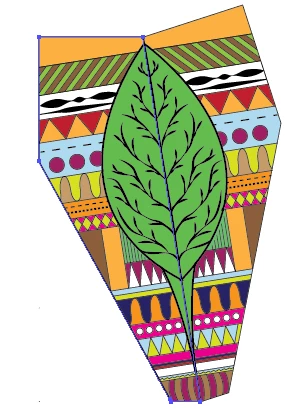
So basically i have designed the top of a paper plane and have completed the top design which i now want to clip into the template using the clipping mask tool. I have used it exactly how it is supposed to'

1. firstly getting my shape that i want to use to clip exactly how i want it

2. then getting my image which i want to place under my first shape to use the clipping mask with

3. align it in place and bring my "shape" to the front and image to the back

then using the selection tool i select all objects then click

objects> clipping mask> make

and for some reason it clips it but the image that i wastring to clip just becomes a white fill...

i have no idea how to fix this and its driving me crazy,, i cant find a soloution no matter how long i try to fix it or research it..

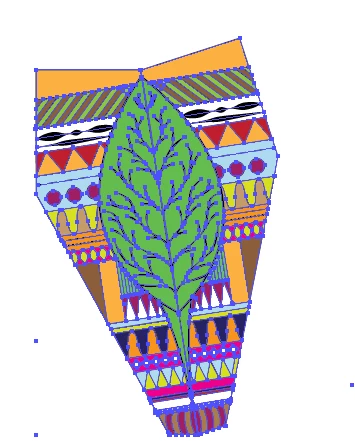
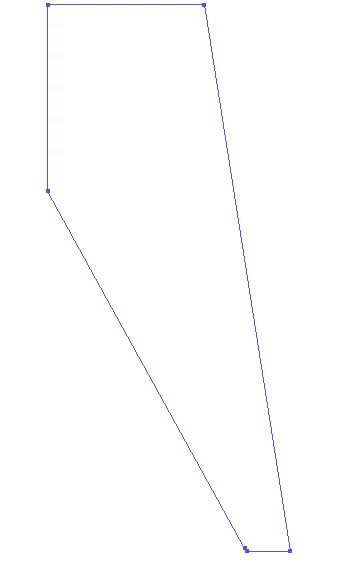
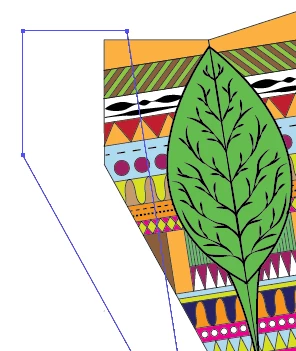
i have included some screenshots below
This topic has been closed for replies.
Correct answer Monika Gause

Hi, thanks for your response, see im not that great with illustrator so idont really understand everything completley well, only the basics, so im not sure what you mean when your telling me to look at my clipping objects "closed path" hahah sorry for the confusion could you explain that a little clearer?

also sorry about that, i wante dto show full screen shots but my computer wasnt letting me before, so thats why i only showed cropped screenshots.

thanks!


If you can't fill the clipping shape then most probably it is not a closed path, but multiple paths. Maybe grouped. From your screenshots I can't tell. You need to show it in the layer panel.

Depending on what it actually is, you need then to ungroup it or to un-compound it and then join the multiple paths.

And you should of course read the manual.

http://helpx.adobe.com/illustrator/using/adjust-path-segments.html

help.adobe.com/en_US/illustrator/cs/using/WS714a382cdf7d304e7e07d0100196cbc5f-6269a.html

help.adobe.com/en_US/illustrator/cs/using/WS714a382cdf7d304e7e07d0100196cbc5f-6246a.html

4 replies

Participant
May 10, 2015

Thanks! Compound path fixed problem for me too. Really appreciate your help!

Jacob Bugge
Community Expert
Community Expert
September 24, 2013

envywithlove,

What happens if you select the image and copy it to a new document, then create a simple rectangle covering part of it, then with both selected Object>Clipping Mask>Make?

If that is successful, what happens if you release the Mask and delete the rectangle, then select the shaped path from the original document, being careful to click it with the Selection Tool (black arrow) away from any Anchor Points, and copy it to the new document, then with both selected Object>Clipping Mask>Make?

Hi Peter. early or late?

Participating Frequently
September 24, 2013

Hi thanks so much for that! yes i did as you asked and it seems to work if i complete a rectangle clipping mask! but as soon as i copy it over and try it with my original shape, it doesnt work.... i think there is something wrong with what i have created as i showed in my last screen shot, even when i try to create a fill for my shape that i have made and am trying to use for the clipping mask it doesnt fill,, even though t says it is "filled" pink however when i completed the rectangle it had a fill of white so i knew it was ontop and that it would work,,, which isnt really happening with my shape, as it doesnt have a fill even when it says it does

Kurt Gold
Community Expert
Community Expert
September 23, 2013

Provide a sample .ai file in case the stray points assumption does not apply.

Also, you may want to tell which version of Illustrator you are using.

Mike_Gondek10189183
Community Expert
Community Expert
September 23, 2013

In your 3rd screenshot looks like you have some stray points.

Select >> Objects >> stray points >> delete

Couple of things I do with masks,

  1. fill mask with any color (The color disappears after you make, this helps confirm the mask is on top).
  2. hide mask, hide elements to be masked, unhide, mask

The top most element si what you are asking Illustrator to use when making a mask, there si no room for erro adn a stray poitn on top of you mask looks like what is happening. Teh process i descriobe in #2, will help you with more complex document. Bascially when you unhide the itme you need to mask are only what is slected, you will need to do this on more complex documents, hide is your friend in Illustrator.

Participating Frequently
September 24, 2013

Hi thanks so much for your Quick response!

i am a little confused what you are telling me is the problem, i did as you asked,

selected the objects then went object> but there was no option that said "stray points" im using adobe illustrator cs6

would you mind explaining this more clearly? thanks alot

Steve Fairbairn
Inspiring
September 24, 2013

Since there appear to be only 3 stray points you can just delete them manually. Temporarily turn off the preview (Cmd+Y) and you will be able to find them more easily.