
Participant
February 10, 2025
Question

Illustrator CMYK exporting incredily oversaturated once exported as a .pdf or leaving adobe software

  • February 10, 2025
  • 1 reply
  • 296 views

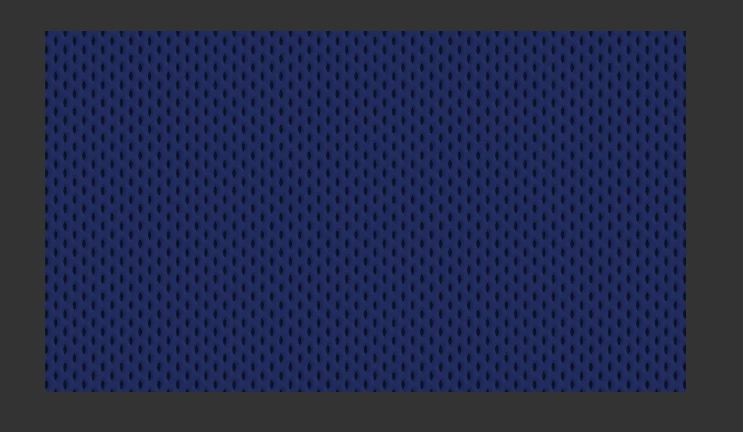
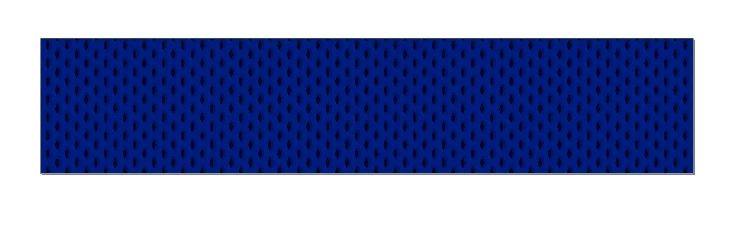
I am working with a provided .psd file from a client to use as a background in signage design, as seen in the first image below. The document is in cmyk. We create our signage in illustrator, so I pull the .psd into illustrator and design from there. There are slight color changes from photoshop to illustrator, but nothing to bat an eye at. However, whenever I finish my designs in illustrator and export the document as a .pdf file, if the file is viewed or opened in ANY software that is not Adobe software, it looks like the second image below. Display is not the only issue, because in print we inconsistently get variations of this saturated color. I want to know how I can prevent these inconsistencies and get these cmyk color profiles in illustrator to accurately translate in print, and I don't know why they wouldn't be in the first place. This issue does not occur if we export from photoshop, so I would assume this has something to do with bringing in this .psd into illustrator and then saving, even though they both are being saved as cmyk files. Any solutions?
1 reply

Anna_Lander
Community Expert
Community Expert
February 10, 2025

the first step is to check your color mode and profil. If you have a CMYK mode, the other (non-Adobe) viewers can convert the tumbnail into RGB (just for view in their window). If you have a printing probe with this bright color, check the color profile, it should be the same — in your Photoshop file, your Illustrator file and in the printhouse's technical requirements.

Participant
February 12, 2025

That was what was so tricky about it all! They all had the same color profile, and it wasn't just RGB display settings because the saturated color was making it to print. I ended up fixing the issue by going into my .psd file and changing the color management policy settings. Had to set all preserve embedded profiles off, and viola! Not sure why that needed to be done, because they were both in the same color profile so I don't see how that embedding was harming the file, but it fixed the issue nonetheless. 

Anna_Lander
Community Expert
Community Expert
February 13, 2025

great!
actually, there are 3 profiles (settings): the Photoshop working profile, the AI working profile, and the doc's profile.  So, maybe, somewhere in between something did not match 🙂