
Participant
April 24, 2023
Question

Illustrator Fill Issue

  • April 24, 2023
  • 3 replies
  • 735 views

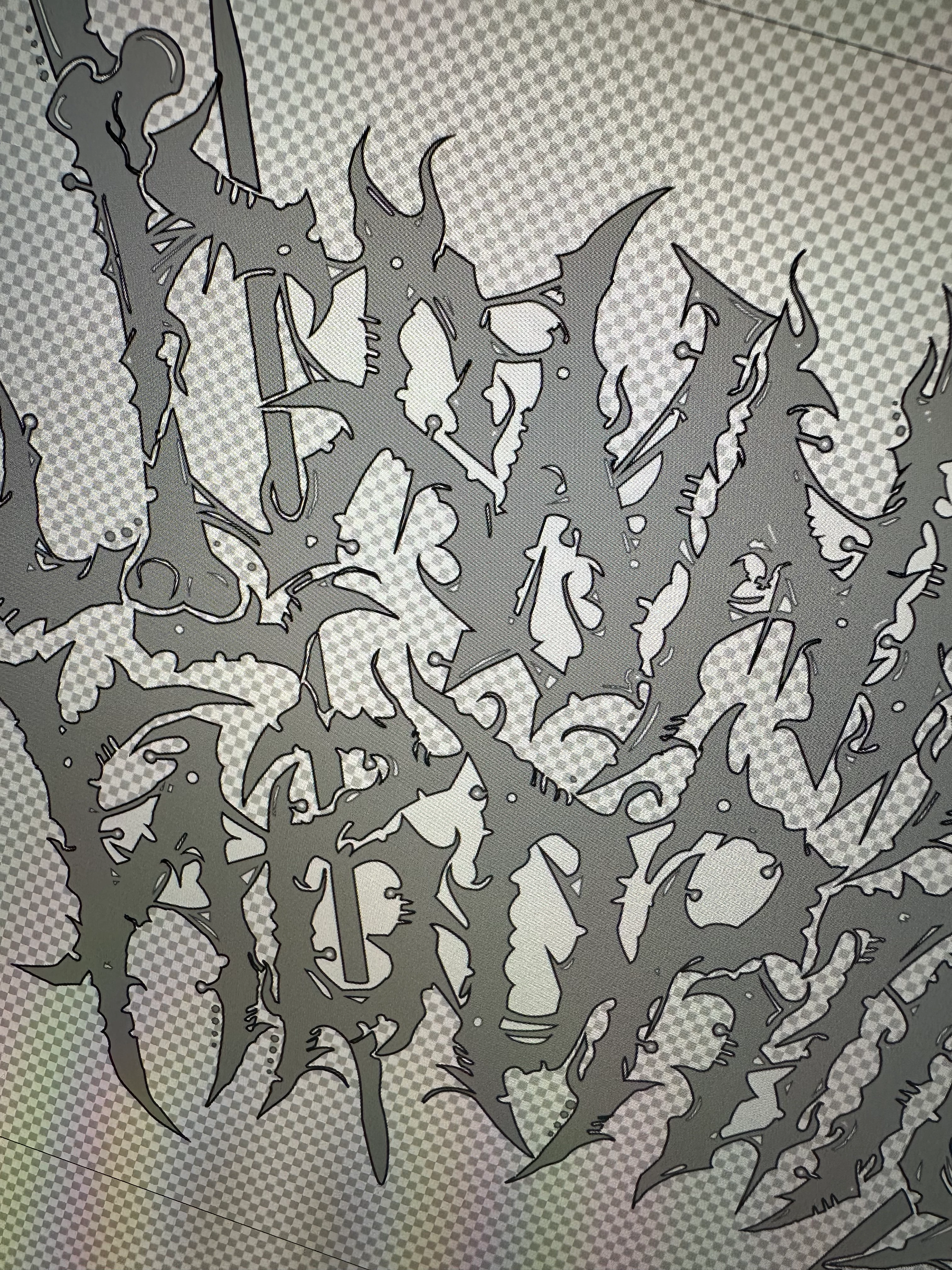
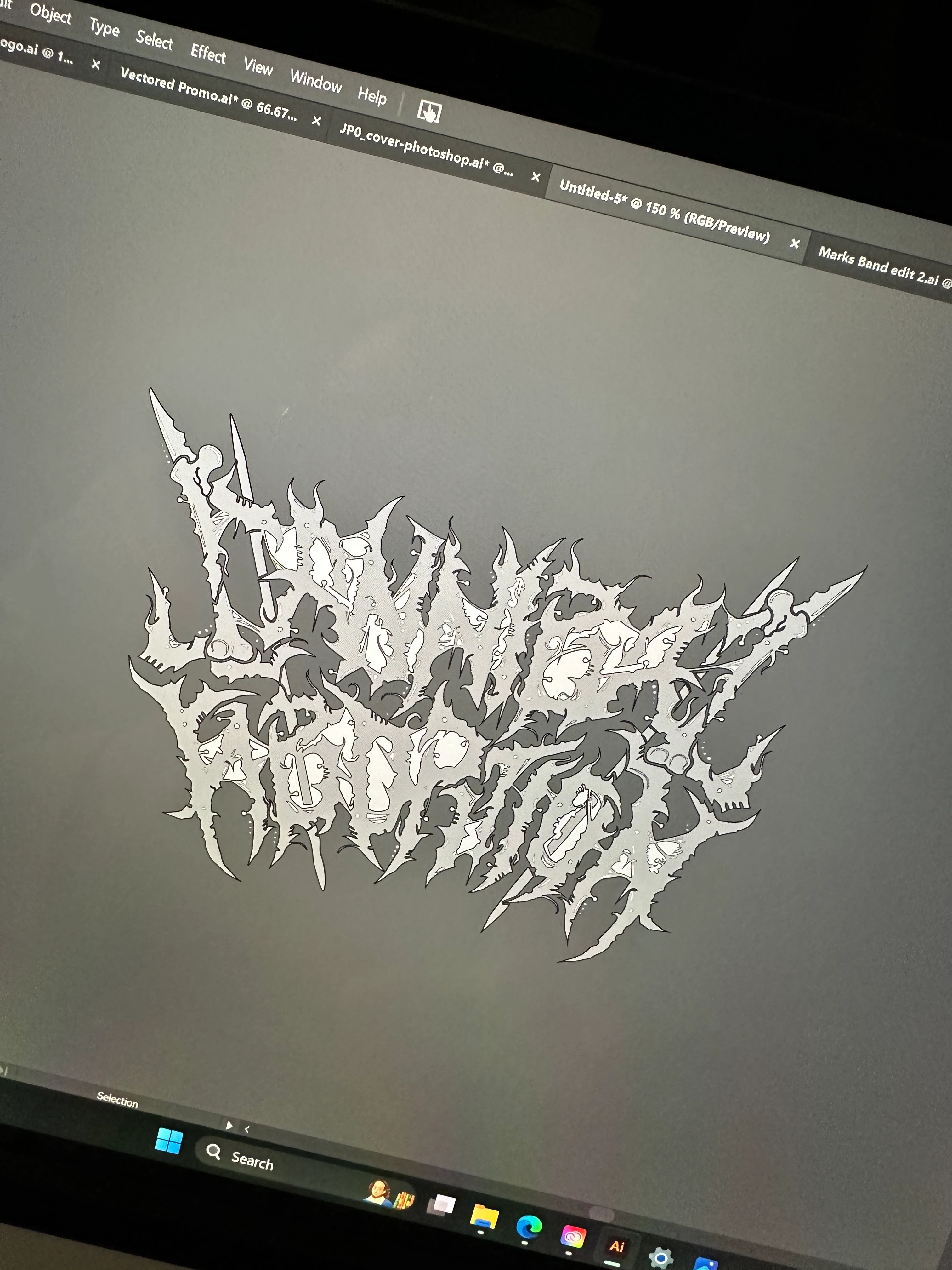
Does anyone know how I can go about taking this white fill and making it transparent? 


Ive racked my brain for hours and I've got nothing.

When I change it to transparent the gray fill from the letters seems to be behind it.

If it's helpful the entire logo was traced using the pen tool, all of the lines do connect. 


Any help would be appreciated!

Thanks in Advance!

Liz
This topic has been closed for replies.

3 replies

Inspiring
April 24, 2023

Use the magic wand tool (Y) and mark all white parts, then simply delete them. You can also mark only one part and go

over the select-menue "select similar colours" then it finds all white parts, delete. It's something like that. My menue is in german, so I cannot tell you the specific menue names

Participating Frequently
April 24, 2023

Hi Lisa, What I usaslly do is select all of the white and change it to a compound shape. Do the same for the gray shapes.

(Make sure the white is on top) Then select both and using the pathfinder panel select the "minus front/subtract". That should delete all of the white parts out (including anything behind it) . Anyway.. hope that helps. See attached for the pathfinder panel image.

Ton Frederiks
Community Expert
Community Expert
April 24, 2023

You can try the Shape Builder Tool (Shift M) with the Alt key pressed.

Participant
April 24, 2023
Thank you so much!!
I will try this out!

Liz