Inspiring
April 20, 2021
Answered

Illustrator Type on Path PATH SELECTION TOOL is missing

  • April 20, 2021
  • 3 replies
  • 5679 views

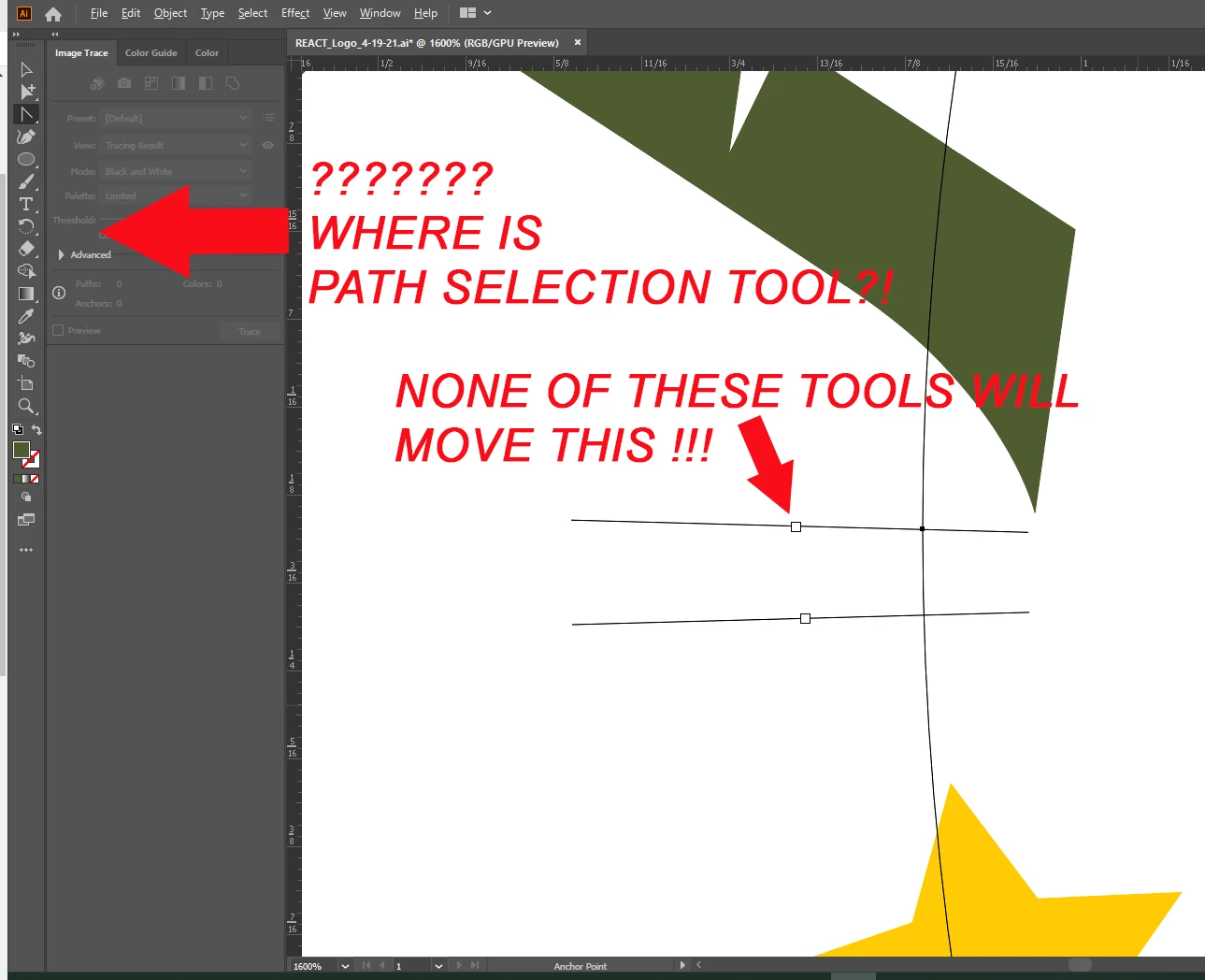
I go between Photoshop and Illustrator and I cannot believe how much more efficient Photoshop is in comparison - for example, finding the tools you need.  In Photoshop, the PATH SELECTION TOOL is right there in the tool box where you need it. In Illustrator, IT DOES NOT EXIST AT ALL. So how do you manipulate text on a path in Illustrator? Please see my screen shot. 
This topic has been closed for replies.
Correct answer MattN5DF4

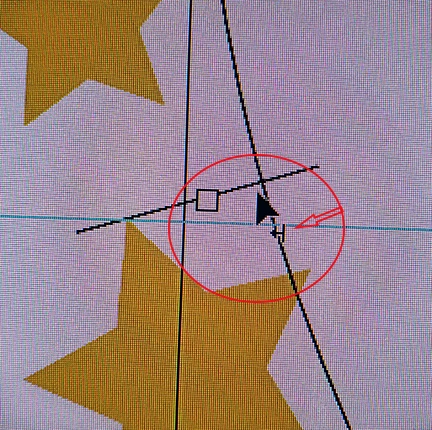
FOUND IT!  Marliton mentioned that holding the cursor over the area produces the black arrow - and it does! It's not as efficient as Photoshop, but it does work to adjust both the text and path start/end. 

3 replies

MattN5DF4AuthorCorrect answer
Inspiring
April 21, 2021

FOUND IT!  Marliton mentioned that holding the cursor over the area produces the black arrow - and it does! It's not as efficient as Photoshop, but it does work to adjust both the text and path start/end. 

Mike_Gondek10189183
Community Expert
Community Expert
April 20, 2021

To adjust the position of the beginning and end brackets, switch to the direct selection tool (A) or selection toll (V) to grab and move them. You can also hold down command to temporarily switch to the pointer tool, while that is being held down.


I think your


Click and hold mousedown on the type tool for about 2 seconds. It will expand and you can see the type on a path tool. You can also hit t to toggle between the options.


I agree with you though that the type on a path tool should be able to adjust the points, as that would be logical.

MattN5DF4Author
Inspiring
April 21, 2021

With respect, I am not asking how to type on a path - I've already done that and am trying to adjust my text along the path.  The tool I am looking for is not within the TYPE TOOL rollout. 


In Photoshop you use the PATH SELECTION TOOL, it is in the tool box and is a black arrow.  You place it along the path and - as someone else mentioned here - the cursor turns into a tiny black arrow and you can then adjust the text along the path. According to Adobe's Illustrator instructions, you also are supposed to use a PATH SELECTION TOOL however, it does not seem to exist? The DIRECT SELECTION TOOL changes the shape of the path, which is not what I am trying to do, and the SELECTION TOOL moves the path, also not what I am trying to do.  


ALSO - the boxes to which my red arrow is pointing in the image should be adjustable. I can move those in Photoshop to adjust the beginning and end of my path however, I cannot seem to move those in Illustrator.  Is there a way to adjust the beginning and end of the text path?

marliton
Community Expert
Community Expert
April 20, 2021

Hi. Doesn't matter what tool you have selected, hover it over the lines and the pointer will change to a black arrow, then you can drag the text.

https://helpx.adobe.com/ca/illustrator/using/creating-type-path.html#:~:text=Choose%20Type%20%3E%20Type%20On%20A%20Path%20and%20select%20an%20effect,Effect%20menu%2C%20and%20click%20OK.


Marlon Ceballos
MattN5DF4Author
Inspiring
April 21, 2021

Yes, this is the correct answer however - I cannot adjust the boxes that denote the beginning and the end of the path as shown in the image.  I need to adjust those  boxes so that I can move the text along the path. How do I move those boxes? None of the tools seem to work, they only change the shape of the path - which I don't want to do - or they move the path, which is entirely not what I am trying to do. Its so much more logical in Photoshop! I feel like I'm going between the modern age and the stone age when I work with both programs. 

Doug A Roberts
Community Expert
Community Expert
April 21, 2021

It should work in the same way as Photoshop (with some UI differences). Use the selection tool and move the begnning/end bracket lines (cursor changes when you hover over the line):

The boxes aren't for adjusting the start/end points -- they are for linking text frames.

It is difficult to know what might be going wrong without seeing your document.

Can you share an AI file?