
Ian Renshaw
Participating Frequently
August 20, 2020
Answered

Illustrator Weird Object Selection! What's going on?

  • August 20, 2020
  • 3 replies
  • 1906 views

I'm getting a very odd (and not useful) selection feature occurring. Perhaps I've hit a keystroke and ended up with some weird preference:

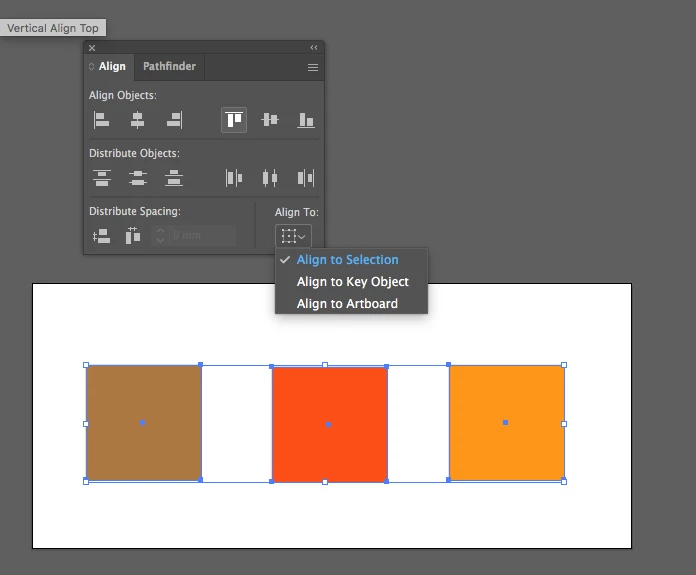
If I have more that one image selected, ONE of them will have an extra-thick selection border around it. This then means that this object becomes the item to which others in the layout are "pinned" for want of a better word. For example - if I try to align objects evenly I can't because they will gather underneath the extra-highlighted object. Please see the image I've included. Note how the red circle has this odd thing going on. I want to un-set this feature/bug but can't find a preference anywhere!


Thanks Ian
This topic has been closed for replies.
Correct answer ceyhun_akgun

Key Object determination function is active in alignment operations.

In the Align Panel, the object-based selection must be marked.

It is a practical function to perform the alignment accordingly by making the key object by clicking on the one you want among all the selected objects.

3 replies

John Mensinger
Community Expert
Community Expert
August 20, 2020


"This then means that this object becomes the item to which others in the layout are "pinned" for want of a better word."


Yes, it's a native feature designating the "key" object. It is normally executed by an additional click on one of the already-selected objects. If it's working correctly, re-clicking on it should release it as the key object and leave it normal-selected. If you're getting a key object in every multi-selection, without applying the additional click to set it, you should try resetting preferences.

ceyhun_akgun
ceyhun_akgunCorrect answer
Legend
August 20, 2020

Key Object determination function is active in alignment operations.

In the Align Panel, the object-based selection must be marked.

It is a practical function to perform the alignment accordingly by making the key object by clicking on the one you want among all the selected objects.

Graphic Designer Educator / PrePress Consultant
Ian Renshaw
Participating Frequently
August 21, 2020

Thank you everyone for the replies,

As illustrated by Ceyhun AKGUN this was the issue! I would never have found this without your help! What a daft feature I can't see any use for it but.. now I have my trusty Illustrator back running as I prefer it.

Again - huge thanks, much appreciated.

Ian

tromboniator
Community Expert
Community Expert
August 20, 2020

The first thing to try is to go to the Align panel and click on the icon under Align To: and choose Align to Selection. If that does not correct the problem, I would suggest (as you haven't said which version of Illustrator you are using) that you should update Illustrator. This was part of a known problem that was recently fixed.


Peter