


Known Participant
July 6, 2026
Question

image trace not contouring what i'm tracing

  • July 6, 2026
  • 16 replies
  • 133 views

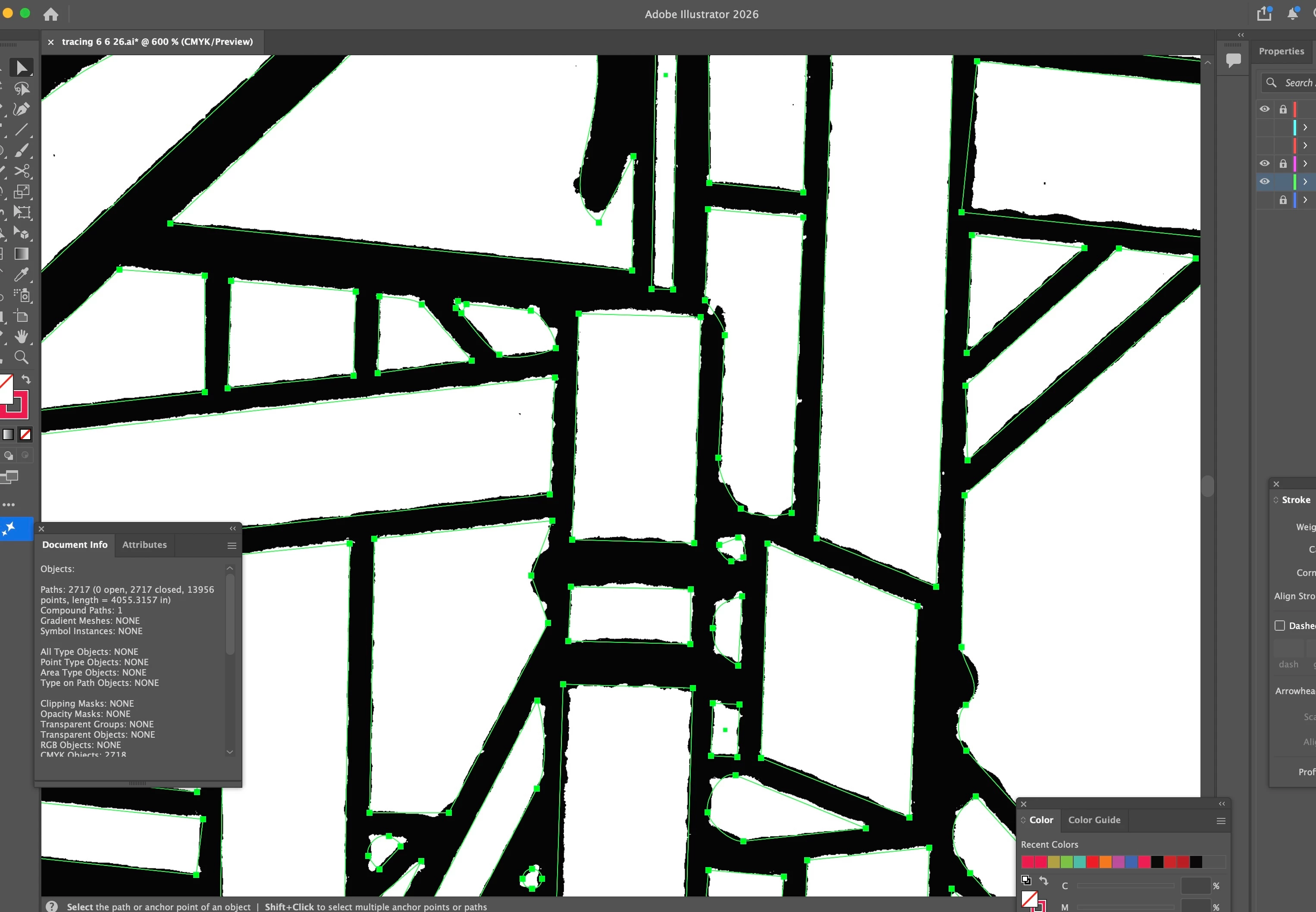
Hello, I am image tracing a 1200 dpi image that has already had threshold allied in photoshop.  It is just black on white any in my opinion it has defined edges.  No matter how much I play with all the settings including advanced settings, image trace does not really follow the contours of what I’m tracing… (please see attached image). I would think something black on white with crisp edges, image trac would do a better job.  Am I missing something?  Is there a better way to get a result that hugs the contours better?
 

    16 replies

    Anubhav M
    Community Manager
    Community Manager
    August 10, 2026

    Hello everyone,

    Could you please check if the problem persists with the latest release of Illustrator? If yes, please share more details, like the version of the OS/Illustrator installed, a sample file, and a brief screen recording of the issue here or in the UserVoice (https://illustrator.uservoice.com/forums/601447-illustrator-desktop-bugs/suggestions/40433830-tracing-large-image-gives-worse-results-than-with), so we can check this further with the team.

    Anubhav

    Conrad_C
    Community Expert
    Community Expert
    July 7, 2026

    One option is to stay in Photoshop and do it there, using the method shown in the demo below:

    1. Select luminance: Click the layer thumbnail while holding down Command+Shift (macOS), or Ctrl+Shift (Windows.)
    2. In the Paths panel, convert the selection to a path.

    You have very little control over how the path is fitted to the selection. I think the only control you have is by using the menu commands on the Select menu and Select > Modify submenu to tune the selection edge before you convert it to a path. Or by adjusting the graphic’s edges before making the selection, such as smoothing, blurring, feathering, or adjusting contrast.


    But if it does work the way you want, now you have an editable vector path that you can use as a shape layer in Photoshop, or you can copy and paste the paths into Illustrator if you really need to do the rest of the work there.


    Ton Frederiks
    Community Expert
    Community Expert
    July 7, 2026

    @ipanema451 I did a test with your image. One cropped to a small area and the other used your entire image. Same settings, the small one is very accurate, the other is less accurate.

    https://illustrator.uservoice.com/forums/601447-illustrator-desktop-bugs/suggestions/40433830-tracing-large-image-gives-worse-results-than-with


    Monika Gause
    Community Expert
    Community Expert
    July 7, 2026

    As others have already mentioned: smaller images trace better.

    Also: sharp black and white does not trace good. usually you want some antialiasing along the edges and a greyscale image.

    Tina_Irvine
    Community Expert
    Community Expert
    July 7, 2026

    @ipanema451,

    I’ve found image trace to be incredible with the latest updates. I see you’re on 2026, but are you on the latest version? If you’re on the latest version, and no combination of settings are working to your advantage, try getting it as close as possible, and then try Object > Path > Simplify or Smooth. (probably not the best option, but could be worth a shot)

    I agree with ​@Ton Frederiks as well. Try Image Trace on a smaller version of your raster image and see if that helps.

    Aside from the above, If you’re able to attach a sample, I can see if I can get some of the settings close to what you’re looking for.

    Known Participant
    July 7, 2026

    Thank you for your response… I am on the latest version.  I am attaching a tiff file of a section of what i’m trying to image trace.  If you zoom way in the edges are really complex. I dont need that level of accuracy, but I need the paths to “hug” the basic contours.  The screenshot here shows some paths really hugging the source edges, while others seem to arc and curve away from it in unexpected directions.  Also, the whole result seems to be offset from the source… Almost like when making a drop shadow…  You mentioned being willing to look at my source file and play with the settings… yes, that would be awesome.  Hopefully I can send the file without the forum changing file type or compressing it...


    RvdT
    Legend
    July 7, 2026

    You could also select a color range (white) in Photoshop and convert your selection to a ‘Work Path’.

    Photoshop: Select > Color Range

    With the selection tool selected, right-click > Make Work Path
     

    Photoshop: ​With the direct selection tool, select your path and copy to Illustrator:


    if needed, you can simplify your path in Illustrator. Or smoothen the selection in Photoshop.

    Bill Silbert
    Community Expert
    Community Expert
    July 7, 2026

    My experience with Image Trace over the years has been that it is not a tool for making totally accurate representations of the original raster images. It does a reasonable job translating raster images like continuous tone photographs or paintings to vector but it is completely unreliable with hard edge line work.

    Ton Frederiks
    Community Expert
    Community Expert
    July 7, 2026

    If it is a large area, large areas are tracing less accurate than a smaller portion.

    Known Participant
    July 7, 2026

    Thank you for your response… As you said, when I image trace the whole source image, paths don’t really “hug” the source image well… However, I cropped a section of the source image and the result was totally acceptable for my use… I was so happy to see the result but it doesn’t really solve my issue as I can’t imagine “stitching” all the paths together, after tracing sections… Is there a work around?

    close up of image tracing whole source image
    image trace of smaller cropped section


    Ton Frederiks
    Community Expert
    Community Expert
    July 7, 2026

    I just posted the same test, but you were faster :-) Unfortunately I don’t see a good workaround. I posted the Uservoice request, you may want to vote there.

    https://illustrator.uservoice.com/forums/601447-illustrator-desktop-bugs/suggestions/40433830-tracing-large-image-gives-worse-results-than-with

    Bill Silbert
    Community Expert
    Community Expert
    July 7, 2026

    Could you also upload a screenshot of what the image originally looked like?

    Known Participant
    July 7, 2026

    Hi, here is a screenshot of a section of the source image with the outline I am getting...