red stag timber
Participant
September 10, 2018
Question

Image Tracing From Scanned Drawing

  • September 10, 2018
  • 3 replies
  • 719 views

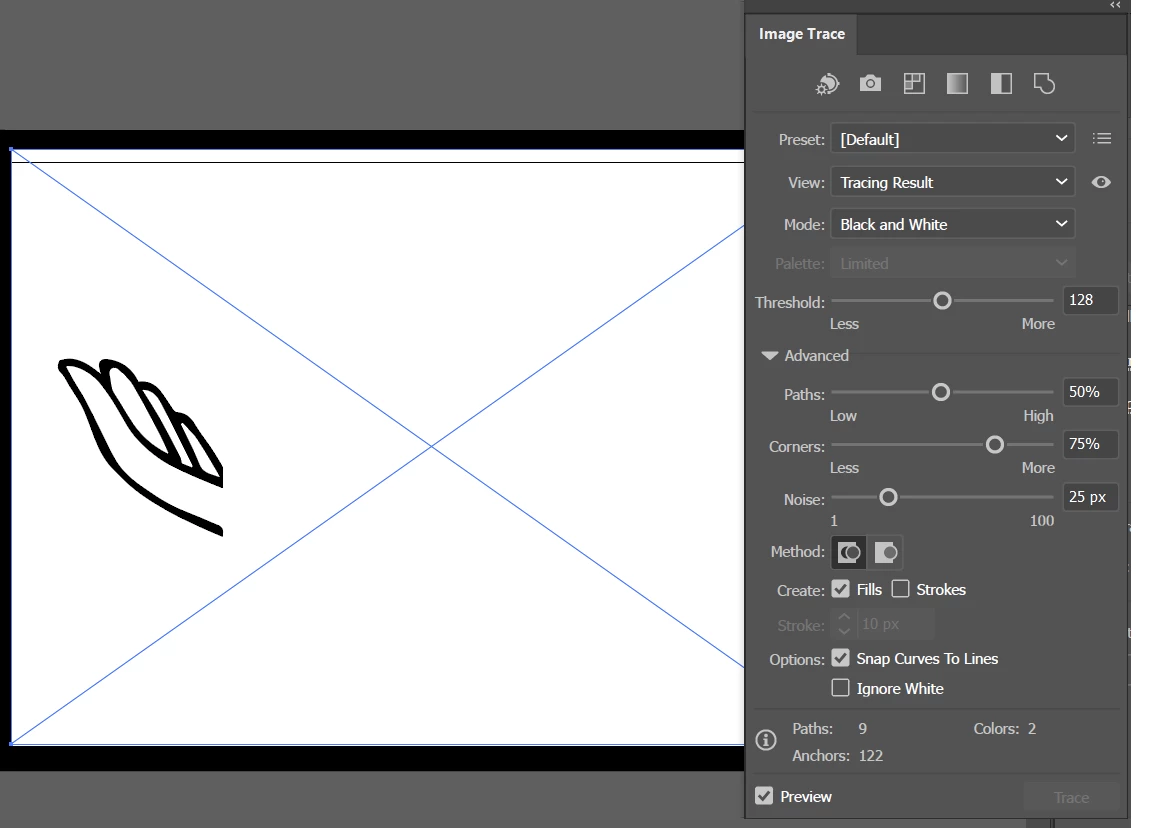
Hi, I am new to illustrator so this might be a basic question. I have a drawing which I have scanned to my computer with the purpose of creating a vector image on illustrator using the image trace function. Where I am having trouble is the scanned image looks complete when opened in illustrator (see image 1 below) but when I use 'image trace' it cuts most of it out (see image 2) I have left the box in the screen shot in case there is something in there I am doing wrong.  
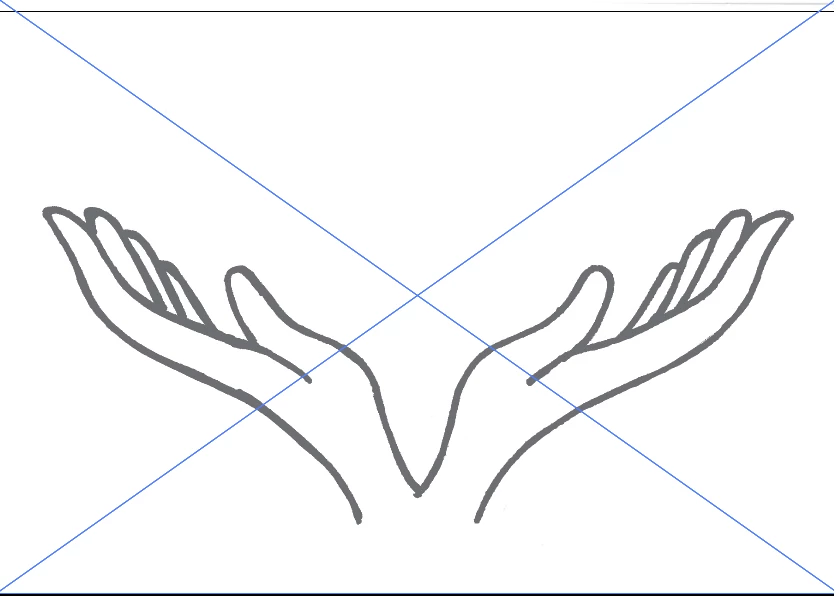
Any help or advice would be greatly appreciated!!

Thanks in advanced!

[ Moved from Illustrator Draw (mobile app) to Illustrator form — Mod ]

This topic has been closed for replies.

3 replies

KShinabery212
Community Expert
Community Expert
September 10, 2018

To be honest, I would never use Image Trace on a scanned image.  I would simply just recreate it in Illustrator. 

I mean then you would get exactly what you want....

I use Image Trace, if I want to turn a photo of an object into a vector graphic.  Not on sketches that I want to turn into a vector graphic.

I mean you can.... but getting to come out perfectly may or may not happen.  So why waste time... simply rebuild using the pencil or pen tool.

Let's connect on LinkedIn. https://www.linkedin.com/in/kshinabery/
angie_taylor
Legend
September 11, 2018

Hi there, I agree that most people use Image Trace in the way that you describe but I use Image Trace to convert my sketches quite a lot. I draw on paper and then use a custom setting to convert it to vectors. I then use pathfinder and other tools to split the image into layers for animating.

That's the great thing about software. We all have different workflows and all are valid :-)

Jacob Bugge
Community Expert
Community Expert
September 10, 2018

red stag timber,

It looks like a clean cut along a vertical line, everything to the right gone or hidden.

If no brighter suggestions appear, you may try the list.

If things that should work simply refuse to (all possibilities exhausted including the A) - C) below (and carefully making sure you are performing (all) the needed things)), you may try (the relevant part(s) of) the list 1) - 6) below.

Sometimes, (certain) things may fail or stop working for no apparent reason. When the (other) possible reasons/cures fail to work, it may be some kind of (temporay or permanent) corruption, or even some inconvenient preference setting(s), which may be cured with something on the following list set up in an attempt to provide a catchall solution for otherwise unsolvable cases. It starts with a few easy and harmless suggestions 1) and 2) for milder cases, and goes on with two alternative ways 3) and 4) of resetting preferences to the defaults (easily but irreversibly and more laboriously but more thoroughly and also reversibly), then follows a list 5) of various other possibilities, and it ends with a full reinstallation 6). If no other suggestions work, or if no other suggestions appear, you may start on the list and decide how far to go and/or which may be relevant.

The following is a general list of things you may try when

A) The issue is not in a specific file,

B) You have a printer correctly installed, connected, and turned on if it is physical printer (you may use Adobe PDF/Acrobat Distiller as the default printer with no need to have a printer turned on, obviously you will need to specify when you actually need to print on paper), and

C) It is not caused by issues with opening a file from external media.

You may have tried/done some of them already; 1) and 2) are the easy ones for temporary strangenesses, and 3) and 4) are specifically aimed at possibly corrupt/inconvenient preferences); 5) is a list in itself, and 6) is the last resort.

If possible/applicable, you should save current artwork first, of course.

1) Close down Illy and open again;

2) Restart the computer (you may do that up to at least 5 times);

3) Close down Illy and press Ctrl+Alt+Shift/Cmd+Option+Shift during startup (easy but irreversible);

4) Move the folder (follow the link with that name) with Illy closed (more tedious but also more thorough and reversible), for CS3 - CC you may find the folder here:

https://helpx.adobe.com/illustrator/kb/preference-file-location-illustrator.html

5) Look through and try out the relevant among the Other options (follow the link with that name, Item 7) is a list of usual suspects among other applications that may disturb and confuse Illy, Item 15) applies to CC, CS6, and maybe CS5);

Even more seriously (this may be serious because you may need to restore plugins and whatnot afterwards if you have customized things), you may:

6) A) Uninstall (ticking the box to delete the preferences if applicable), B) run the Cleaner Tool (if you have CS3/CS4/CS5/CS6/CC), and C) reinstall. You may try without step B), but sometimes it is needed, because otherwise things may linger.

As it appears from this thread, it may be worth repeating this if it fails to help the first time:

https://forums.adobe.com/thread/2283530

To uninstall:

https://www.adobe.com/cfusion/search/index.cfm?loc=en_us&term=uninstall&cat=support&product=illustrator&self=1

Cleaner Tool:

http://www.adobe.com/support/contact/cscleanertool.html

angie_taylor
Legend
September 10, 2018

Use the Threshold slider to adjust how much of the image goes to black, and how much goes to white.