Participating Frequently
January 28, 2025
Answered

Infographic Tutorial

  • January 28, 2025
  • 3 replies
  • 734 views

Hello everyone,

Student designer here. Can anyone point me in the direction of any tutorials on how to create this? I have the capsules, but I can't figure out how to manipulate my lines just right. I've been using the curvature tool. Is there another way to execute this?


Correct answer Tina_Irvine

The great thing with Illustrator is that there are different methods that can be used to obtain the same or similar results. Ton has given a great example, and Monika has a great point.


Here is an additional method:

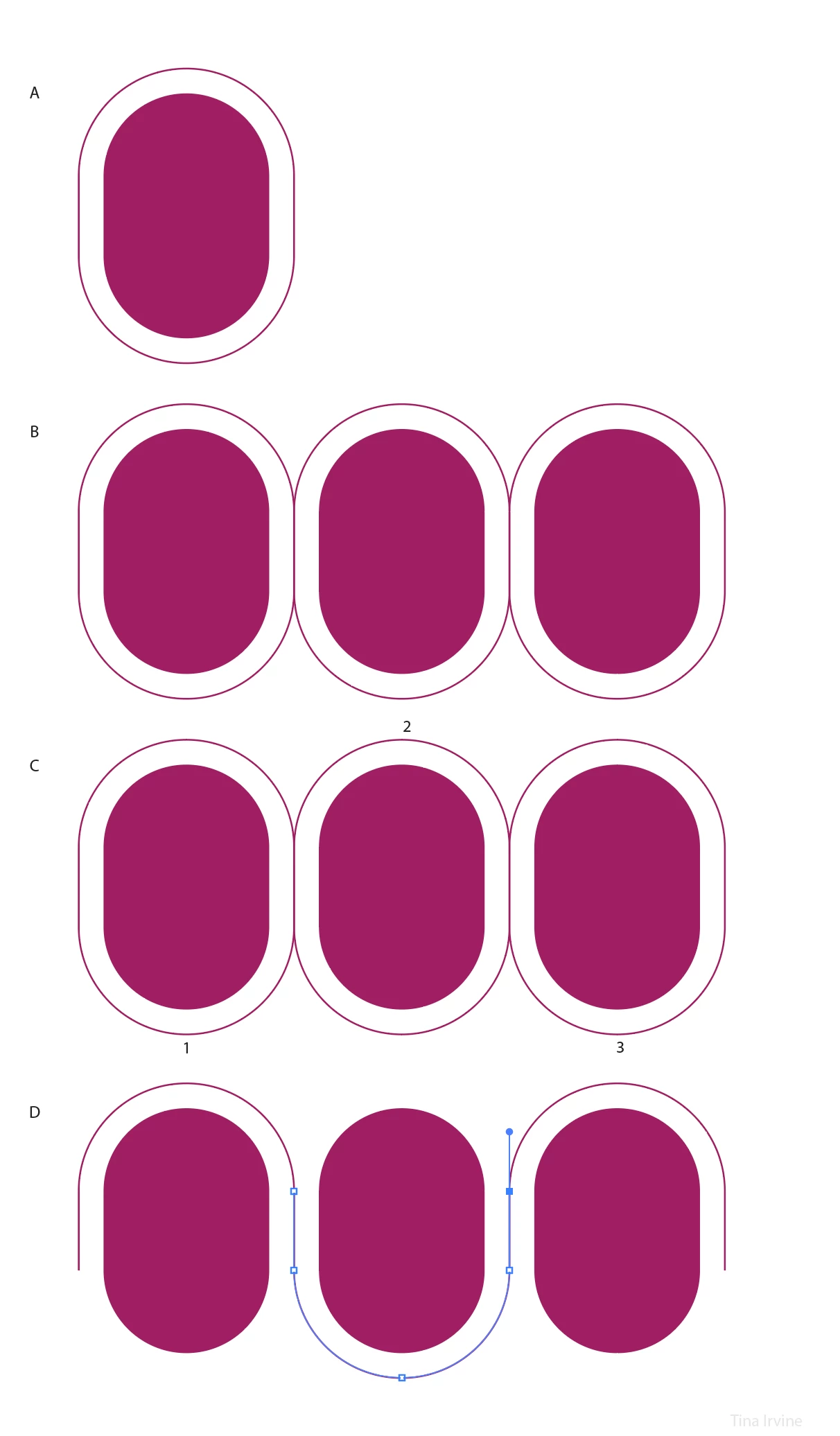
A - Create the capsule shape by rounding the corners of a rectangle. Next, select the capsule shape, choose Object > Path > Offset Path. Use "preview" to help you determine the space / distance you'd like the line to be from your shape. I made my spacing 0.25"

B - Select both the capsule and new path. Duplicate the two objects together, then hold shift and drag the two objects to the right, making sure the lines overlap perfectly. Use smart guides (apple + U on a Mac) to assist. Repeat as many times as needed.

C - Using the white arrow (direct selection tool), select and delete the path's (line) anchor points at locations 1, 2, and 3

D - You will end up with a couple overlapping lines. Remove excess anchor points and then join each path together: Object > Path > Join (apple + J on a Mac)


From here, you can stylize with a gradient.


3 replies

Tina_Irvine
Community Expert
Tina_IrvineCommunity ExpertCorrect answer
Community Expert
January 28, 2025

The great thing with Illustrator is that there are different methods that can be used to obtain the same or similar results. Ton has given a great example, and Monika has a great point.


Here is an additional method:

A - Create the capsule shape by rounding the corners of a rectangle. Next, select the capsule shape, choose Object > Path > Offset Path. Use "preview" to help you determine the space / distance you'd like the line to be from your shape. I made my spacing 0.25"

B - Select both the capsule and new path. Duplicate the two objects together, then hold shift and drag the two objects to the right, making sure the lines overlap perfectly. Use smart guides (apple + U on a Mac) to assist. Repeat as many times as needed.

C - Using the white arrow (direct selection tool), select and delete the path's (line) anchor points at locations 1, 2, and 3

D - You will end up with a couple overlapping lines. Remove excess anchor points and then join each path together: Object > Path > Join (apple + J on a Mac)


From here, you can stylize with a gradient.



ElysaDearAuthor
Participating Frequently
January 28, 2025

Thank you.

Monika Gause
Community Expert
Community Expert
January 28, 2025

Ton has given you very good instructions on how to achieve this.


Here's an additional tip: forget the curvature tool for anything other than naturally flowing organic lines. I know that several tutorials want you to believe otherwise.

ElysaDearAuthor
Participating Frequently
January 28, 2025

Thank you.

Ton Frederiks
Community Expert
Community Expert
January 28, 2025

Create a rectangle.

Direct select the top anchor points.

Drag the Round Corner widgets to round the top.

Click the bottom line of the rectangle with the Direct Selection tool and delete it.

Now make copies and reflect/move and join them.

ElysaDearAuthor
Participating Frequently
January 28, 2025

Thank you


Ton Frederiks
Community Expert
Community Expert
January 28, 2025

Good to hear that was helpful.