Participant
April 9, 2018
Answered

Invisible title bar in illustrator

  • April 9, 2018
  • 2 replies
  • 2853 views

Hello!

I hope someone can help.

Recently I have noticed that when i open the first document in Illustrator it is invisible?! Then when i open a second one, i can see it and work on it fine. The title bar on Illustrator seems to have gone invisible too. See pic below
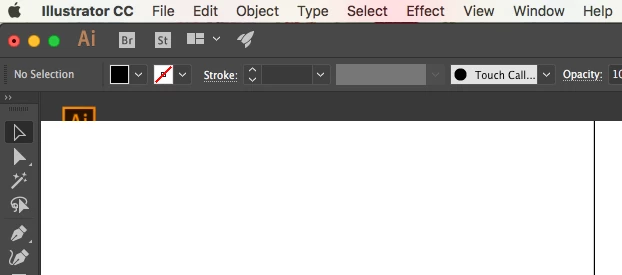
However i can click where the titles should be and it switches between files as you would normally and view them both! But the title bar is invisible.

Is this a bug, or if someone has a fix that would be great! I have tried the different screen modes, but nothing has worked!

Thanks

Laura

    This topic has been closed for replies.
    Correct answer Michael Riordan

    Try this: Go to Window>Arrange >Float All in Windows.  Then go back to Window>Arrange>Consolidate All Windows to get back to a tabbed arrangement.

    2 replies

    Michael Riordan
    Michael RiordanCorrect answer
    Inspiring
    April 9, 2018

    Try this: Go to Window>Arrange >Float All in Windows.  Then go back to Window>Arrange>Consolidate All Windows to get back to a tabbed arrangement.

    Participant
    April 9, 2018

    Thank you so much that worked!!

    Monika Gause
    Community Expert
    Community Expert
    April 9, 2018

    Which version?

    Which system?

    When did you last restart the computer?

    Participant
    April 9, 2018

    Illustrator version 22.1

    I'm on OS X El Capitan Version 10.11.6

    Computer has been off all weekend, but this problem was happening last week too.

    Thank you!

    Bill Silbert
    Community Expert
    Community Expert
    April 9, 2018

    Have you tried trashing your Illustrator preferences?

    To do so:

    With Illustrator closed launch a Finder Window in column view and click on your home folder. With the Option Key pressed choose Library from the Finder Go Menu. Within the Library folder find the folder called Preferences and within it find the following two files and delete them: “Adobe Illustrator <Version #> Settings” (earlier versions of Illustrator might just say “Adobe Illustrator”) and “com.adobe.Illustrator.plist”. When Illustrator is next launched it will create new preference files and the program will be restored to its defaults.

    The advantage of manually deleting preference files in this manner is that after you’ve reset up the program (make sure that no document window is open) to your liking, you can create copies of your personalized “mint” preference files (make sure that you quit the program before copying them—that finalizes your customization) and use them in the future to replace any corrupt versions you may need to delete.