
Participant
January 13, 2024
Answered

Issues trying to cut multiple shapes from a single imported PNG image and move after

  • January 13, 2024
  • 3 replies
  • 1065 views

Hi Everyone, 

I'm having a small issue with the following:

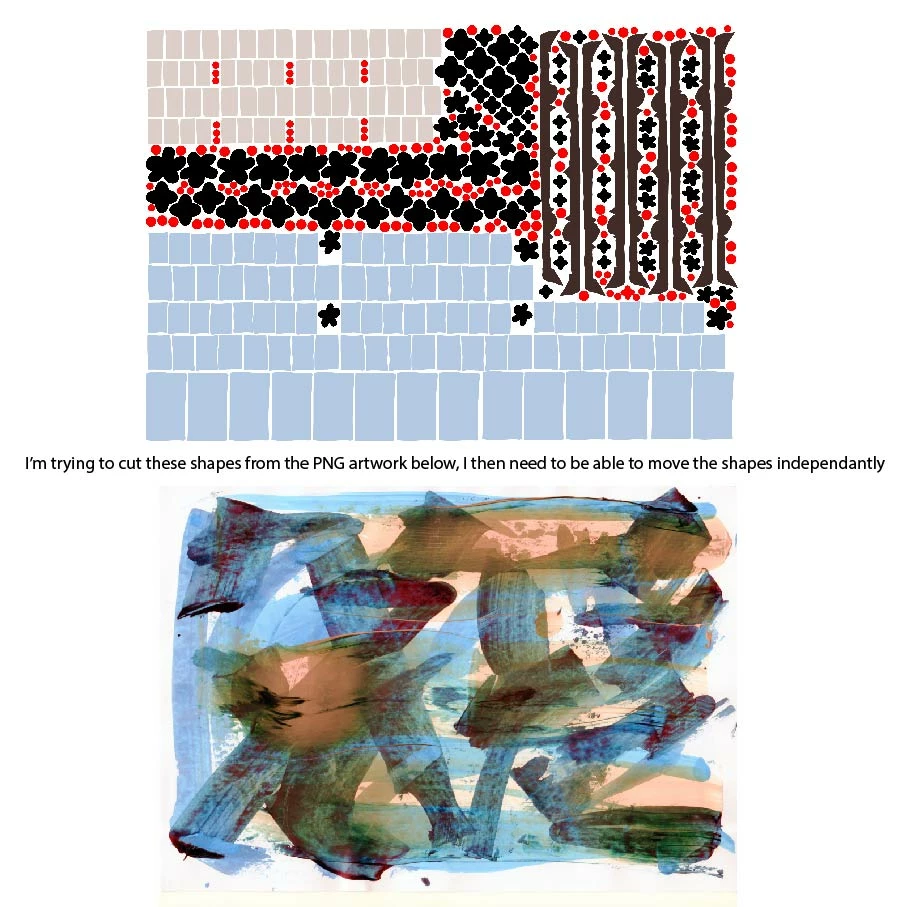
Context - I would like to cut out multiple shapes (perhaps 40+) from an imported PNG image (of my artwork) and then move/rotate/manipulate them independently afterward.


1. The artwork PNG is a large file. To import it 40 times in order to make a clipping mask for a each individual shape would work, but will take forever and I can't find a way to remove the excess (everything outside the clipping mask. I have tried pathfinder and other options which I can't seem to make work.) Therefore the file would be huge.

2. I have made a compound path from my 40+ shapes and successfully cut out from the original artwork, the only problem is, is I have not found a way to then disconnect them all from the path to allow me to use them independently  (so that I can place/paste/rotate/repeat etc.)


Is there a way to cut the shapes from the compound path? 

I suppose it's a bit like me making a jigsaw puzzle, but I need to be able to move the pieces around on their own within Illustrator.
Thank you for any advice 

This topic has been closed for replies.
Correct answer Ton Frederiks

Good to hear that worked, but you don't need to rasterize them if you set your options to both transform object and pattern in order to move them individually.

3 replies

CarlosCanto
Community Expert
Community Expert
January 13, 2024
quote

1. The artwork PNG is a large file. To import it 40 times in order to make a clipping mask for a each individual shape would work, but will take forever and I can't find a way to remove the excess (everything outside the clipping mask.


By @user8737409


you could place your image once and apply effects to make 40 copies. Expand appearance to get the individual copies, then use the Crop button to do real cropping instead of using clipping masks.


Participant
January 14, 2024

Thank you 

Ton Frederiks
Community Expert
Community Expert
January 13, 2024

Embed your image and drag it to the Swatches panel to make it a pattern.

Delete the image on the artboard.

Position your shapes to start in the 0/0 upper left corner of the artboard.

Select all and fill with the pattern.

Set your options to both transform object and pattern to move them individually.

The image as pattern is only stored once in the file which makes the filesize smaller.

Michael Ambroise
Community Expert
Community Expert
January 13, 2024

Are you familiar with using scripts in Illustrator? if yes, I suggest you use the "Puzzleclipper": https://github.com/alexander-ladygin/illustrator-scripts?tab=readme-ov-file#puzzleclipper

_______Senior graphic designer | United Nations Population Fund
Participant
January 14, 2024

Thank you Michael, it's not something I have tried before- I'll take a look at the link


Michael Ambroise
Community Expert
Community Expert
January 14, 2024

You're welcome!

_______Senior graphic designer | United Nations Population Fund