Inspiring
December 3, 2019
Answered

Issues with knockout

  • December 3, 2019
  • 2 replies
  • 2698 views

Hi,

I have a design made up of multiple layers.
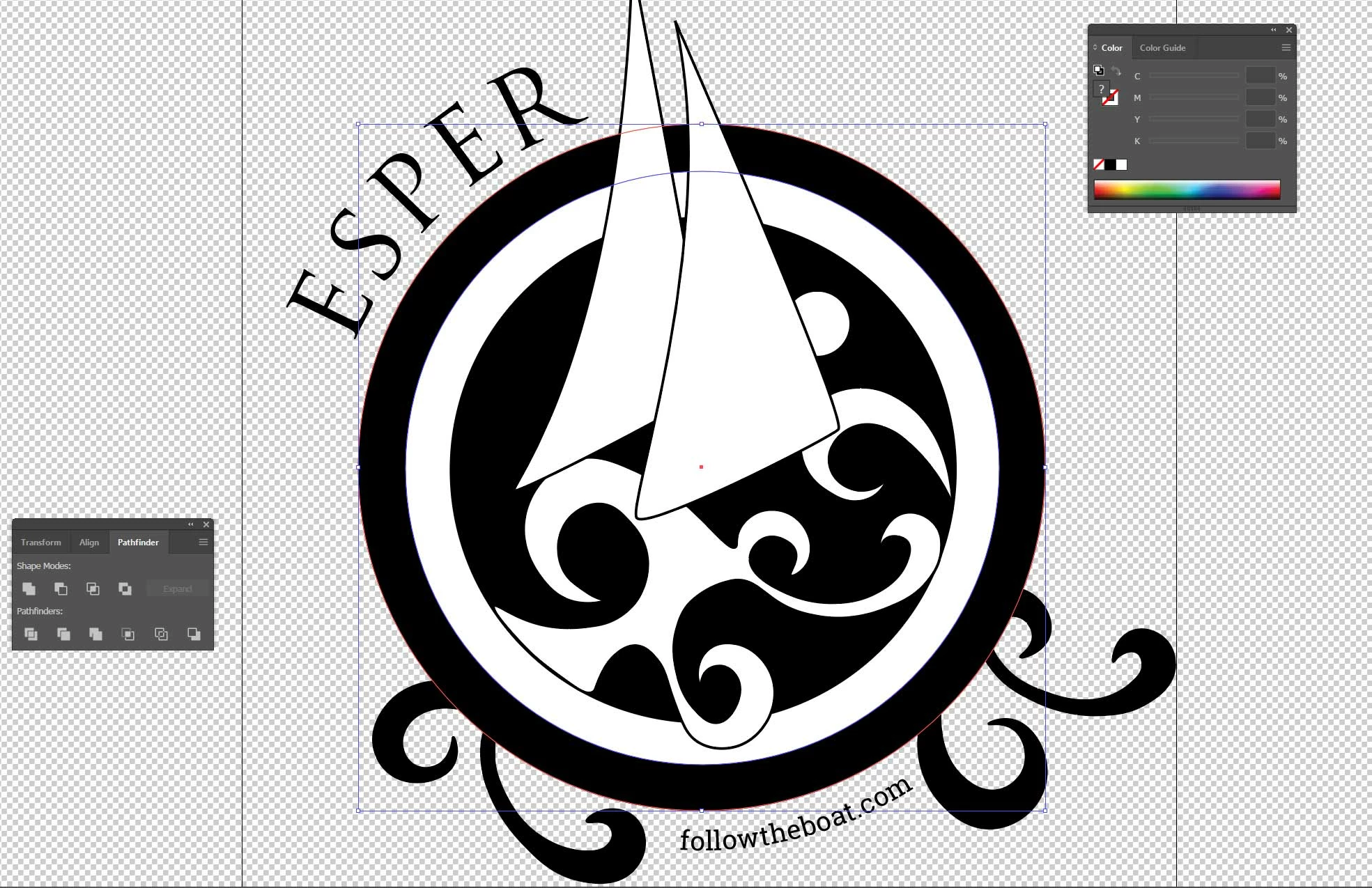
I am trying to make the shapes that are filled in white transparent, where they keep their black outline but don't show the layers underneath. I believe knockout is the way to go so I can manage the inner white circle no problem by selecting Minus Front under Pathfinder...
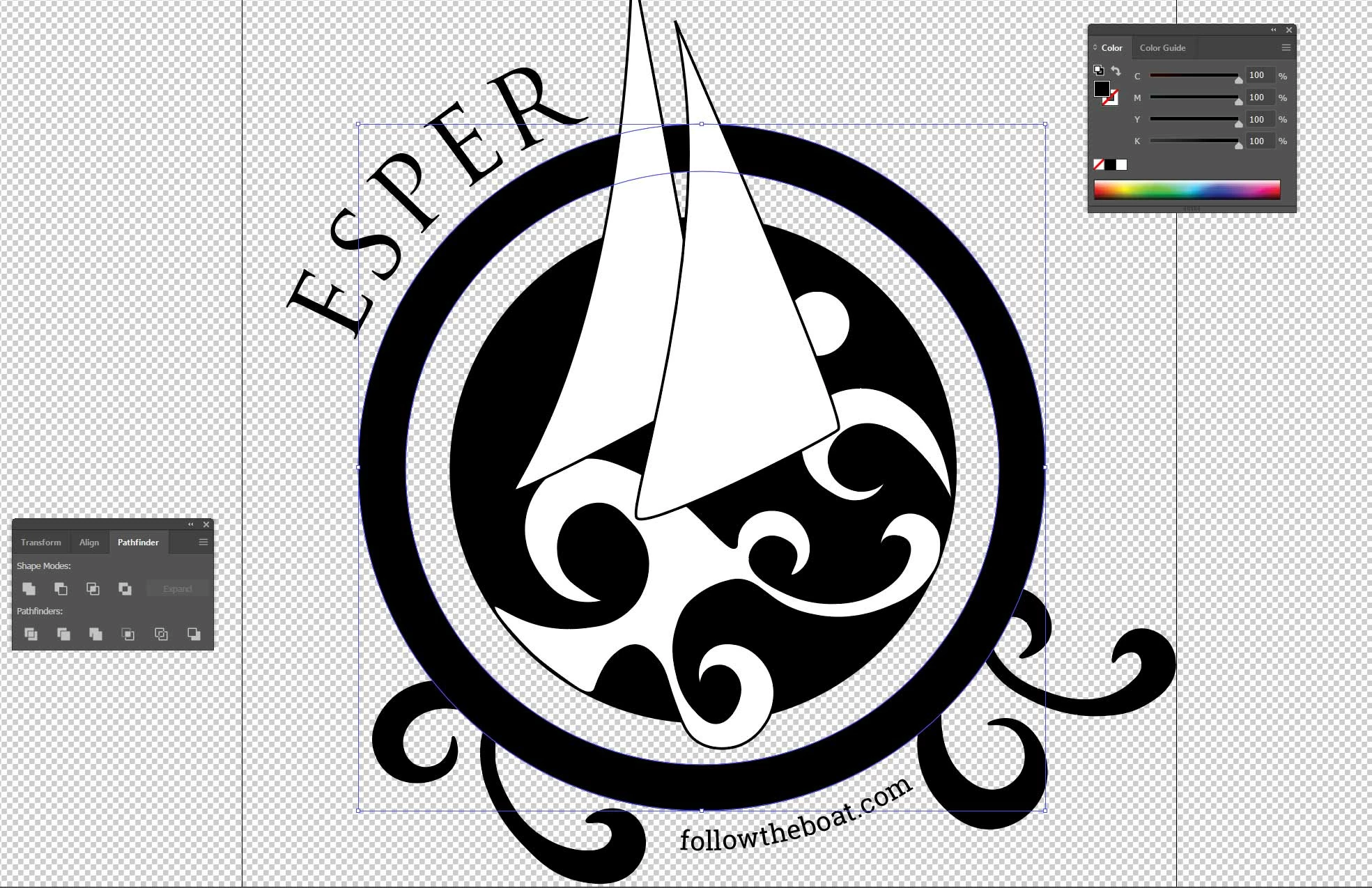
The first problem I have is dealing with the white waves. When I apply a knockout on this it loses the outline where the lower part of the wave intersects the knocked out circle:
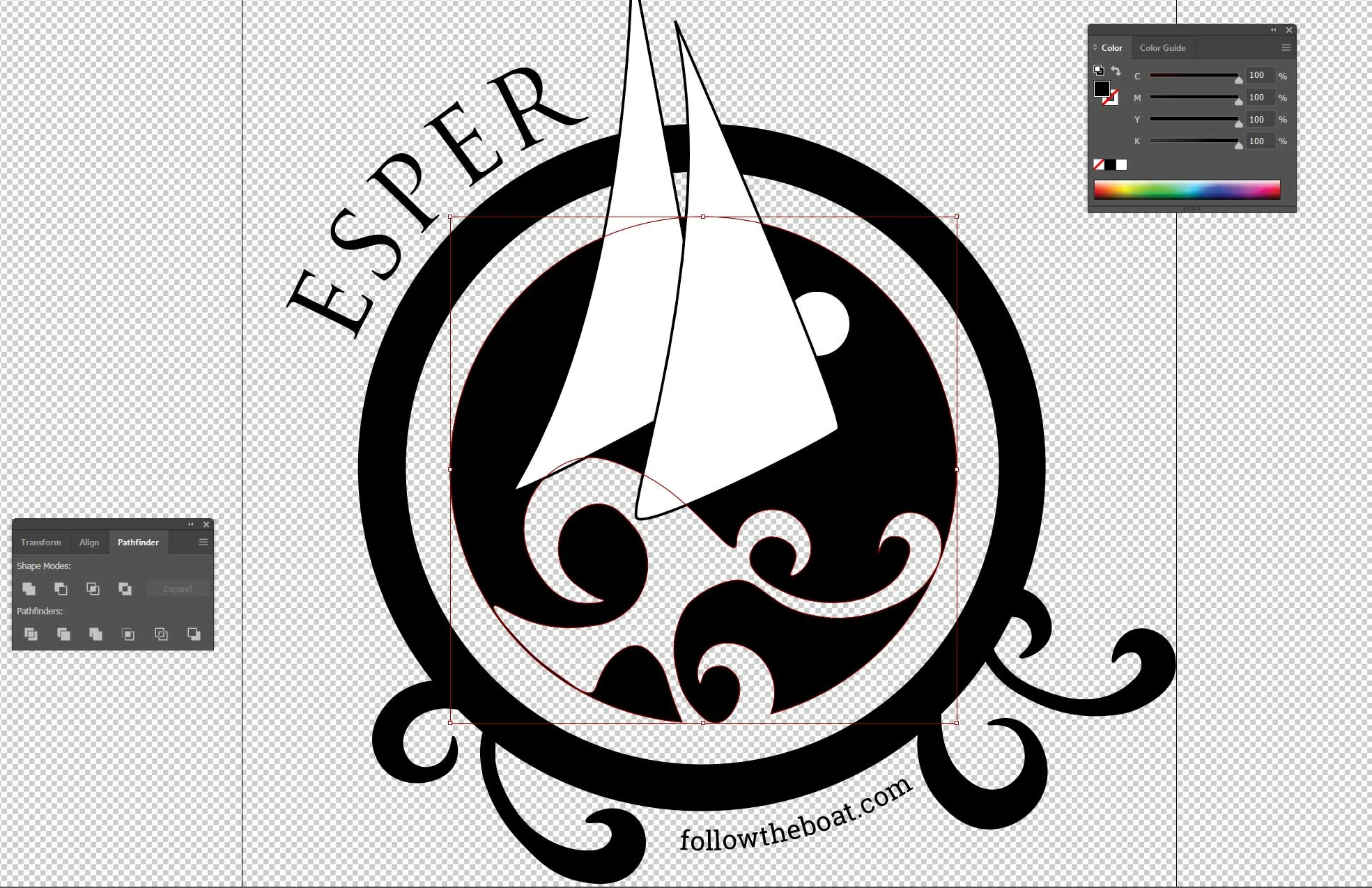
How do I knockout but maintain the outline?

The next problem is trying to knockout the sails. I have tried to select both outer and inner black circles and then the sail:
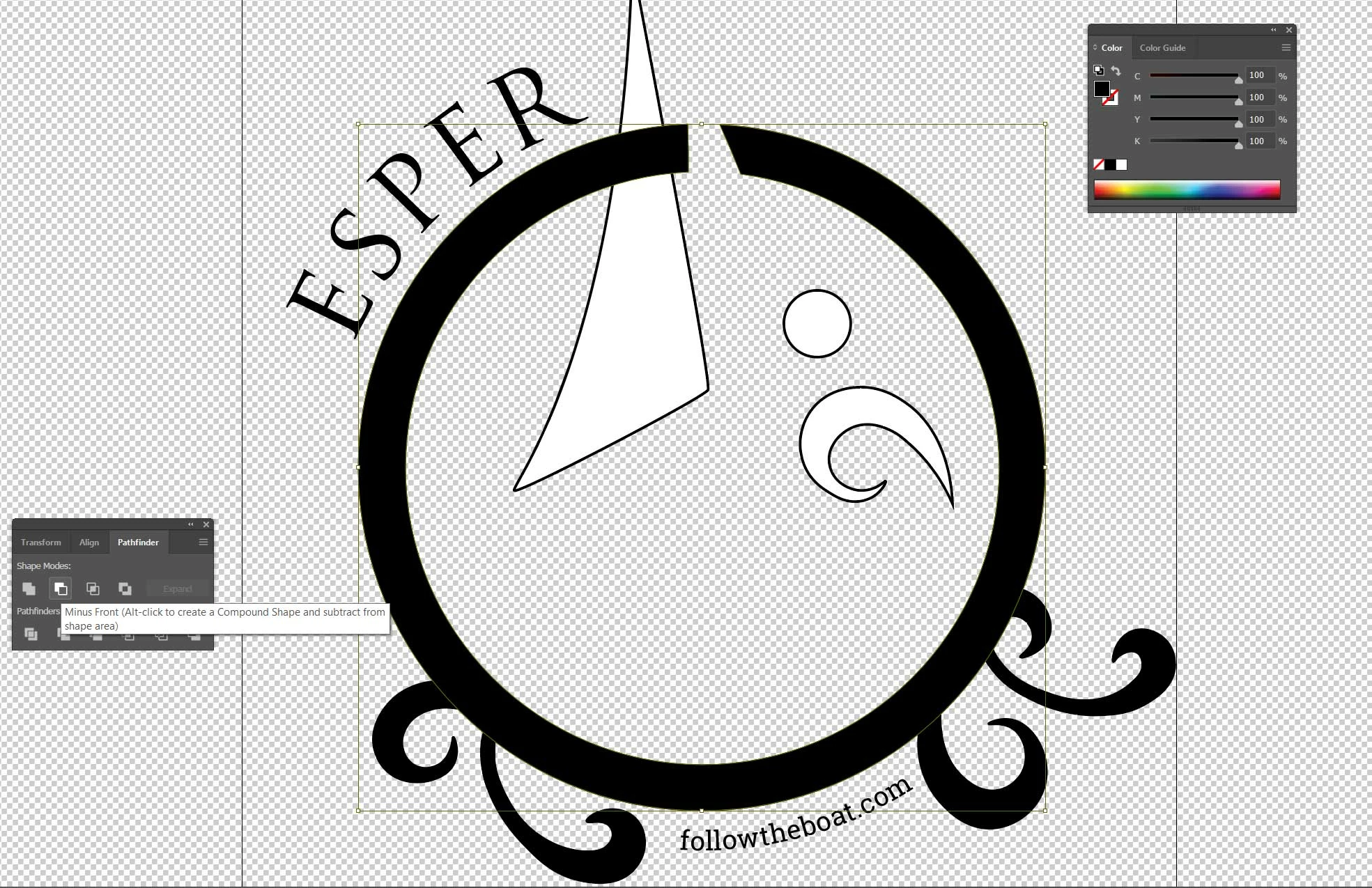
Or I try to group the black circles and do the same with the same result. It works ok if I just select the inner circle (minus the outline problem):
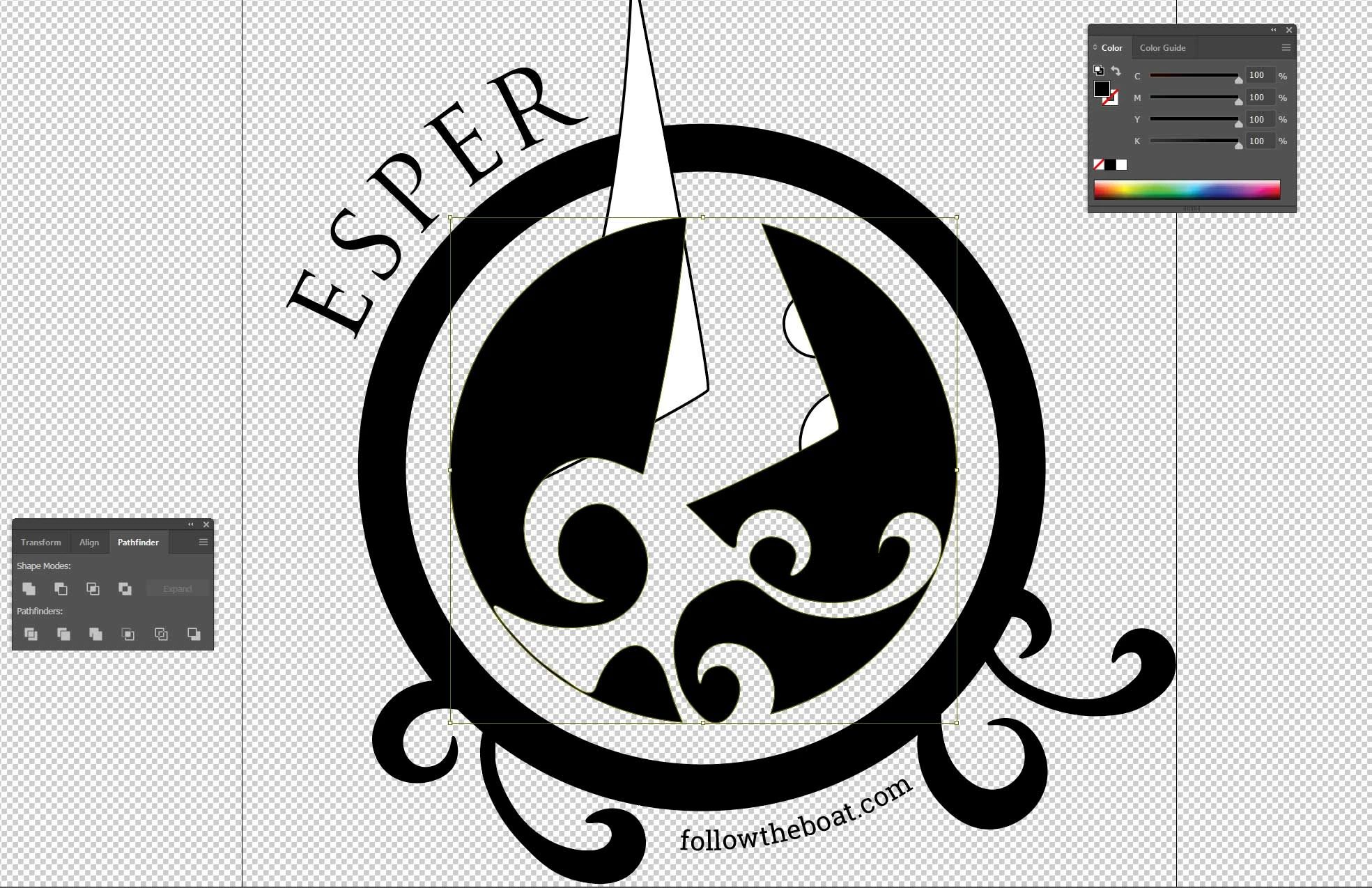
Any pointers gratefully received as I have spent a few hours trying to get my head around this!

This topic has been closed for replies.
Correct answer Monika Gause

Select an object with a white fill and focus the fill. Then Select > Same > Fill.

In the appearance panel set the fill to 0% opacity.

Then group all your objects

Select he group and in the transparency panel set it to knockout group.

At this point you might need to set View > Preview on CPU

To make all this into paths, you need to Object > Flatten transparency

Check "Outline strokes" and "Keep alpha transparency"

In the result delete all invisible objects.

2 replies

Inspiring
December 3, 2019

You Could select all of the inner elements and use Pathfinder > Divide, whoch will split all of the elements to separate manageble shapes.

You can bring some back together using Pathfinder where it may have split too much.

Monika Gause
Community Expert
Monika GauseCommunity ExpertCorrect answer
Community Expert
December 3, 2019

Select an object with a white fill and focus the fill. Then Select > Same > Fill.

In the appearance panel set the fill to 0% opacity.

Then group all your objects

Select he group and in the transparency panel set it to knockout group.

At this point you might need to set View > Preview on CPU

To make all this into paths, you need to Object > Flatten transparency

Check "Outline strokes" and "Keep alpha transparency"

In the result delete all invisible objects.

Inspiring
December 4, 2019

Hi Monika, thanks for your reply, Could you just clarify what you mean by ''focus the fill"?