Participant
December 9, 2015
Answered

Jagged edges on all vector paths in Illustrator CC2015

  • December 9, 2015
  • 4 replies
  • 24494 views

Since updated to the newest versions, all my vectors appear jagged. Nothing looks smooth. When exporting them, they are fine. But it makes it extremely difficult to work when you're applying things like rough edges, and textures because you can't make any sense of what is happening. Here is an example:

Those are straight lines, yet they have the staircase effect.

I've tried:

  • Cmd + E
  • Turning off GPU performance
  • Updating my operating system
  • Updating anything Adobe related

I know it's not my computer because everything else looks crystal clear in broswer, etc. so it cant be a graphics card issue..

Any suggestions?

Thanks,

This topic has been closed for replies.
Correct answer nagarajans37965149

I am using Windows 10 with Adobe Illustrator version 22.0.1


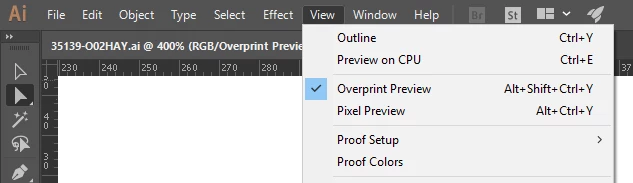
I clicked on the 'Overprint Preview' from the 'View' menu.

Everything came to normal.

4 replies

Participant
July 31, 2020

Thank you for this. I  had the same issue. 

Participant
August 13, 2020

Ditto!!!

nagarajans37965149
nagarajans37965149Correct answer
Participant
March 6, 2018

I am using Windows 10 with Adobe Illustrator version 22.0.1


I clicked on the 'Overprint Preview' from the 'View' menu.

Everything came to normal.

Aniago
Participant
December 1, 2018

This helped, for me

mikeg_kale
Inspiring
December 10, 2015

What OS platform/version, I would not upgrade to El Crapitan just yet.

View >> Pixel Preview (Unchecked)

Reset your prefs

Jacob Bugge
Community Expert
Community Expert
December 9, 2015

Victoria,

Is Anti-aliased Artwork ticked in Edit>Preferences>General?

Participant
December 10, 2015

It wasn't, but when switching it on it doesn't resolve the issue

Participant
December 10, 2015

Sorry I replied to the wrong comment. But tried this too and it wasn't checked.