jiecsas
Participant
October 16, 2017
Answered

Jagged lines

  • October 16, 2017
  • 2 replies
  • 629 views

Help!  I can't figure out why these lines are all jagged.  This is a from a past project and I'm trying to use it, but cannot figure out how to make the lines smoother.  I'm wondering if I put a filter type thing on it at some point to create a vintage look with slightly uneven edges, but I can't find a setting like this anywhere.  This is how the vector looks before I paste it into a new document:
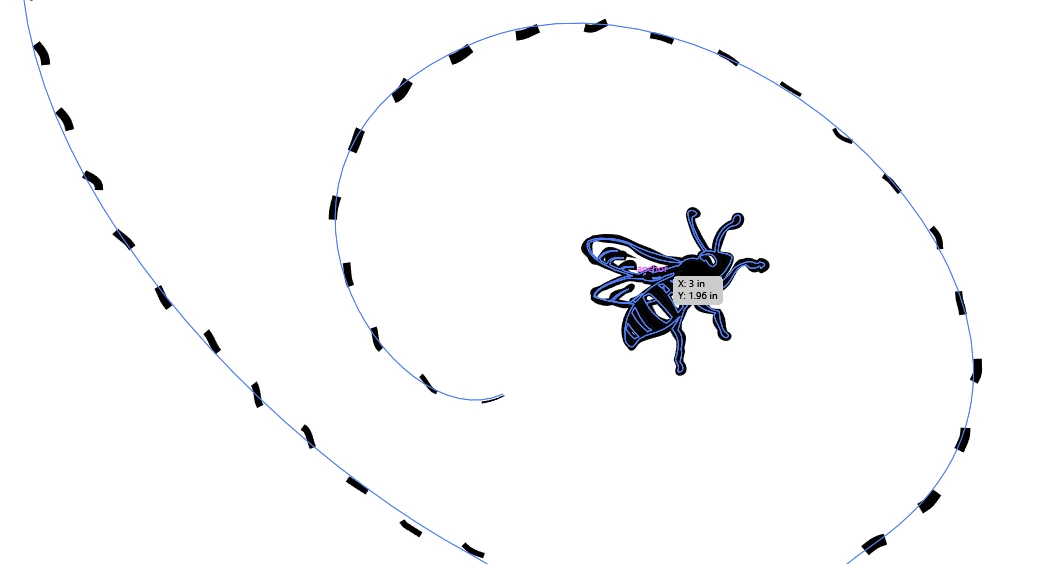
I don't get it.
    This topic has been closed for replies.
    Correct answer barbara_a7746676

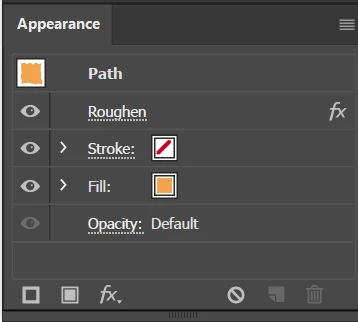
    You can find out if it is a filter by selecting the artwork. Then open the Appearance panel. It will list all of the appearance characteristics of the selected object. If you have a group, it will be easier to figure out if you Object > Ungroup first. If a special effect is applied, it will be listed in the Appearance panel and you can delete it by selecting it (for example "Roughen" in the example below) and clicking the trash can icon in the lower right..

    2 replies

    Bill Silbert
    Community Expert
    Community Expert
    October 16, 2017

    Try viewing it with GPU Performance turned off. Click on the rocketship in Illustrator's top menu to access it.

    barbara_a7746676
    Community Expert
    barbara_a7746676Community ExpertCorrect answer
    Community Expert
    October 16, 2017

    You can find out if it is a filter by selecting the artwork. Then open the Appearance panel. It will list all of the appearance characteristics of the selected object. If you have a group, it will be easier to figure out if you Object > Ungroup first. If a special effect is applied, it will be listed in the Appearance panel and you can delete it by selecting it (for example "Roughen" in the example below) and clicking the trash can icon in the lower right..

    jiecsas
    jiecsasAuthor
    Participant
    October 16, 2017

    Thank you!  Appearance panel did the trick!!!!