Participating Frequently
January 15, 2021
Question

Jagged Lines illustrator

  • January 15, 2021
  • 5 replies
  • 2502 views

Hello,

I've checked old posts about the subject, but I am posting another related problem about jagged line in Illustrator.
I am drawing a fish and for some reason, some of the lines are jagged.
- GPU is off.
- Anti-aliased is ticked
- Overprint preview tried
- Document set up : 300dpi
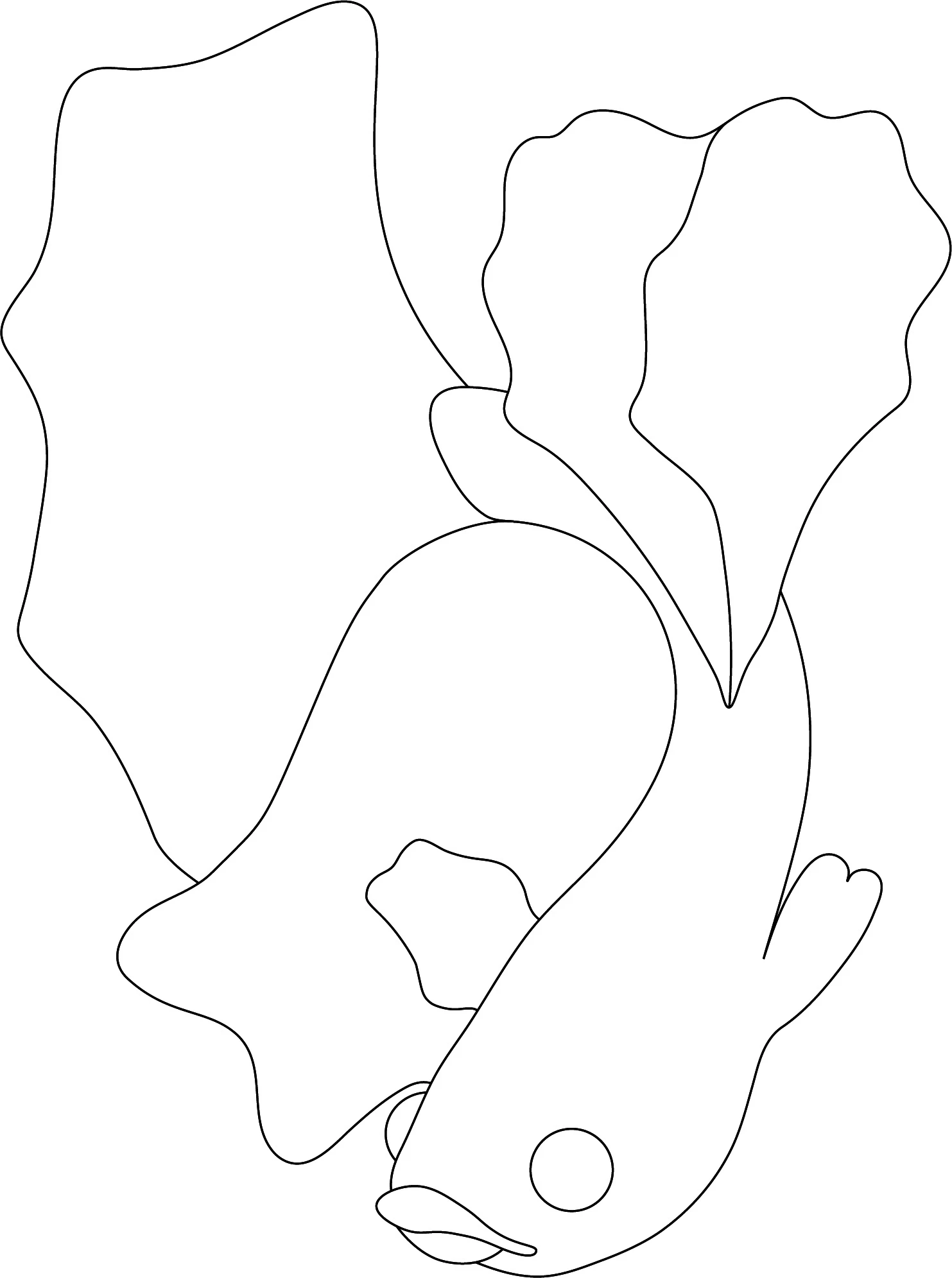
I really don't understand why it keeps not working as smooth at it should be (tale - fin)

I hope someone can help.

See you 🙂

Marion.

This topic has been closed for replies.

5 replies

Anna Lander
Inspiring
January 16, 2021

Is it possible to print it at least on the home/office printer?
If printed version will be smooth, it means that there is no problem with the lines, it's just preview conditions of your screen. Then you can keep calm 🙂

Participating Frequently
January 16, 2021

I printed yes, and it strange...

On the fish, it looks normal, but on the triangle, it looks definitly jagged...

So I feel it completly inconstant, and I can't say whether it would work or not on every lines.
I got the feeling that Adobe has no answer to this issue.

Anna Lander
Inspiring
January 16, 2021

I still think that you just see screen pixels, and it will not affect the final image.
When you import PNG into AI document, it always looks poor to decrease the system charge. It won't look so in final image if you created it with high resolution.
BTW, what is your screen size and resolution?

Jacob Bugge
Community Expert
Community Expert
January 16, 2021

Marion,


"Document set up : 300dpi"


If this stament means that you have applied 300 PPI in Effect>Document Raster Effects Settings in connexion with purelly vector artwork, as the second screenshot (set) seems to imply, it mskes no difference.


I believe it may be simply a matter of its appearance on your monitor.


Is it the same on a monitor of a different kind/resolution/pixel density?


Participating Frequently
January 16, 2021

Hello Jacob,

When you say 'monitor' you mean it might be just my screen  playing with me, by not showing the right result of my lines ?
I am sorry I don't understand what do you mean exactly by 'Is it the same on a monitor of a different kind/resolution/pixel density?' Do you want me to bring it to PS, and see what's the result ?
The thing is, I have to submit my work through a vector base program anyway.

Have a good day,

Jacob Bugge
Community Expert
Community Expert
January 16, 2021

Marion,


"When you say 'monitor' you mean it might be just my screen playing with me, by not showing the right result of my lines ?"


Something like that, maybe different from your expectation.


"a monitor of a different kind/resolution/pixel density?"


I was thinking of different monitors with different properties, such as separate/laptop/tablet /smartphone, and different pixel x pixel sizes and pixel densities. All showing the same AI/PDF document.


And what happens when you zoom in?


Anna Lander
Inspiring
January 16, 2021

is it only in this document?

Participating Frequently
January 16, 2021

Hi Anna,


Well, I have tried with brand new document, I draw a triangle (3anchor points) and a circle (4 anchor points) with the pen tool. And here again...I can see the jagged/fuzzy lines appearing.

Ton Frederiks
Community Expert
Community Expert
January 15, 2021

Does switching to CPU Preview make a difference (Cmd or Ctrl E)?

Participating Frequently
January 16, 2021

Unfortunately no, it doesn't make ay difference.
I tried to fix it by removing too many anchor points, but even having the minimum of anchor points, I still get the same fuzzy/jagged look of my lines.
It's very frustrating.

Monika Gause
Community Expert
Community Expert
January 16, 2021

Is there just one path or are there multiple paths stacked on top of each other?

michelew83603738
Community Expert
Community Expert
January 15, 2021

Do you have pixel preview on?

Participating Frequently
January 16, 2021

No, I am on CPU preview