Known Participant
February 15, 2024
Answered

Japanese missing as Character palette language, but options visible

  • February 15, 2024
  • 1 reply
  • 1932 views

Deadline tomorrow, of course. I can see various options for Japanese, however in the language selector to get the correct renderer, there is no Japanese. The pasted Japansese translation has a strange indentation that can't be deleted, also the "punctuation" like the Japansese "commas" are floating in the middle, and there's no way to change them. Also, line breaks are wrong, I have to do them as best as I can guess manaully, though I am not a Japanese speaker. 


Help! This is absolutely absurd. What is wrong with non-western type rendering? I also work with Thai, and it breaks compeltely. Are eastern languages just absolutely broken? Oddly, works fine in InDesign, but my desing is complete and ready to send in Illustrator. I've worked with both languages before, years ago, and there were no issues. It's like each release gets worse with time. Compeltely stuck.
This topic has been closed for replies.
Correct answer silk-m

When you rollover it, all it says is "language." Also, Thai also has no hyphenation, yet it is listed there as a language. So, I'm not sure this is correct. Worse, with Japanese, all of the line breaks are completely wrong (for example, in Katakana "Cha" the tiny ya is on the next line, among other problems. So... again, how do I set things up so Japanese works correctly?


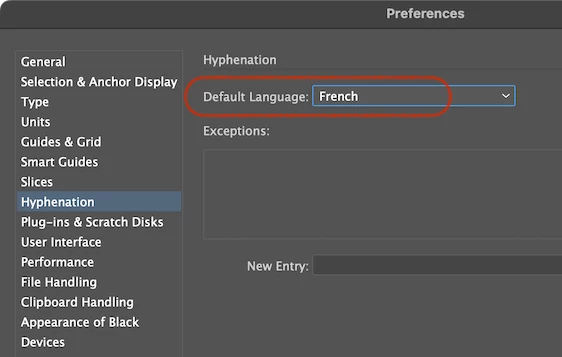
Try opening a new document with no text and changing the Hyphenation Language in the Preferences.
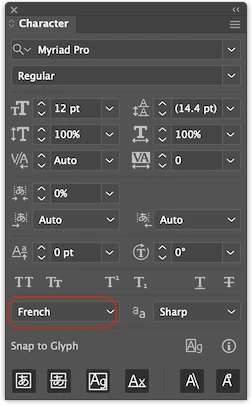
The Language of the Character palette will also change accordingly. So you can see that the Language of the Character palette is a Hyphenation Language. (I don't understand the Thai language situation.)


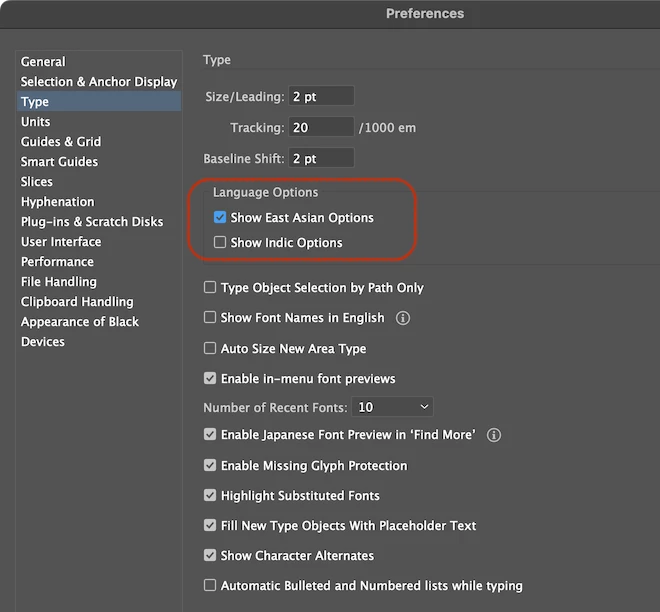
To set Japanese "Can't Begin Line Characters" and "Can't End Line Characters", check "Show East Asian Options" in the Preference / Type.


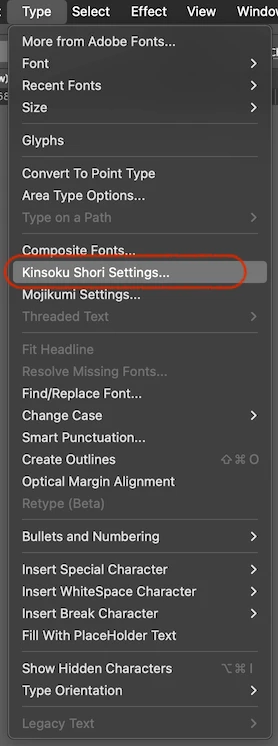
Open "Kinsoku Shori Settings..." from the Type Menu.


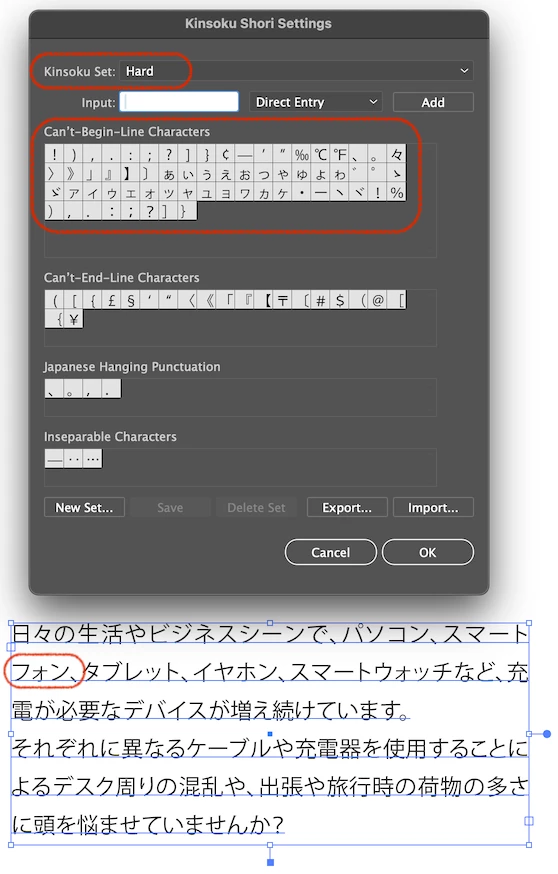
If set Kinsoku Set to "Hard", "Can't Begin Line Characters" will include small katakana characters.


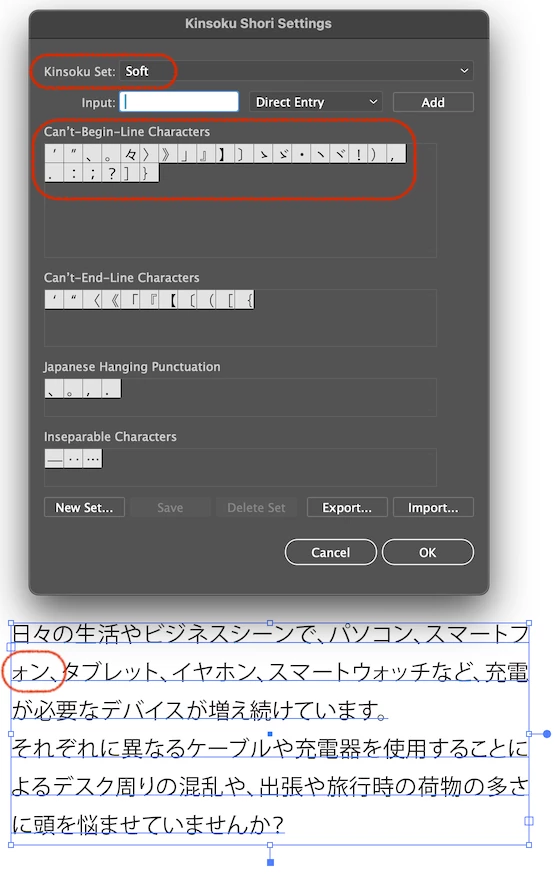
If set to "Soft", small katakana characters will not be included.

1 reply

Anubhav M
Community Manager
Community Manager
February 15, 2024

Hello @rpaulseymour,

We understand that encountering technical issues can be frustrating. Would you mind creating a Text Box in Illustrator and then pasting your text in it to check if it helps? If the problem persists, kindly share more details, like the exact version of the OS/Illustrator, details about your workflow, a sample file (https://adobe.ly/49xHRAP), and a screen recording of the problem (https://adobe.ly/49yiOxy), so we can investigate this further.


Looking forward to hearing from you.


Thanks,

Anubhav

Known Participant
February 16, 2024

I certainly pasted it in. If it wasn't clear from the rant (apologies) or screenshot, the problem is simply what is in the 2nd screenshot: JAPANSES IS MISSING as an option to format text. And so, the formatting is screwed up in the text. Really really messed up. But, as shown in the 1st screenshot, there are Japanese character options available. So, this must be a serious bug.


Unfortuneatly, due to time, I have to spend who knows how long to outline the text, and manually move certain characters around which is insane. Or, I might try importing it into InDesign, as that seems to have no issues with Japanese. Why Adobe doesn't use the same text rendering systems in apps is absurd from a user point of view.