


Participant
June 29, 2017
Answered

Layers palette: cannot tell the difference between layers and groups

  • June 29, 2017
  • 5 replies
  • 1742 views

Hi,

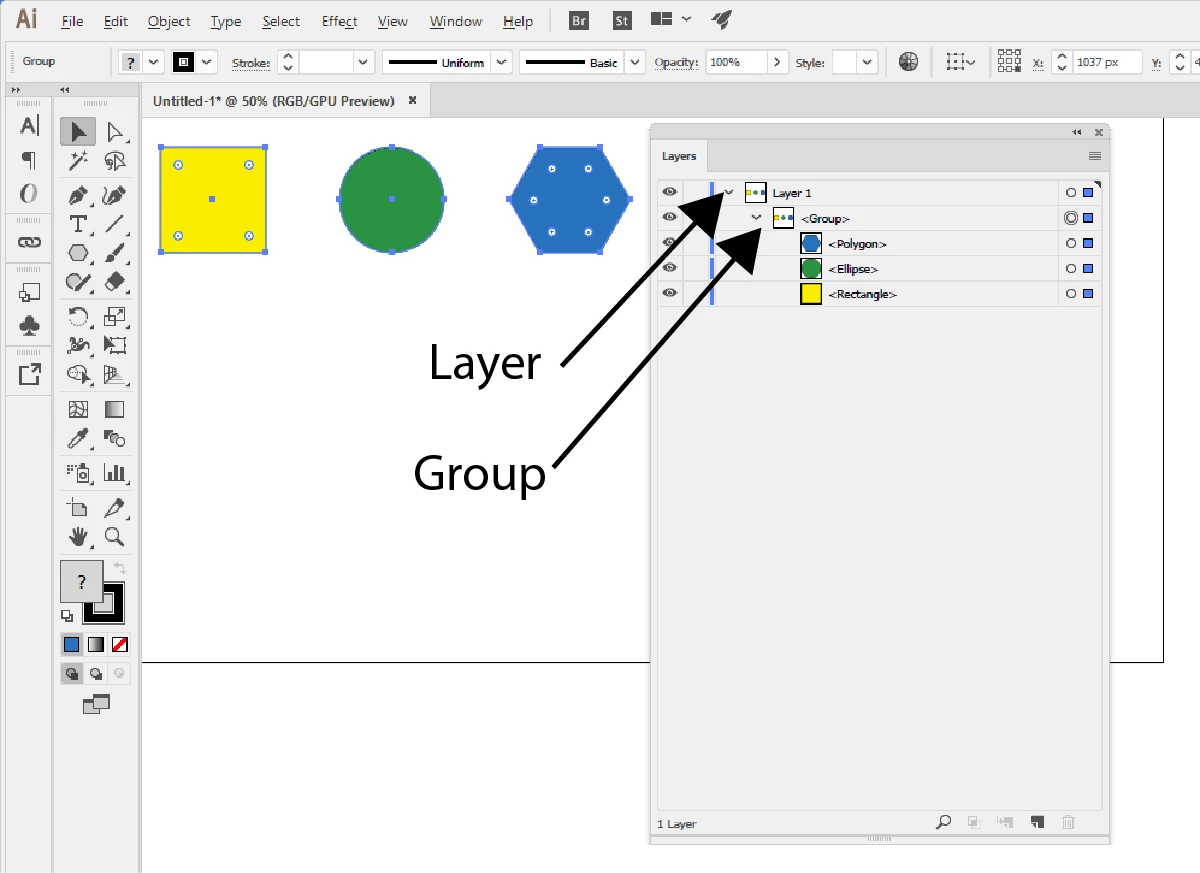
I have a small issue when working with the layers palette. In larger documents I typically rename some of my layers and groups. After renaming both my layers and groups look exactly the same in the layers palette. In my case the only way to tell the difference seems to be double clicking the layer or group name in order to open layer/group properties dialogue box.

What should I do in order to see the difference between layers and groups without double clicking?

I have tried various ways to modify my user interface preferences but unfortunately without luck. I hope that there would be a way to make the background color of text "Layer 1" and "<Group>" different.
BR Markku
    This topic has been closed for replies.
    Correct answer Monika Gause

    That has been the case in all recent versions, but they took it away.

    Please make a feature request:

    Feature Request/Bug Report Form

    5 replies

    ericc19576445
    Known Participant
    April 4, 2023

    I, 1000% agree with this. Especially if you name layer, sublayers, and groups. They are indistinguishable and are a nightmare to navigate through on large files. Especially if you use Character Animator. 


    Attn: Adobe Product Managers!!! There are way too many UX flaws in Illustrator. For those of us who work in UX it's even more upsetting.

    Monika Gause
    Community Expert
    Community Expert
    April 4, 2023

    This thread is 6 years old.

    Please create a new one and show a screenshot of what you are referring to.

    Kurt Gold
    Community Expert
    Community Expert
    June 29, 2017

    Another discreet indicator is the black triangle at the top right corner of the layer items. Given that at least one object is selected on the artboard, only main layers and sub layers show the black triangle. Groups don't do that.

    rcraighead
    Legend
    June 29, 2017

    Very good point, Kurt. It seems obvious now. The only time that fails is if there is nothing in a layer since, by definition, groups cannot exist without content.

    But there is still nothing to differentiate sublayers from groups, at a glance, other than the naming convention.

    Kurt Gold
    Community Expert
    Community Expert
    June 29, 2017

    I'm not quite sure if it is right to say that it fails. Of course, an empty layer does not allow you to select any object because there is precisely nothing inside it. You can only highlight (and target) it to show the black triangle indicator.

    jane-e
    Community Expert
    Community Expert
    June 29, 2017

    ext-padawan  wrote

    What should I do in order to see the difference between layers and groups without double clicking?

    I do two things:

    1. Use my Appearance panel and
    2. Name my Layers and Groups with the words Layer, Group, and Sublayer (Note that I did not do that here, and that I have a sublayer named Design and a Group named Design, which would cause confusion extraordinaire!)

    Example 1: Artwork layer selected; Appearance panel indicates Layer

    Example 2: Design sublayer selected; Appearance panel indicates Layer

    Example 3: Design group selected; Appearance panel indicates Group

    .

    Monika Gause
    Community Expert
    Community Expert
    June 29, 2017

    But nothing beats this:

    rcraighead
    Legend
    June 29, 2017

    Related to this question; I notice a flaw in the way AI (CC 2015) updates Layer colors.

    If I add a group to a layer then change the layer color, the group color-indicator remains the original color in the Layer Panel, even though the group elements reflect the new color on the Artboard. If additional objects are added to the layer they are properly color-coded in the Layers Panel.

    Participant
    June 29, 2017

    One afterthought:

    There is something weird going on indeed.... When adjusting settings in Preferences > User Interface

    everything looks OK (at least in the sense I would expect things to work)

    but unfortunately layers and groups are again the same after clicking "OK"  : (

    Monika Gause
    Community Expert
    Monika GauseCommunity ExpertCorrect answer
    Community Expert
    June 29, 2017

    That has been the case in all recent versions, but they took it away.

    Please make a feature request:

    Feature Request/Bug Report Form

    Participant
    June 29, 2017

    Thanks for the info, I made a feature request.

    BR Markku