bdnio
Participant
March 10, 2017
Answered

Letter Kearning / Create Outline (Fonts)

  • March 10, 2017
  • 2 replies
  • 1318 views

Hi there,

I'm using Illustrator CC with Arabic fonts.

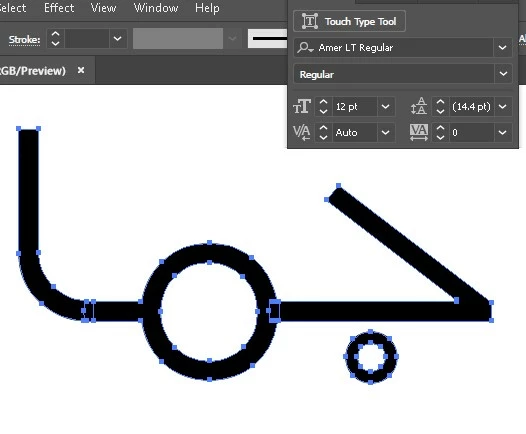
I need to create outline paths without the vertical path divider between individual letters.

How can I do so, so only the outer path remains.
This topic has been closed for replies.
Correct answer Zaid Al Hilali

Well these aren't dividers, they are character overlaps. See the first two characters (on the right end) are جـ ـمـ so the straight line between them is overlapping hence you see that small rectangle shape.

Any how, the solution is to weld characters together, or you may call it unit them by using Pathfinder panel, or the Shape Builder tool, however some times you may need to unassembled complex characters such as the ـمـ here in the middle of your word, so unassembled before welding, here are the steps…

  1. Select your text, from the menu choose Type > Create Outline (which you did already)
  2. From the menu choose Object > Ungroup
  3. View your artwork in Outline mode so you can see the overlapping areas
  4. Bring out Pathfinder panel
  5. Select all three characters in your example and click on the "Unite" option in the Pathfinder panel so all three characters are welded and becomes a single path.

If Unite didn't work, you may need to select letter م (looks like a circle in the middle of the word) and choose Object > Compound Path > Release. Now unite all characters, view your letters in normal preview, select the heart of the circle and other parts of the united characters and choose Object > Compound Path > Make.

2 replies

Ton Frederiks
Community Expert
Community Expert
March 11, 2017

You can use the Shape Builder Tool to combine the paths

Zaid Al Hilali
Community Expert
Zaid Al HilaliCommunity ExpertCorrect answer
Community Expert
March 10, 2017

Well these aren't dividers, they are character overlaps. See the first two characters (on the right end) are جـ ـمـ so the straight line between them is overlapping hence you see that small rectangle shape.

Any how, the solution is to weld characters together, or you may call it unit them by using Pathfinder panel, or the Shape Builder tool, however some times you may need to unassembled complex characters such as the ـمـ here in the middle of your word, so unassembled before welding, here are the steps…

  1. Select your text, from the menu choose Type > Create Outline (which you did already)
  2. From the menu choose Object > Ungroup
  3. View your artwork in Outline mode so you can see the overlapping areas
  4. Bring out Pathfinder panel
  5. Select all three characters in your example and click on the "Unite" option in the Pathfinder panel so all three characters are welded and becomes a single path.

If Unite didn't work, you may need to select letter م (looks like a circle in the middle of the word) and choose Object > Compound Path > Release. Now unite all characters, view your letters in normal preview, select the heart of the circle and other parts of the united characters and choose Object > Compound Path > Make.