
Inspiring
October 28, 2019
Question

Make clipping mask doesn't work on text strokes

  • October 28, 2019
  • 6 replies
  • 3721 views

I want the black part (strokes of the text) to have the background afterwards, but the result is the unfilled area in the text gets the background.
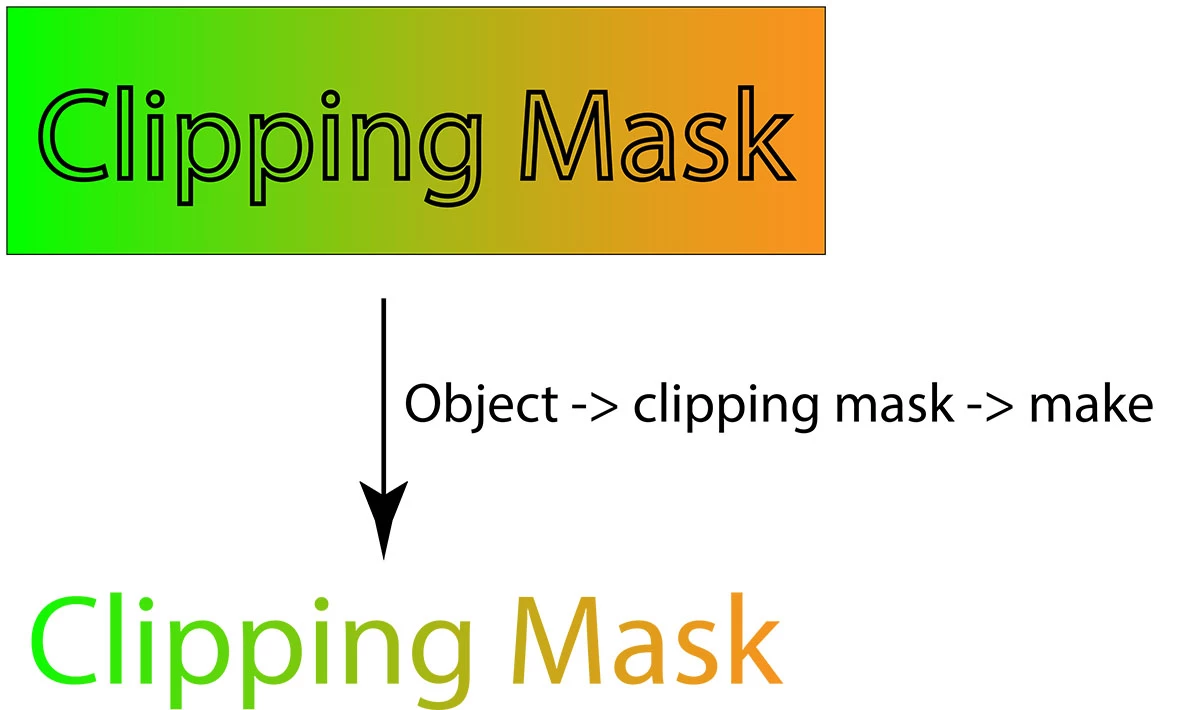
 

I found a complicated way to do what I want:

first select the text

  type->create outline

  object->path->outline stroke

  object->ungroup

  object->compound path->make

now select both objects

  object->clipping mask->make

This produces the desired result (sorry not the same scale as above)

 

This sequence is long and hard to remember. And I cannot edit the text anymore. Is there a better way to do this?

This is illustrator CC 2018. Is this a bug or a feature?

    This topic has been closed for replies.

    6 replies

    rcraighead
    Legend
    October 30, 2019

    As has been mentioned, fill the stroke with a gradient or pattern (it could be a photo).

    Jacob Bugge
    Community Expert
    Community Expert
    October 28, 2019

    avpromedia,


    "(1) use opacity mask. This allows you to use anything (gradient, photos) to fill the strokes. However the resulting text is not editable as text."


    On the contrary: as I said:


    You can just use the live Type with black stroke and no fill as follows:


    Select both live Type and background (as you did when trying the Clipping Mask), then in the Transparency palette (flyout) click Make (Opacity) Mask with Clip unticked and Invert Mask ticked (in the main Transparency palette).


    No outlining, full editability with the Type Tool.


    Jacob Bugge
    Community Expert
    Community Expert
    October 28, 2019

    avpromedia,


    To specify what I believe is the simplest way to use the (Opacity) Mask as suggested by キィィ_____Å____ィィィ___, You can just use the live Type with black stroke and no fill as follows:


    Select both live Type and background (as you did when trying the Clipping Mask), then in the Transparency palette (flyout) click Make (Opacity) Mask with Clip unticked and Invert Mask ticked (in the main Transparency palette).


    Inspiring
    October 28, 2019

    Got it. Thanks everyone.


    To summarize, two solutions are suggested here:

    (1) use opacity mask. This allows you to use anything (gradient, photos) to fill the strokes. However the resulting text is not editable as text.

    (2) use the obscure appearance panel's gradient fill on the strokes. This allows the text to be editable. Other obvious means to fill the strokes with gradient will fail with a solid black fill. That seems like a bug; is it ever going to get fixed?

    キィィ─!!!
    Participating Frequently
    October 28, 2019

    Opacity mask text can be edited by selecting the mask in the transparent window.

    Select mask with transparent panel.
    Edit
    When you are done, remember to select the left square to return to normal mode.
    (sorry, I'm using the Japanese version.)

    meganchi
    Legend
    October 28, 2019

    Yes, first, make sure the gradient is in your color palette. Next, with live text selected, open your appearance panel. Select "add stroke", then change the stroke color from within the appearance panel to your gradient color. You can also adjust the stroke thickness, too.

    Omar.Fathy
    Community Expert
    Community Expert
    October 28, 2019

    There is another way to do it with the Transparancy Mask.
    Slect the Image of gradient or any object you need.
    Go to Window> Transparancy

    Select the Black box.
    Paste your text stroke but make sure it is in white color ( It is a mask like Ps layer mask Black will hide and White will reveal object ). 
    After finishing make sure to click to the another box to go back to your design. 

    キィィ─!!!
    Participating Frequently
    October 28, 2019

    avpromedia, Hello!
    How about using an opacity masks?
    https://helpx.adobe.com/illustrator/using/transparency-blending-modes.html