
Participant
January 5, 2018
Answered

Making a black background transparent

  • January 5, 2018
  • 6 replies
  • 25314 views

Can someone please help me before I throw my laptop out the window. I have a a png file of just some white words on a black background. I want to remove the black background and just have the  white words so when I overlay the image onto a T Shirt template like on Shopify, the text overlays but the black box is gone.

I was easily able to create black words and eliminate the white background using the rasterize function and then image trace. But I cannot get rid of the black background.
    This topic has been closed for replies.
    Correct answer Brad @ Roaring Mouse

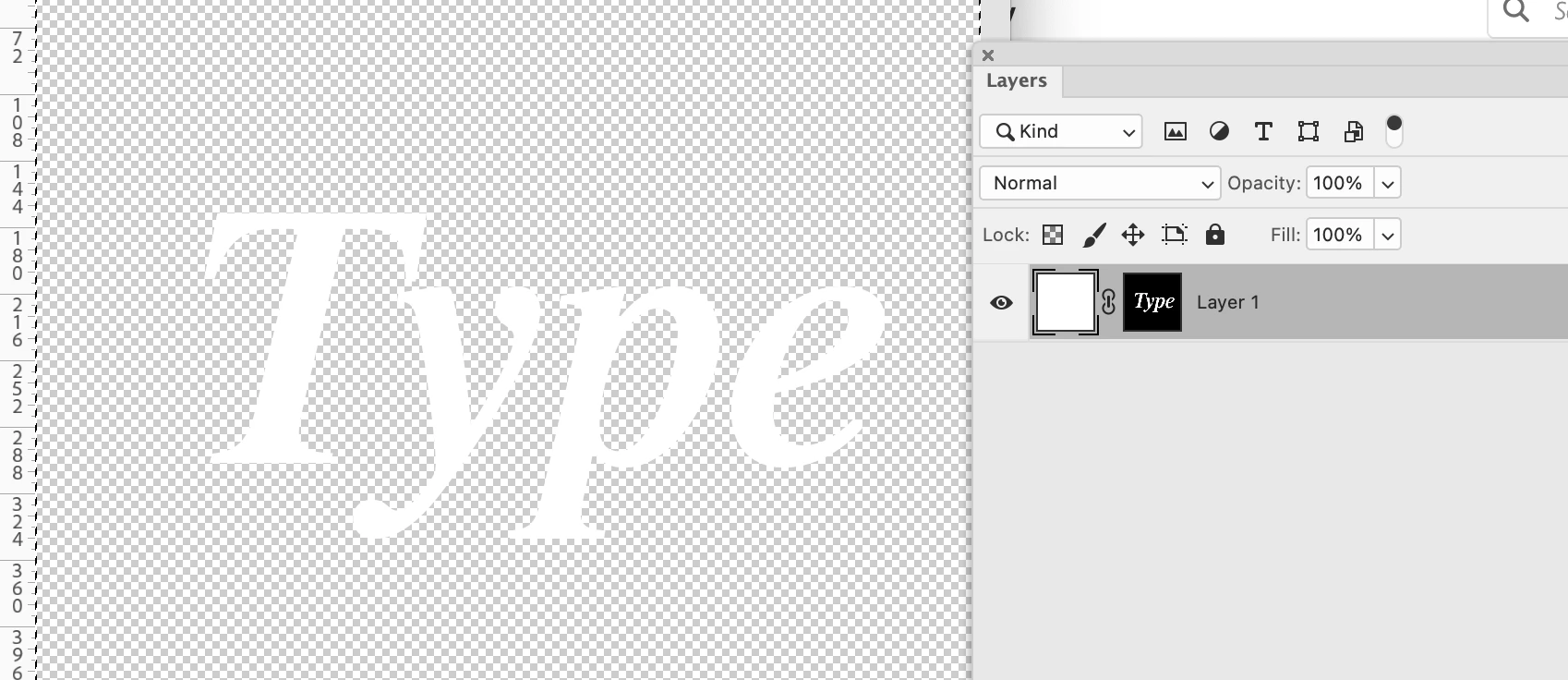
    If you want a quick method and you have Photoshop, open the file and make it into a layer mask by copying it and pasting it into a New Layer Mask layer, then fill that layer with White (or any other colour you might want). Then export the file as either PSD or PNG to preserve the transparent background.  Like so:


    6 replies

    Brad @ Roaring Mouse
    Community Expert
    Brad @ Roaring MouseCommunity ExpertCorrect answer
    Community Expert
    August 14, 2022

    If you want a quick method and you have Photoshop, open the file and make it into a layer mask by copying it and pasting it into a New Layer Mask layer, then fill that layer with White (or any other colour you might want). Then export the file as either PSD or PNG to preserve the transparent background.  Like so:


    Scott Falkner
    Community Expert
    Community Expert
    August 14, 2022

    I would open the file in Photoshop then Command-click on the RGB channel to make the image a selection. White parts of the image will be selected, black will not. I would not be sure that the black background is pure black, so some tweaking is in order.


    Press Q to enter quickmask. This will turn the selection into a channel. What you want is for white-ish areas to be white (fully selected) and black-ish areas to be black (fully unselected), so use a Levels adjustment to make dark areas black and light areas white. Press Q again.


    Now you have a selection where the text should be. Make a new layer and fill with white. Delete the original layer. Save this as a PSD or PNG. The black areas in the original image are now transparent.

    Participant
    August 13, 2022

    I think I may have figured this out for myself. 

    When using image trace, it creates one large group. If you ungroup the image trace in the properties panel, you should be able to select the black area and delete it. 

    domrsimAuthor
    Participant
    January 5, 2018

    Hi manal, looking at your example in the picture, I am trying to do the exact opposite. How do I keep the white letters where they are but have the transparent grid behind the white letters.

    I can easily do this with black letters but not with white.

    manal shanableh
    Legend
    January 5, 2018

    In my example, when i select both the black rectangle and the word, using Shape Builder tool, drag the mouse with alt, you will cut the letter from the black rectangle, it will be transparent.

    manal shanableh
    Legend
    January 5, 2018

    if the text white on black background, you can outline the text, select the text and the background,

    shape builder tool, drag with alt over the text area to remove it from background

    manal shanableh
    Legend
    January 5, 2018

    Alt to remove the letter D from the black background ( black rectangle) in my example, so you will have the words transparent.

    Monika Gause
    Community Expert
    Community Expert
    January 5, 2018

    You can just trace this.

    Then Expand.

    Then select the black elements and delete them.

    domrsimAuthor
    Participant
    January 5, 2018

    Can you walk me through how to select the black elements and delete them. I have the words traced.

    Monika Gause
    Community Expert
    Community Expert
    January 5, 2018

    You have it traced with the black and white preset?

    Now click on the Expand button.

    Then either use the direct selection tool now or ungroup the artwork.

    Select one of the black elements

    Go to Select > Same > Fill color

    Hit the delete key.

    In case you have any issues with the terminology or need more explanation:

    How to edit artwork in Illustrator using Image Trace

    How to make selections in Illustrator

    How to group and expand objects in Illustrator