Participant
May 22, 2017
Answered

Making a Live Paint Group from Pen Tool

  • May 22, 2017
  • 3 replies
  • 887 views

I'm trying to create a Live Paint Group from the highlighted area. I had an artist construct this dove and I need to color the body of it. However, the only portions I can color are the actual pen strokes themselves. How do I create a live paint group from the highlighted group of pen strokes so that the actual highlighted BODY of the bird is the group itself? Whenever I create the group it only makes the pen strokes editable while the body remains empty. I've tried to close off the gaps in between the pen strokes by manipulating the anchor points on the ends and connecting them to one another but that only gave me weird segments of live paint groups.
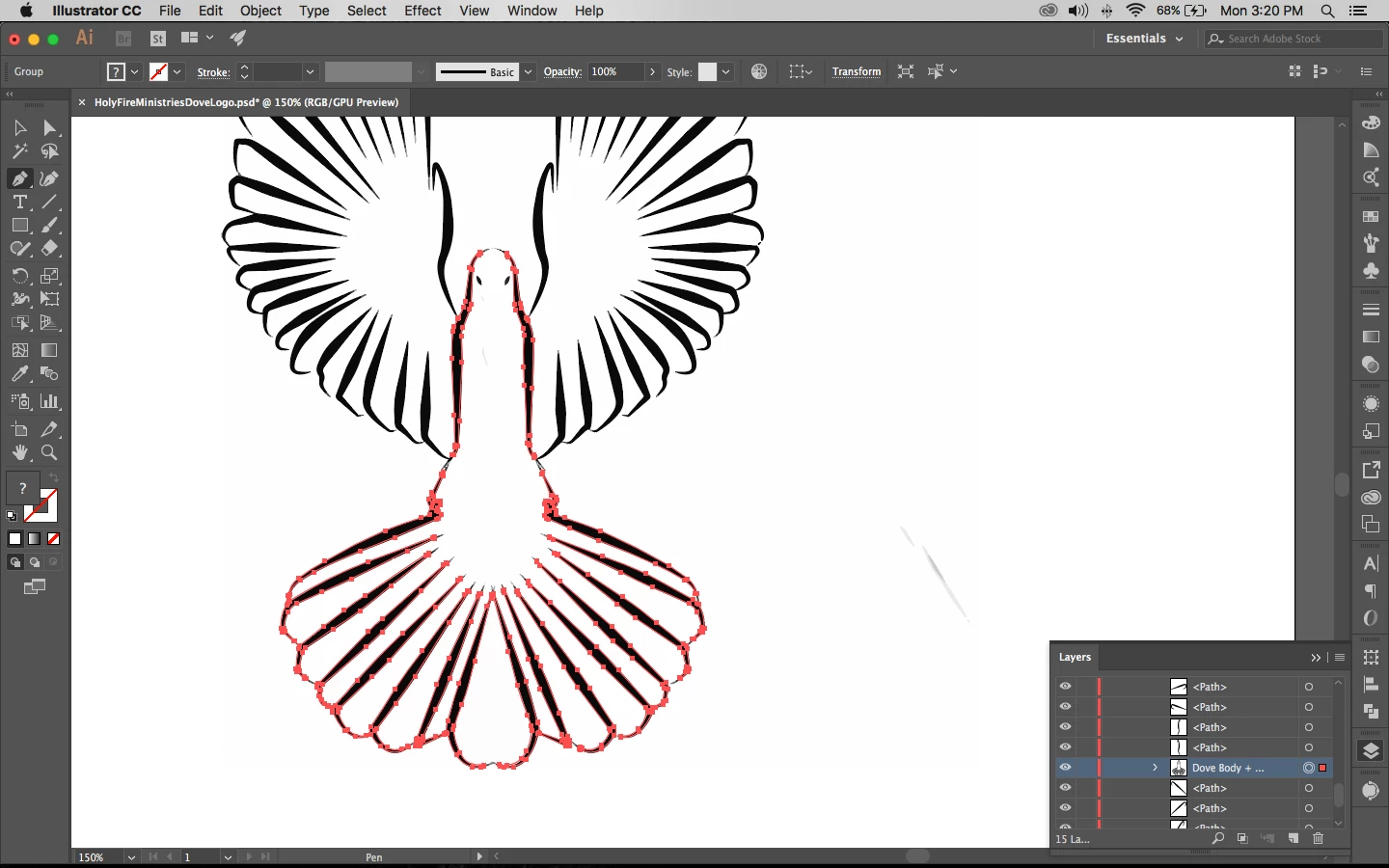
    This topic has been closed for replies.
    Correct answer rcraighead

    I would not use Live Paint for this if you are only filling with a single color or gradient.

    1. Duplicate the selected portion of the artwork.
    2. Pathfinder>Unite
    3. Select only resulting outside path (you may need to cut path(s) at mirrored center and join only the outside path).
    4. Send resulting, closed path to back and fill.

    3 replies

    rcraighead
    rcraigheadCorrect answer
    Legend
    May 22, 2017

    I would not use Live Paint for this if you are only filling with a single color or gradient.

    1. Duplicate the selected portion of the artwork.
    2. Pathfinder>Unite
    3. Select only resulting outside path (you may need to cut path(s) at mirrored center and join only the outside path).
    4. Send resulting, closed path to back and fill.
    SmartOx83Author
    Participant
    May 23, 2017

    I'm fairly familiar with Pathfinder so I'm going to make this my first option. You other guys are a big help! Thank YOU!!!!

    PrepressPro1
    Legend
    May 22, 2017

    Live paint will not allow you to fill in the white space with a color unless you make it into a closed path before you make the art Live Paint. Looks like you need to join the paths at the Top of the bird's head and the bottom of the tail. You might try to paint this with the Blob Brush.  

    Monika Gause
    Community Expert
    Community Expert
    May 22, 2017

    You don't need to close gaps before live painting. You just need to set necessary gap options.

    Monika Gause
    Community Expert
    Community Expert
    May 22, 2017

    Select all and make it into a live paint object.

    Then go to Object > Live Paint > Gap options. Turn on the Gap detection and adjust the gap size.

    Should work with your file.