Correct answer Ton Frederiks

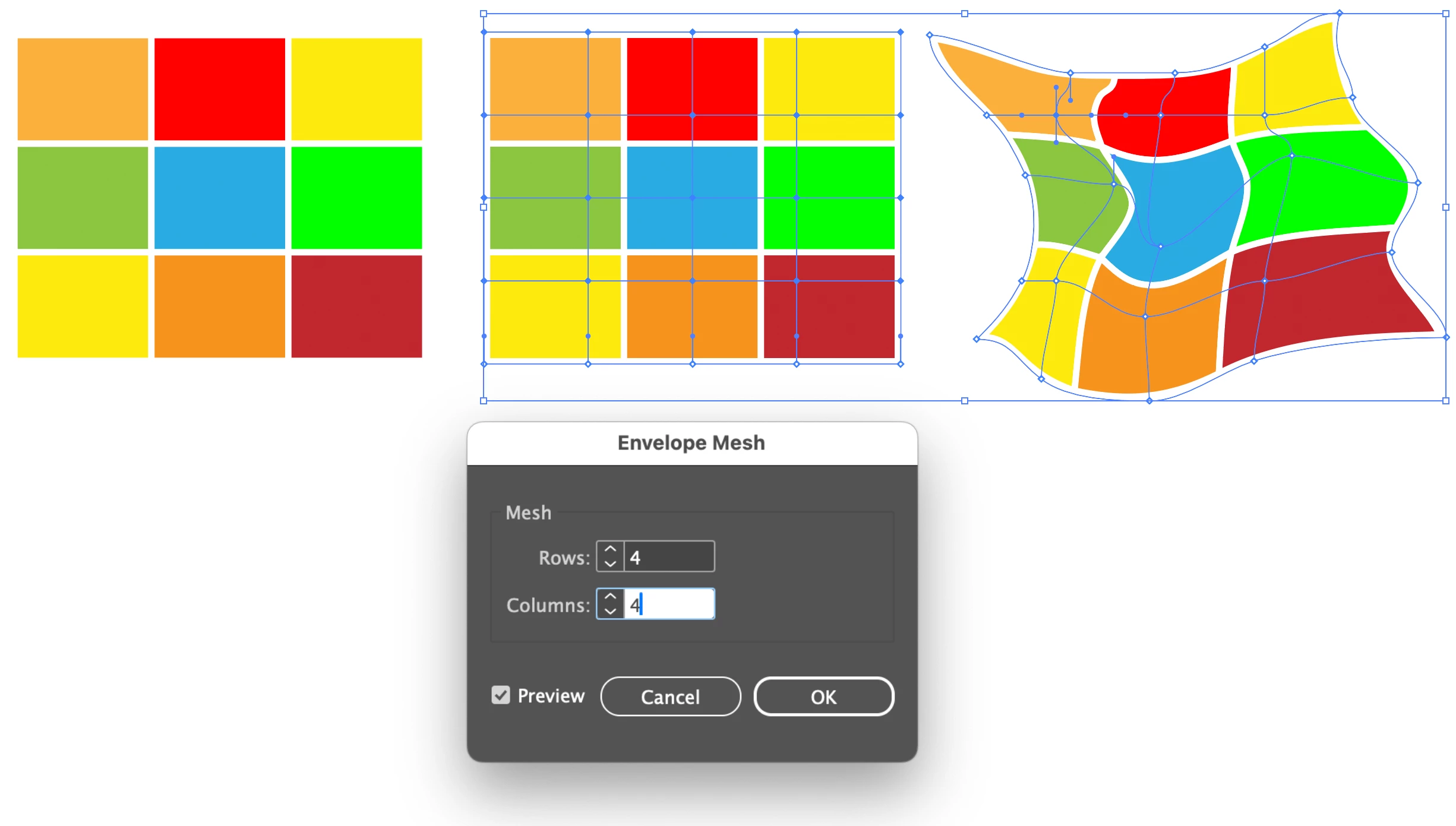
Or, create some colored rectangles.

Select them and choose Object > Envelope Distort > Make with Mesh.

Use the Direct Selection Tool to move the anchor points and direction handles of the mesh.

You have options in Object > Envelope Distort to edit the content or the mesh.

4 replies

MahaB82A
MahaB82AAuthor
August 23, 2025

Thanks for all.

Ton Frederiks
Community Expert
Ton FrederiksCommunity ExpertCorrect answer
Community Expert
August 22, 2025

Or, create some colored rectangles.

Select them and choose Object > Envelope Distort > Make with Mesh.

Use the Direct Selection Tool to move the anchor points and direction handles of the mesh.

You have options in Object > Envelope Distort to edit the content or the mesh.

Monika Gause
Community Expert
Community Expert
August 22, 2025

I do not have a video about it, but this is what I would do:

You need the pencil tool

Blends (and expanding blends)

Live paint (then expand live paint)

Outline stroke

Pathfinder Merge


https://youtu.be/WsMzVB_9zOI 

MahaB82A
MahaB82AAuthor
August 23, 2025

@ Monika

Googal language converter says "Konturlinie - Contour Line" I assume this is incorrect translation. Correct one is "outline stroke".


Monika Gause
Community Expert
Community Expert
August 23, 2025

Yes, outline stroke.


It gives me hope that Google still cannot interpret my polyglott table of Illustrator menu commands

https://www.vektorgarten.de/illustrator-polyglott.html 

Ares Hovhannesyan
Community Expert
Community Expert
August 22, 2025

You can create it with Mesh Tool, Warp Tool or Puppet warp Tool (See capture)

Create Rectangle , use Path-> Split into grid (3x3), select each rectangle, change color. 

You can use Warp Tool or Puppet warp ti Distort it.