Participant
July 11, 2022
Answered

Masking lines with transparent text box

  • July 11, 2022
  • 5 replies
  • 379 views

Hello, I'm building this venn diagram with the text interrupting the path. I'd like for the text to essentially mask out the path where the text coincides without splitting the path or "coloring" over the line with text background. Is there any way to do this?

Where the text would go: 
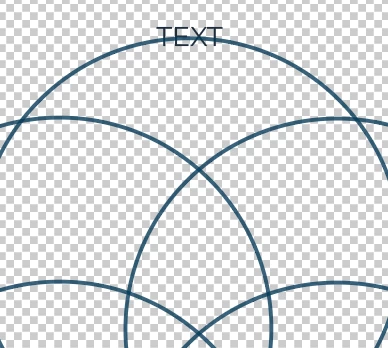
 The result I want: *done manually in Paint 3D



This topic has been closed for replies.
Correct answer SJRiegel

Here is one way:

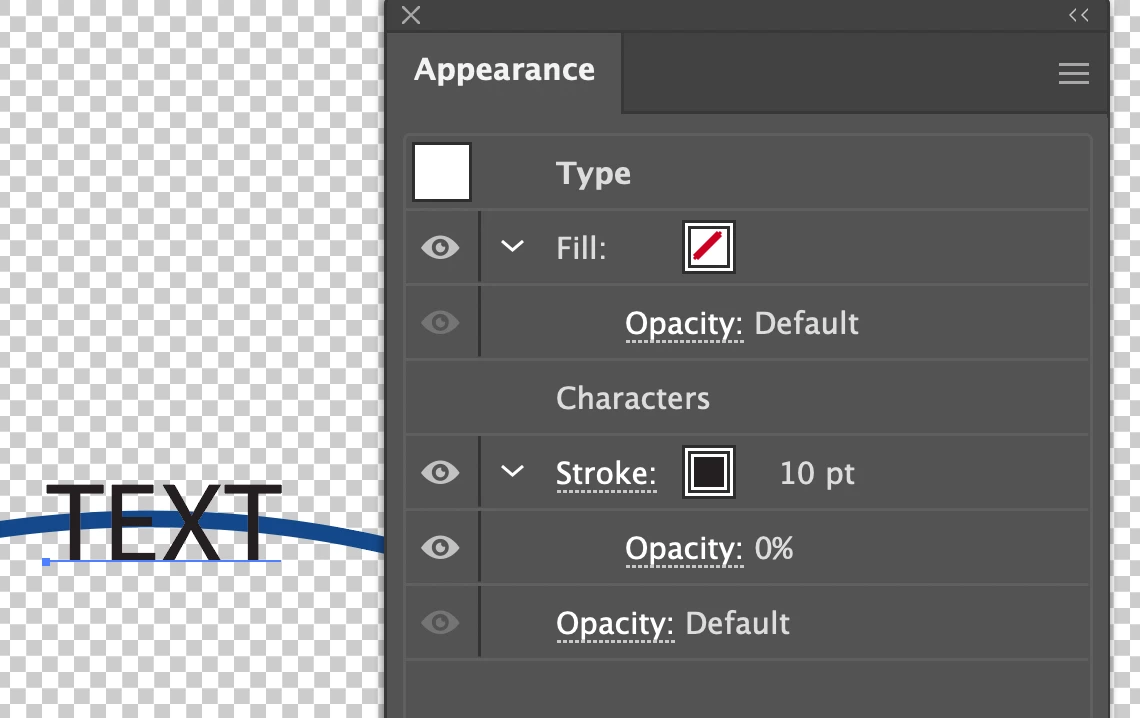
Add a heavy black stroke to your text, with an opacity setting of 0%

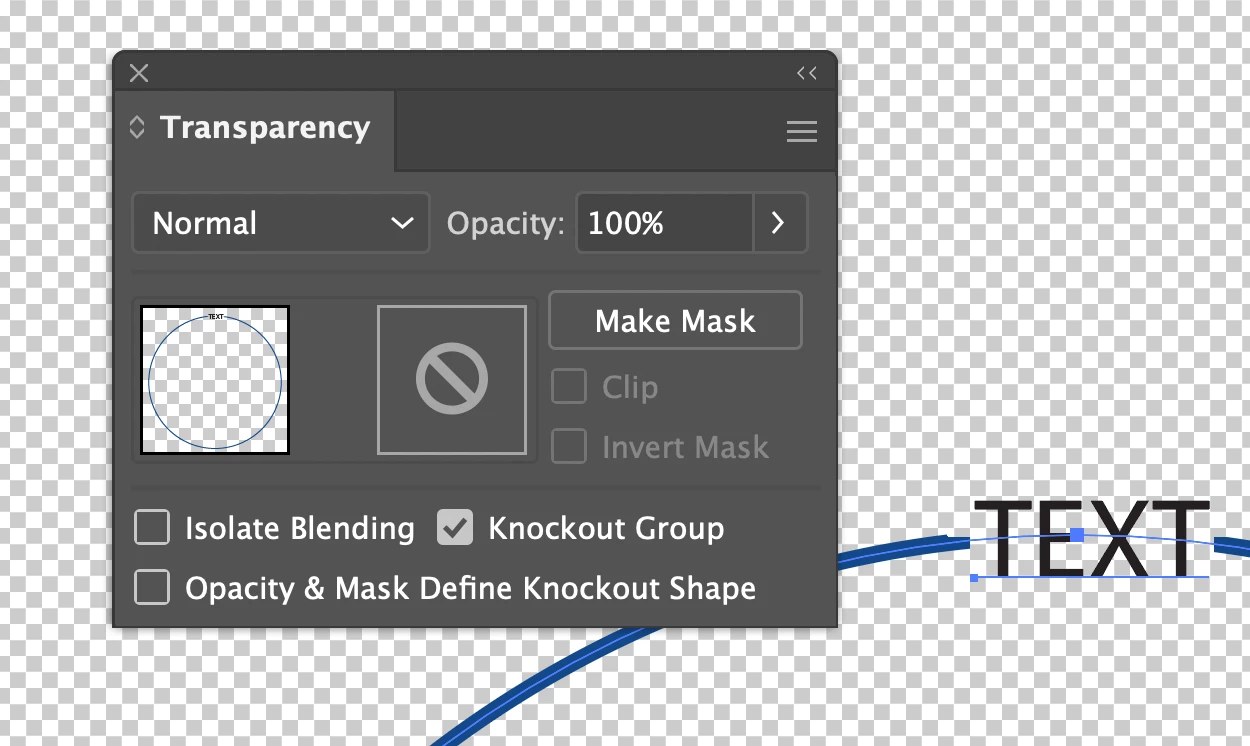
Group text with the object you want to hide, then with the group selected, check the Knockout Group box in the transparency panel.


5 replies

Participant
July 12, 2022

Awesome! I got it to work. Thank you so much! I went nuts online looking for a solution but whenever I searched masking, spacing, splitting, cutting etc. I would get other results and not what I needed. I really appreciate all your help!

Legend
July 12, 2022

Another option: combine MikeGondek's solution with mine. Make the second fill (with the rectange effect) black with 0% opacity, then Group text with underlying shape as in my first example, and check the Knockout Group box.


Mike_Gondek10189183
Community Expert
Community Expert
July 11, 2022

If you are ok with using white rather than knocking out you can make live text that adds a live automatic white recatngle around the type by using effect  >> convert to shape >> rectangle on a white fill underneath the black fill on the text. Remove the balck fil at the character level and apple at the type level in appearance.


It does this though


The pathfinder effects are tempting to resolve this, but I have never gotten them to work reliably.


SJRiegelCorrect answer
Legend
July 11, 2022

Here is one way:

Add a heavy black stroke to your text, with an opacity setting of 0%

Group text with the object you want to hide, then with the group selected, check the Knockout Group box in the transparency panel.


Participant
July 12, 2022

For some reason when grouping the text and then going to transparency I did not get the knockout group feature. It worked anyways though.

Kurt Gold
Community Expert
Community Expert
July 11, 2022

Here you can find one possible way to do it (including sample Illustrator files):


https://community.adobe.com/t5/illustrator-discussions/hiding-sections-of-layers-around-text-and-outside-of-shapes/m-p/12521216