December 11, 2025
Answered

Mensaje de error al crear nuevos documentos

  • December 11, 2025
  • 1 reply
  • 150 views

Hola.
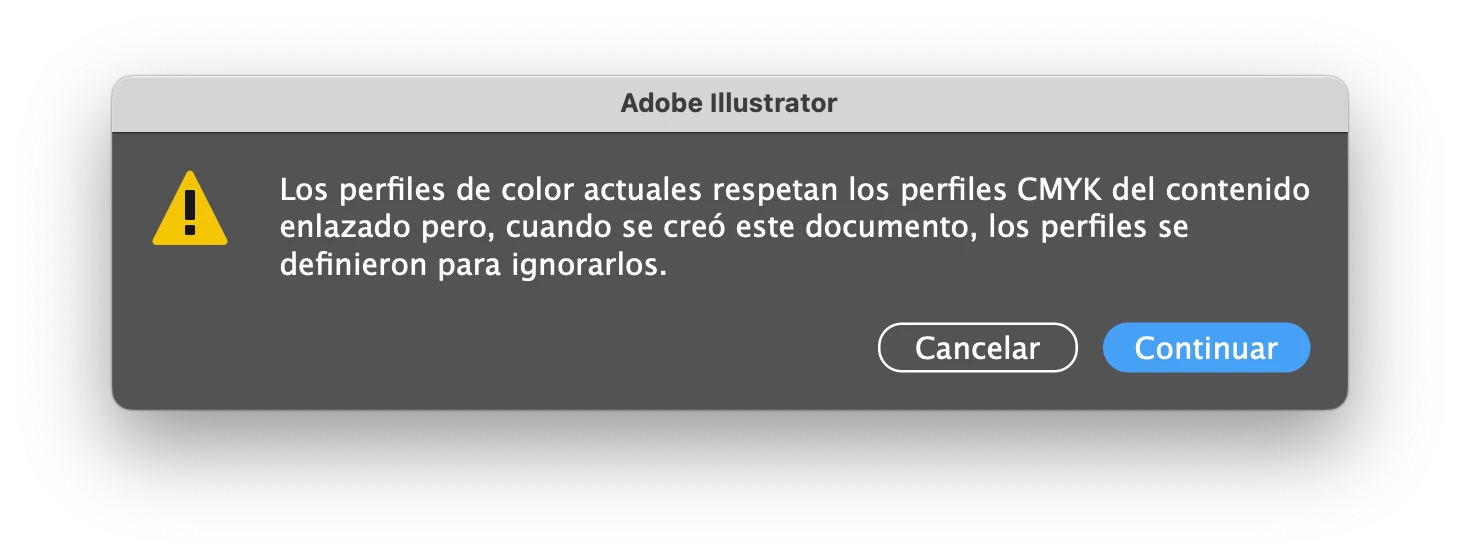
Desde hace un tiempo, cada vez que creo un documento nuevo me aparece un mensaje que dice textualmente:
"Los perfiles de color actuales respetan los perfiles CMYK del contenido enlazado pero, cuando se creó este documento, los perfiles se definieron para ignorarlos".
Primero, no sé a qué se refiere y segundo, ¿cómo puedo evitarlo?

¿Alguien puede ayudarme?

Gracias

869028iABEAE0C99F2513F2.png

Correct answer Bill Silbert

This You Tube video explains what the warning actually means: https://www.youtube.com/watch?v=8D4tHrlsA7A. However, since you are saying that it happens with new documents it sounds like there could be some program corruption going on. To restore your program to its default settings you can reset your Illustrator preferences. Hopefully, this will stop this warninh from popping up whenever you create a new document.

To reset preferences: 

For Macintosh Users: The User Library folder in which Illustrator’s preferences are stored is hidden by default on most Macintoshes. To access it make sure that Illustrator is closed and click on the desktop to launch a Finder Window (Command-N).With this window in column view follow the path User>Home folder (it’s the folder with an icon that looks like a house—it may have the user’s name rather than “Home”) and click on the Home folder. With the Option Key pressed choose Library from the Finder Go Menu. “Library” will now appear within the Home folder. Within the Library folder find the folder called Preferences and within it find the folder called “Adobe Illustrator <Version #> Settings” (earlier versions of Illustrator might just say “Adobe Illustrator”) and the file called “com.adobe.Illustrator.plist” and delete both that folder and that file. When Illustrator is next launched it will create new preference files and the program will be restored to its defaults. 

For Windows Users: You can try the quick way of resetting on a PC which is to hold down Ctrl + Alt + Shift when launching Illustrator and respond affirmatively when asked if you want to reset. There have been some recent reports that the window asking if you want to reset is not popping up but that the prefs are being reset anyway. If this works great but if it doesn’t you may have to manually delete them.

To do so:

On Windows 7 and above the preference files are hidden. To find them go to the Control Panel and open Folder Options and then click the View tab. Then select “Show hidden files and folders” or “Show hidden files, folders or drive options” in Advanced Settings. Then delete (or rename) the folder at the end of this path: C:\Users\[User Name]\AppData\Roaming\Adobe\Adobe Illustrator [version number]\ Settings\<Language>. Make sure that Illustrator is closed when you do this. When you relaunch the program it will create  new preference files and the program will be at its default settings.

The advantage of manually deleting preference files is that after you’ve reset up the program (make sure that no document window is open) to your liking, you can create copies of your personalized “mint” preference files (make sure that you quit the program before copying them—that finalizes your customization) and use them in the future to replace any corrupt versions you may need to delete.


1 reply

Bill Silbert
Community Expert
Bill SilbertCommunity ExpertCorrect answer
Community Expert
December 11, 2025

This You Tube video explains what the warning actually means: https://www.youtube.com/watch?v=8D4tHrlsA7A. However, since you are saying that it happens with new documents it sounds like there could be some program corruption going on. To restore your program to its default settings you can reset your Illustrator preferences. Hopefully, this will stop this warninh from popping up whenever you create a new document.

To reset preferences: 

For Macintosh Users: The User Library folder in which Illustrator’s preferences are stored is hidden by default on most Macintoshes. To access it make sure that Illustrator is closed and click on the desktop to launch a Finder Window (Command-N).With this window in column view follow the path User>Home folder (it’s the folder with an icon that looks like a house—it may have the user’s name rather than “Home”) and click on the Home folder. With the Option Key pressed choose Library from the Finder Go Menu. “Library” will now appear within the Home folder. Within the Library folder find the folder called Preferences and within it find the folder called “Adobe Illustrator <Version #> Settings” (earlier versions of Illustrator might just say “Adobe Illustrator”) and the file called “com.adobe.Illustrator.plist” and delete both that folder and that file. When Illustrator is next launched it will create new preference files and the program will be restored to its defaults. 

For Windows Users: You can try the quick way of resetting on a PC which is to hold down Ctrl + Alt + Shift when launching Illustrator and respond affirmatively when asked if you want to reset. There have been some recent reports that the window asking if you want to reset is not popping up but that the prefs are being reset anyway. If this works great but if it doesn’t you may have to manually delete them.

To do so:

On Windows 7 and above the preference files are hidden. To find them go to the Control Panel and open Folder Options and then click the View tab. Then select “Show hidden files and folders” or “Show hidden files, folders or drive options” in Advanced Settings. Then delete (or rename) the folder at the end of this path: C:\Users\[User Name]\AppData\Roaming\Adobe\Adobe Illustrator [version number]\ Settings\<Language>. Make sure that Illustrator is closed when you do this. When you relaunch the program it will create  new preference files and the program will be at its default settings.

The advantage of manually deleting preference files is that after you’ve reset up the program (make sure that no document window is open) to your liking, you can create copies of your personalized “mint” preference files (make sure that you quit the program before copying them—that finalizes your customization) and use them in the future to replace any corrupt versions you may need to delete.

SGC-QESAuthor
December 11, 2025

Fix it.
Thanks a lot for your help.

Have a nice day.