
ImWorkingHere-yahmQ8
Participant
January 15, 2019
Answered

Merged-path around circle

  • January 15, 2019
  • 4 replies
  • 723 views

Hey all,

Sorry to ask this here, but I cannot find a clear answer in this issue.

Here's what I have:

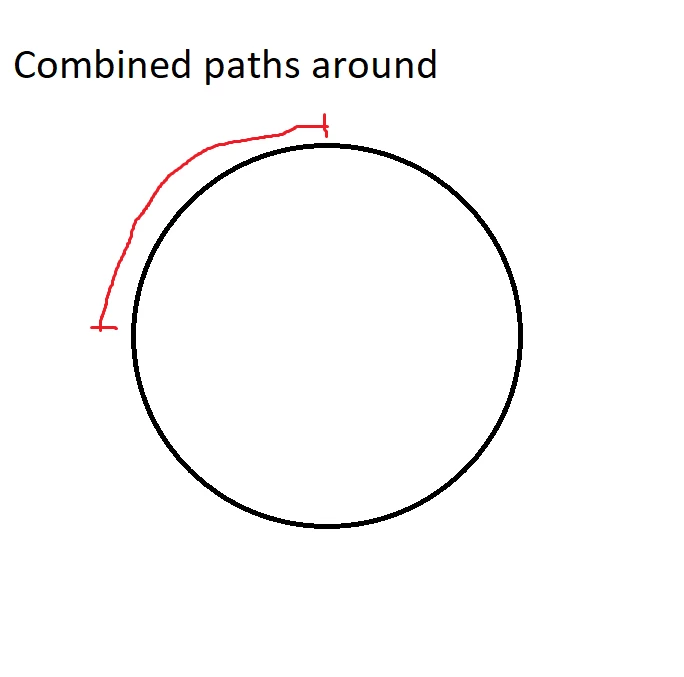
-"Combined paths around" from the image is not editable text, but "merged/combined path". [[in Dutch "samengesteld pad"]]

What I need is to have this "merged path-text" following the red line, without size-effects, or zoom-in.

Each letter is a seperate layer on this.

I'm looking for a way where it would just align like you would use Text-on-a-path way.

Is this possible to do?

Thanks!
This topic has been closed for replies.
Correct answer Kurt Gold

In case you are talking about type that has been converted to paths, you may want to create a brush and apply it to a circle or a segment.

4 replies

ImWorkingHere-yahmQ8
Participant
January 15, 2019

Thank you very much for your help, but it seems that I will need to find another solution, as this one isn't working out for me.

Kurt Gold
Community Expert
Kurt GoldCommunity ExpertCorrect answer
Community Expert
January 15, 2019

In case you are talking about type that has been converted to paths, you may want to create a brush and apply it to a circle or a segment.

ImWorkingHere-yahmQ8
Participant
January 16, 2019

I found that this was the answer I was looking for, Kurt. Thank you very much!

I thank you all for the answers you have provided me with.

ImWorkingHere-yahmQ8
Participant
January 15, 2019

Hey, thanks both!

Well, I'm trying to do the steps, Jacob, but when I select "Set Spacing-Specified Steps" to 1 (or any other number)

I get this:

What am I doing wrong here?

Jacob Bugge
Community Expert
Community Expert
January 15, 2019

workinghere,

You are doing nothing wrong, those intermediary funny shapes are only temporary, to be removed again in 5), and then the letters should be fine, so you can just go on.

tromboniator
Community Expert
Community Expert
January 15, 2019

If I understand you, create the type with the Type on a Path tool applied to a circle, select the whole type object (not just the type itself), then go to Type menu > Create Outlines. The text will now be a group of paths rather than live type.

Peter

Jacob Bugge
Community Expert
Community Expert
January 15, 2019

workinghere,

As I (mis)understand it, you may use this way, if it is all right to have the circle part run through the centres of the (compound) paths:

0) Cut the circle where you wish to have the centres of (the (Bounding Boxes of) the first and last objects;

1) Place all the shapes with equal spacing (or distributions, whichever is preferable) horizontally;

2) Object>Blend>Blend Options, set Spacing>Specified Steps = 1, and Orientation>Align to Path;

3) Object>Blend>Make;

4) ShiftSelect the circle cutout and Object>Blend>Replace Spine;

5) Object>Blend>Expand, then Direct Select the intermediate funny shapes and delete them.

This will give you the desired distribution of your shapes as a Group (or in 5) you may Ungroup and just Select the funnies and have the shapes ungrouped).

If you wish to have the circle act like the baseline as in Path Type (running under the (compound) paths, you will have to first create a set of mirrored copies beneath the baseline and give them an Opacity of 0, then Group each with its visible counterpart.

So it is much simpler to create the circle that bit larger.

tromboniator
Community Expert
Community Expert
January 15, 2019

Once again, Jacob, your understanding surpasseth mine. I''m off to bed.

Jacob Bugge
Community Expert
Community Expert
January 15, 2019

Peter,

Actually, I considered my suggesting what you suggested, but made the possibly wrong assumption that it was out of the question owing to a lack of the the original wording/font, so quite likely it would rather be my misunderstanding surpassing yours.

Off to bed, that seems to be so late that it is early.